Unplugfest 2025 Know Before You GO!

Z-Wave UnplugFest 2025 will be held at the Lake Elsinore Skydive center in California October 28, 2025. Here are a few things you need to know before heading out to test your Z-Wave device and your BRAVERY!

Travel Plan for Z-Wave Unplugfest 2025 in Lake Elsinore California

Before You Head to Unplugfest

  1. IF YOU HAVE A Battery Powered End Device (FLiRS or Sleeping EM4):
    1. Your End Device MUST have the Listening Bit Set and thus be an Always-On device
      1. Temporarily alter your firmware to be Always-On. In SSv5 open the <project>.SLCP file, Click on Software Components, Scroll down to Z-Wave, Click on Role Types, Install Z-Wave Role Type Always On, You can switch it back later or make a copy of your project specifically for Unplugfest
      We will be using ZRADmini boards with a GPS receiver to track the exact location during Z-Wave Long Range testing. Your device does NOT have to support Geographic Location V2. Your device will be one of up to 2 other devices that will be tracked using a GPS enabled ZRADmini during RF Range Testing. However, for the maximum accuracy of RF Range testing you can add GeoLocV2 with a GPS module to your end device
    1. If your End Device can be powered via USB-C, we will have that covered, otherwise bring sufficient batteries for several hours of continuous operation
  2. Your End Device must have a visible QR code and PIN on it – all devices will be joined with S2 Authenticated or Access keys
  3. Bring your own source of POWER – Especially for Controllers
    1. We hope to have limited amount of 120VAC power from the Skydive center BUT maybe not!
    1. Better to bring your own battery inverter like a Jackery
  4. Are you brave enough to go skydiving?
    1. Signup here – Recommend you book online ahead of time!
  5. Arrive by Monday – the bus LEAVES at 9:00am SHARP Tuesday morning on a 75 minute drive
  6. Bring extra units, WSTK to reprogram units, firmware project, extra cables, batteries, tape, etc.
    1. Plan on things failing so bring extras! Unplugfest always seems to follow Murphys Law

Timeline for the 2025 Z-Wave UnplugFest

  • 8:00am – Gather at hotel Cassara lobby and board the bus at 8:45
  • 9am SHARP – bus leaves for Elsinore airport – 1+hr
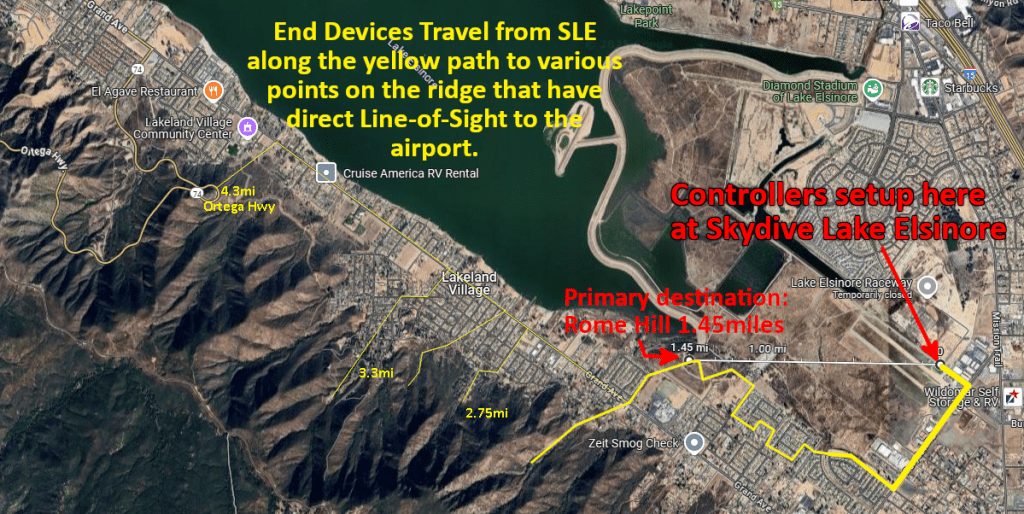
  • 10:30 – setup at end of Cereal St or at Skydive Elsinore
  • 11am-3pm – RF Range Testing
    • If weather permits, JonLuke West will skydive while tracking altitude via GPS
      • If you’re brave enough, join him on a tandem jump via Skydive Elsinore!
        • Must be booked in advance which YOU must call and arrange yourself!
      • Or soar in a 17m sailplane however the plane is metal which may block RF
    • Eric will have one ZRAD as a Controller and another as an End Device with Geographic Location V2 and a GPS receiver to track the exact locations of up to 3 additional devices at a time
      • DUTs can run standard firmware (without needing GeoLocV2) and will confirm their range using fully secure Get/Report while obtaining the GPS coordinates from ZRAD
      • All devices must be joined with S2 Authenticated Security enabled and US Long Range
  • Noon Box Lunch for all who registered for Unplugfest
  • 3:00pm Testing Ends – Board Bus
  • 3:15pm SHARP – Bus departs
  • Wrap Up discussion – 3:30pm-4:30pm on the bus
    • Discussion with all attendees on findings and general discussion of Unplugfest, Z-Wave, development tools, the market, the latest football scores, and the best beer in Carlsbad
  • The Z-Wave Summit kicks off in the hotel at 5:30pm

Check out the video from the 2024 Unplugfest in Austin TX: ZWA2024AustinUnPlugFest.mp4 and DrZWave’s blog post: https://drzwave.blog/2024/05/08/z-wave-summit-2024-austin-tx/ and JonLukes 2.7mi Z-Wave Skydive: https://youtu.be/lcuyDC128cQ?si=09wVd3cDV89326wW

Z-Wave Summit 2024 – Austin TX

The Z-Wave Summit & UnPlugFest took place last week in Austin TX. If you missed it, here is a quick Recap. I organized the UnPlugFest on Tuesday which included an RF Range test down the Colorado River right in downtown Austin. The Z-Wave Alliance Reference Application Design (ZRAD) won the maximum range with a distance of 1.1miles (1.7km) which wasn’t quite line-of-sight (LOS). I produced a video of the event which you have to be a member of the Alliance to gain access. Virtually all of the other Z-Wave Long Range Devices tied in a close second place at 0.7mi (1.1km) however we had limited LOS points to test at bridges across the river. We proved that PCB antennas and shipping Z-Wave devices in a noisy RF environment can easily achieve over a kilometer of range. Note that we measured the range where we are getting 100% corruption free, fully encrypted packets at 100kbps. Obviously we could go much farther if we are just trying to get a NOP to ACK but that’s not useful even though other protocols use that as their yardstick.

The Open Source Work Group met in-person in the afternoon to work on finalizing User Code Command Class. Additional Range testing was measured inside the hotel (with concrete floors) where most devices were able to pass thru several floors. Late in the afternoon was the Fireside Chat where we aired our hope, desires and disappointments for Z-Wave. Watch for a survey coming out soon!

Tuesday evening is the network event which was hosted by Silicon Labs where all the Z-Wave personalities meet and renew friendships and business relationships.

My presentation on the Z-Wave Alliance (ZWA) Reference Application Design (ZRAD) is a preview of the soon to be released github project. There were lots of presentations on all sorts of IoT related topics. You can find the presentation on the ZWA members web site.

FUN! Electric Shuffle

After the UnPlugFest and a full day of presentations it was time to relax and join the competition at Electric Shuffle.

Summit Takeaways

This is my personal set of takeaways. Please add yours in the comments below!

  • Z-Wave is very much alive!
    • Lots of new products have been certified and more are in the pipeline
    • Most are Z-Wave Long Range
  • Z-Wave spec and Open Source Code continues to improve
  • Z-Wave Long Range is indeed Long Range!
    • Over 1mi LOS in downtown Austin – over 2mi proven in NH
  • Certification for an SDK Update is Review ONLY!
    • No need to redo the entire certification process to update the Z-Wave SDK
    • Previously a full re-cert was required ($$$!)
    • Now you can get the latest bug fixes/security patches and just file paperwork for cheap
  • Can add Z-Wave Long Range (ZWLR) to a device and keep the same FCCID
    • Can OTA devices already in the field to add ZWLR!
    • Requires working with the “right” FCC test house and FCC must be redone with the new frequencies
    • Talk to Trident for more details
  • Why is the RF range so short in the EU for many devices?
    • 500 series devices can only transmit at -1dBm (hardware limitation)
    • 700/800 can transmit at +14! More than twice the range!
    • Update those EU devices!
  • USB Zniffer firmware can capture BOTH ZWLR frequencies
    • Select US_LR_END_DEVICE for the region to get ONLY the 2 ZWLR channels (no mesh channels)
    • Select US_LR_BACKUP to get the ZWLR B channel and mesh channels
    • Select US_LR to get ZWLR A channel and mesh channels
  • Z/IP Gateway has a maintenance release expected in June but there will probably only be 1 more maintenance release before it EOLs
    • Switch to Unify or Z-Wave JS soon!

Team Z-Wave Development Using Git

Silicon Labs Simplicity Studio v5 (SSv5) has a steep learning curve but once you’re up the curve it can accelerate an IoT firmware development. However, sharing the project among several engineers isn’t as straightforward as it should be. Fortunately it is actually quite easy once you know the trick which I explain below.

Step 1 – Create the Repo

Create the repository using Github or your own private server. Typically this is done via a browser which also sets various options up such as the language and the license. Once this has been created, copy the name of the repository to use in the next step.

Step 2 – Clone the Repo locally

Clone the repo onto your computer using the typical “git clone HTTPS://github.com/<gitusername>/<projectName.git>“. Choose a folder on your computer that is convenient. I recommend the folder be under the SSv5 workspace folder which will make finding it later a little easier.

Step 3 – add a .gitignore file

Create a file at the top level of the repo to ignore the files you do not need to put under source code control. Use the lines below and include any other files or folders as needed. You may want to include the .hex, .gbl, .map, and .axf files which are under the GNU* folder or copy them to another folder so you have the binary files in case building the project proves to be difficult. Note that I am NOT checking in the SDK which is huge and Silabs keeps even quite old versions on github and via their website. Thus you don’t need to keep a copy of the SDK on your local servers – but you can if your are that kind of person.

################ Silabs files to ignore #####################
# Ignore the Build Directory entirely
GNU*
# Other SSv5 files to ignore
.trash
.uceditor
.projectlinkstore
*.bak

Step 4 – Create the SSv5 Project

Create the SSv5 project within this folder. Typically this is done using the Project Wizard or selecting one of the sample applications. Be sure to locate the project within the repo folder.

Step 5 – Commit the Files

Commit the files to the repo using:

git add *
git commit -am "Initial checking"
git push

At this point you can either clone the repo into a different folder to see if it works or have a team member clone it onto their computer. Try building the project to see if there are any missing files.

Step 6 – Import the Newly Cloned Repo into SSv5

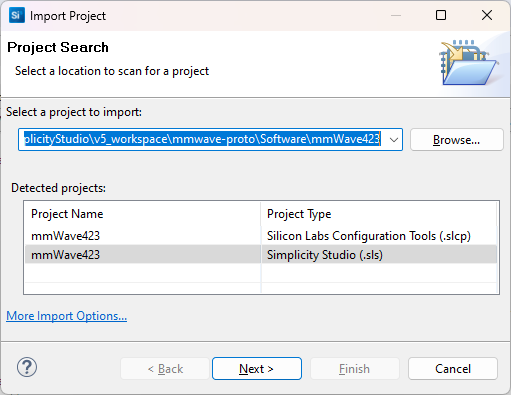
This is the tricky bit! We’re going to Import the project into SSv5 but the TRICK is to import it into the cloned repo folder. By default, SSv5 will make a COPY of the project when importing. The problem with that is that you then lose the connection to the git repo which is the whole point!

Use “File – Import” then browse to the cloned git repo folder. The project name should show up with a Simplicity Studio .sls file. Select this file by clicking on it then click Next.

Then the next screen pops up. Ensure the proper compiler is selected for the project! GCC10 or GCC12! These settings should come from the .sls so you shouldn’t need to change them.

Click on Next

THIS IS THE MOST IMPORTANT STEP! In the next screen, UNCHECK the “Use Default Location” button! Click on Browse and select the repo folder.

Click on Finish. Then check that the project builds properly.

Team members can now work collaboratively on the project and manage the check in/out and merging using standard git commands.

When the project is complete, be sure everything is checked in and the repo is clean, then in SSv5 right click on the project and select delete. But do not check the “delete project contents on disk” checkbox unless you want to also delete the local repo. This removes the project from the workspace in SSv5 but leaves the files where they are. You can clean up the files later.

The key to using git with SSv5 is to UNCHECK the Default Location button during the import. If you leave that checked, or browse to the wrong folder, SSv5 will make a COPY of all the files and you lose the connection to the git repo.

Installing UART Drivers in a Z-Wave Project

I have a simple problem – I have a sensor module with a simple uart interface that I need to connect to my Z-Wave project. Ther UART is used to configure the sensor and then it will send sensor readings at regular intervals. Simple right? Turns out the path is not so simple for Silicon Labs Simplicity Studio. Let’s go step by step through my journey to implement this interface on the Silicon Labs EFR32ZG23.

Typical UART Driver

Embedded engineers expect the UART driver to consist of the following functions:

  • UART_INIT(Baud, data_bits, stop_bits, parity, options)
    • Initialize the uart with the desired baud rate and options
  • UART_GETCHAR()
    • Return 1 character
  • UART_PUTCHAR(char)
    • Send 1 character
  • UART_PUTS(string) – nice to have
    • Put a string of characters – simply calls UART_PUTCHAR for each char in the string

Since most MCUs contain multiple UARTs, these basic functions need a pointer to which UART is being accessed. Typically a pointer to the desired UART is added to each function and then these are wrapped in macros with the UART number in the macro name such as: UART0_INIT and EUSART2_PUTCHAR. Extensions from these basic functions generally involve buffering data or being blocking or non-blocking (IE: polled or interrupt driven) and selecting GPIOs. Pretty standard stuff, easy to understand, easy to use, does what you expect with minimal code and effort.

Note that these functions are independent of the hardware. The engineer does not need to read the manual (RTFM) to be able to use them. If any of the fancy features of the UART are needed, the engineer will RTFM and then write the appropriate registers with the appropriate values to enable the desired feature. Hopefully the manual is detailed enough for the engineer to get the desired function to work without a lot of trial and error (unfortunately this is rarely the case). But less than 1% of the engineers will ever need those fancy features which is why these simple functions are the foundation of most UART drivers.

Now follow my efforts to interface this simple UART sensor with an EFR32 with the expectation there will be an API similar to the Typical UART Driver described above.

Step 1: What do I need? – 5 minutes

RTFM of the sensor to find the basic UART interface requirements. The manual states it uses a baud rate of 256000, 1 stop bit, no parity. The manual was clearly written by someone who did not have English as their first language as it also states “the sensor uses small-end format for serial communication” which I’m assuming means little-endian? Could it mean the bit ordering of each byte is LSB first? The limited information in the manual means I’ll be doing some trial-and-error debugging. The manual is thin, only 23 pages so it only took about five minutes to find this information.

Step 2: What does the EFR32 have? – 10 minutes

I’m using the Silicon Labs EFR32ZG23 which has three EUSARTs (enhanced UART) and one USART. All four have lots of features including SPI as well as normal UART functionality. The datasheet describes EUSART0 as being able to operate in lower power modes and USART0 (apparently not “Enhanced”) as having IrDA, I2S and SmartCard features. None of these extra features are needed for my application. EUSART0 and EUSART2 have limited GPIO connections thus I don’t want to use either of those as I want the maximum pinout flexibility offered by EUSART1. The EFR32ZG23 datasheet is 130 pages but searching for “UART” (then “USART” since UART has only 1 hit) got me this much information in about 10 minutes. Later I stumbled on the fact that the EUSARTs have a 16 byte hardware FIFO on both the send and receive side vs. the UART which just has two byte. This is deep in the xG23 Reference Manual and not mentioned in the datasheet. A 16 byte FIFO means the EUSART is a winner! Why bother including the USART?

Step 3: Open Simplicity Studio and Explore APIs – 60 Minutes

Open Simplicity Studio v5 (SSv5) which is the IDE for developing and debugging code for the EFR. I had already built a basic project starting with the Z-Wave SwitchOnOff sample app and was able to toggle an LED on my custom PCB. I had already created a bootloader, updated the SE, built and customized the sample app, joined a Z-Wave network and been in the debugger getting other parts of the project working. Now it was time to talk to the sensor so the first place to look is to click on the .SLCP file, then Software Components then search for “UART”. SSv5 then gives a long list of various drivers for various platforms, protocols, and applications. But all I want are the 4 functions listed above, why is this so complex already? There are no UART drivers for the Z-Wave protocol which is unfortunate as in the 500 series we did have the basic 4 functions prior to the move into SSv5. The first entry is Application->Utility->Simple Communication Interface (UART). The description talks about it being used for NCP communication but I’m not using NCP in this case so pass this one up. Next is Platform->Bootloader with four flavors of drivers but they are part of the bootloader and not the application so maybe not what I need? Next is Platform->Driver->UART which looks promising which I’ll discuss it in more detail shortly. Next is Services->Co-Processor Communication->secondary device->Driver which again has a single line description for a co-processor but no details of why I would use it so pass on this one too. Next is Third Party->Amazon FreeRTOS->Common I/O IoT UART which while I am using FreeRTOS I am not using the Amazon flavor. Looking at the link in the description there are similar functions to the 4 I want but with somewhat more OSish sounding names. Finally there are WiSun, Zigbee and Silicon Labs Matter drivers each with just 1 line descriptions and seem to be specific to the protocol. They also seem to be specific to Silicon Labs DevKit boards but I’m not using a DevKit, I have my own custom board so these don’t seem to be usable either. This is a case of information overload and simply sorting thru the options seems like a waste of time. Why are there so many flavors of this common API?

I had enabled DEBUGPRINT in the Z-Wave sample app so I was already aware of the IO Stream EUSART driver which is what the printf functions sprinkled thru the Z-Wave code use. With all of these options I spent about 1 hour reading just the section headings of the documentation looking for the simple function I need. Next step is to “install” a driver and try it out.

Step 4: UART Driver – IO Stream – 60 minutes

Since DEBUGPRINT uses the IO Stream driver, I assumed that would be the way to go for my use case as it should share most of the code already. I clicked on the + Add New Instances in SSv5, selected the desired baud rate, start/stop/parity and named the instance to differentiate it from the “vcom” instance used by the DEBUGPRINT utilities. The documentation is online and is versioned so I browsed thru that looking for my 4 functions. There is an Init routine and an IRQ handler but I was looking to avoid interrupts at least until I have have finished the trial-and-error of getting the sensor to send anything intelligible. I spent an hour trying to understand how this works without a PUTCHAR when I finally understood that only the “last stream initialized” “owns” the PRINTF functions. Since this driver uses DMA and interrupts it is way more complicated than I need and I don’t want to interfere with the DEBUGPRINT utilities. Uninstalled the IO Stream driver instance after wasting 60 minutes RTFMing and trying to follow the code.

Step 5: UART Driver – uartdrv – 6 hours

Going back to SSv5 and looking thru the options for UART Drivers I found Platform->Driver->UART->UARTDRV EUSART and installed it. SSv5 let me enter the board rate, parity, stop bits and several other options. I picked EUSART1 since it is able to drive all GPIOs and connected the proper GPIOs from my schematic. SSv5 installed a bunch of files mostly in the config folder and specifically the sl_uartdrv_eusart_mod_config.h which held the baud rate and various other UART settings. Next step is to look thru the documentation for my 4 simple functions. Unfortunately there are 27 functions and nothing obvious being the ones I need. But, I sallied forth and spent time reading the manual as well as looking thru the code and eventually was able to add enough code to my project to receive at least a few bytes. But the bytes I received don’t match the values the sensor should be sending. The other problem is that the UARTDRV_Receive function appears to wait for the buffer I gave it to fill up before returning. But I need to have each byte returned to me so I can decode which command is being sent and each one is a different size. These functions are way too complicated, the documentation is sparse and confusing and the API doesn’t have usable functions for my (or any?) application. I spent the better part of a day trying to get this “driver” to work but in the end it was taking me more time to figure out how to use it than if I just wrote my own.

Step 6: Peripheral – EUSART – 3 hours

I went back to SSv5 and searched for USART instead of UART and this time I found Platform->Peripheral->EUSART. This low level API is already installed I assume via the IO Stream for the DEBUGPINT utilities. The documentation lists 23 functions in the API but many of these are specific to the modes I’m not using like SPI or IrDA so I can simply ignore those. There is an Init function and EUSART_Rx and EUSART_Tx which are basically GetChar and PutChar. The API does not setup the clocks or the GPIOs but the examples explain how to do that. The documentation is clouded with all the many features like 9-bit data and SPI making it harder to decipher how to do basic UART operations.

Looking at the EUSART_UartInitHf function it becomes immediately obvious that this code is trying to be all things for all applications on all Silabs chips. The code both doesn’t do enough and does way too much at the same time! For example, the code writes all the registers back to their default value. Which is necessary if the UART is in an unknown state and is certainly the safe thing to do. However, this type of thing is rarely ever needed as the application will power up the chip, set the UART configuration once, and then never change it again. Maybe the baud rate will change but that function will write the necessary registers without needing everything to be set to the default. Not only is there a ton of code but there are several good size structures which are wasting both FLASH and RAM. Embedded systems are defined by the limited resources which include CPU time, FLASH and RAM. Drivers should be efficient and not waste these valuable resources. If an application needs to reset every register in the UART, then let the 0.001% of customers write their own! I gave up after spending another morning reading and trying stuff out and trying in vain to follow the code. Too complicated!

Step 7: Write My Own UART Driver – 2 hours

I spent less than two hours writing my own UART drivers. Why would I do that? Because it was easy and does exactly what I want with easy to understand code that anyone can follow. My driver is not universal and does not handle every option or error condition. But it does what 99% of applications need. The code is less than a few dozen bytes and uses only a few dozen bytes of RAM. The more lines of code, the more bugs and this code is so small you can check it by inspection.

Most of those two hours were spent reading documentation and trying to find where the interrupt vectors are “registered”. Turns out startup_efr32zg23.c in the SDK assigns all the vectors to a weak Default_Handler. All I had to do to “register” the ISR is give the function the proper name and the compiler plugs it into the vector table for me.

I did spend perhaps another couple of hours figuring out how to add an event to the ZAF_Event_Distributor, adding the event and some additional code to search for the proper sensor data in the byte stream. The key is in the ISR to use ZAF_EventHelperEventEnqueueFromISR to put an event into the FreeRTOS queue which is then processed in the zaf_event_distributor_app_event_manager function in SwitchOnOff.c.

Below is UART_DRZ.C which has the three functions needed and an interrupt service routine to grab the data out of the EUSART quickly and the let the application know there is data available.

/*
* @file UART_DRZ.c
* @brief UART Driver for Silicon Labs EFR32ZG23 and related series 2 chips
*
* Created on: Jul 10, 2023
* Author: Eric Ryherd - DrZWave.blog
*
* Minimal drivers to initialize and setup the xG23 UARTs efficiently and provide simple functions for sending/receiving data.
* Assumes using the EUSARTs and not the USART which has limited functionality and only a 2 byte buffer vs 16 in the EUSART.
* Assumes high frequency mode (not operating in low-power modes with a low-frequency clock)
* This example just implements a set of drivers for EUSART1. The code is tiny so make copies for the others as needed.
*/

#include <em_cmu.h>
#include <zaf_event_distributor_soc.h> // this is new under GSDK 4.4.1
#include "UART_DRZ.h"
#include "events.h"

// Rx Buffer and pointers for EUSART1. Make copies for other EUSARTs.
static uint8_t RxFIFO1[RX_FIFO_DEPTH];
static int RxFifoReadIndx1;
static int RxFifoWriteIndx1;
//static uint32_t EUSART1_Status;

/* UART_Init - basic initialization for the most common cases - works for all EUSARTs
* Write to the appropriate UART registers to enable special modes after calling this function to enable fancy features.
*/
void UART_Init( EUSART_TypeDef *uart, // EUSART1 - Pointer to one of the EUSARTs
uint32_t baudrate, // 0=enable Autobaud, 1-1,000,000 bits/sec
EUSART_Databits_TypeDef databits, // eusartDataBits8=8 bits - must use the typedef!
EUSART_Stopbits_TypeDef stopbits, // eusartStopbits1=1 bit - follow the typdef for other settings
EUSART_Parity_TypeDef parity, // eusartNoParity
GPIO_Port_TypeDef TxPort, // gpioPortA thru D - Note that EUSART0 and 2 have GPIO port limitations
unsigned int TxPin,
GPIO_Port_TypeDef RxPort,
unsigned int RxPin)
{

// Check for valid uart and assign uartnum
int uartnum = EUSART0 == uart ? 0 :
EUSART1 == uart ? 1 :
EUSART2 == uart ? 2 : -1;
EFM_ASSERT(uartnum>=0);

CMU_Clock_TypeDef clock = uartnum == 0 ? cmuClock_EUSART0 :
uartnum == 1 ? cmuClock_EUSART1 : cmuClock_EUSART2;

if (uartnum>=0) {
// Configure the clocks
if (0==uartnum){
CMU_ClockSelectSet(clock, cmuSelect_EM01GRPCCLK); // EUSART0 requires special clock configuration
} // EUSART 1 and 2 use EM01GRPCCLK and changing it will cause VCOM to use the wrong baud rate.
CMU_ClockEnable(clock, true);

// Configure Frame Format
uart->FRAMECFG = ((uart->FRAMECFG & ~(_EUSART_FRAMECFG_DATABITS_MASK | _EUSART_FRAMECFG_STOPBITS_MASK | _EUSART_FRAMECFG_PARITY_MASK))
| (uint32_t) (databits) // note that EUSART_xxxxxx_TypeDef puts these settings in the proper bit locations
| (uint32_t) (parity)
| (uint32_t) (stopbits));

EUSART_Enable(uart, eusartEnable);

if (baudrate == 0) {
uart->CFG0 |= EUSART_CFG0_AUTOBAUDEN; // autobaud is enabled with baudrate=0 - note that 0x55 has to be received for autobaud to work
} else {
EUSART_BaudrateSet(uart, 0, baudrate); // checks various limits to ensure no overflow and handles oversampling
}

CMU_ClockEnable(cmuClock_GPIO, true); // Typically already enabled but just to be sure enable the GPIO clock anyway

// Configure TX and RX GPIOs
GPIO_PinModeSet(TxPort, TxPin, gpioModePushPull, 1);
GPIO_PinModeSet(RxPort, RxPin, gpioModeInputPull, 1);
GPIO->EUSARTROUTE[uartnum].ROUTEEN = GPIO_EUSART_ROUTEEN_TXPEN;
GPIO->EUSARTROUTE[uartnum].TXROUTE = (TxPort << _GPIO_EUSART_TXROUTE_PORT_SHIFT)
| (TxPin << _GPIO_EUSART_TXROUTE_PIN_SHIFT);
GPIO->EUSARTROUTE[uartnum].RXROUTE = (RxPort << _GPIO_EUSART_RXROUTE_PORT_SHIFT)
| (RxPin << _GPIO_EUSART_RXROUTE_PIN_SHIFT);
}

RxFifoReadIndx1 = 0; // TODO - expand to other EUSARTs as needed
RxFifoWriteIndx1 = 0;

// Enable Rx Interrupts
EUSART1->IEN_SET = EUSART_IEN_RXFL;
NVIC_EnableIRQ(EUSART1_RX_IRQn);
}

/* EUSART1_RX_IRQHandler is the receive side interrupt handler for EUSART1.
* startup_efr32zg23.c defines each of the IRQs as a WEAK function to Default_Handler which is then placed in the interrupt vector table.
* By defining a function of the same name it overrides the WEAK function and places this one in the vector table.
* Change this function name to match the EUSART you are using.
*
* This ISR pulls each byte out of the EUSART FIFO and places it into the software RxFIFO.
*/
void EUSART1_RX_IRQHandler(void){
uint8_t dat;
uint32_t flags = EUSART1->IF;
EUSART1->IF_CLR = flags; // clear all interrupt flags
NVIC_ClearPendingIRQ(EUSART1_RX_IRQn); // clear the NVIC Interrupt

for (int i=0; (EUSART_STATUS_RXFL & EUSART1->STATUS) && (i<16); i++) { // Pull all bytes out of EUSART
dat = EUSART1->RXDATA; // read 1 byte out of the hardware FIFO in the EUSART
if (EUSART1_RxDepth()<RX_FIFO_DEPTH) { // is there room in the RxFifo?
RxFIFO1[RxFifoWriteIndx1++] = dat;
if (RxFifoWriteIndx1 >= RX_FIFO_DEPTH) {
RxFifoWriteIndx1 = 0;
}
} else { // No room in the RxFIFO, drop the data
// TODO - report underflow
break;
}
// TODO - add testing for error conditions here - like the FIFO is full... Set a bit and call an event
}
// TODO - check for error conditions
zaf_event_distributor_enqueue_app_event(EVENT_EUSART1_CHARACTER_RECEIVED); // Tell the application there is data in RxFIFO
}

// Return a byte from the RxFIFO - be sure there is one available by calling RxDepth first
uint8_t EUSART1_GetChar(void) {
uint8_t rtn;
rtn = RxFIFO1[RxFifoReadIndx1++];
if (RxFifoReadIndx1>=RX_FIFO_DEPTH) {
RxFifoReadIndx1 = 0;
}
return(rtn);
}

// Put 1 character into the EUSART1 hardware Tx FIFO - returns True if FIFO is not full and False if FIFO is full and the byte was not added - nonblocking
bool EUSART1_PutChar(uint8_t dat) {
bool rtn = false;
if (EUSART1->STATUS & EUSART_STATUS_TXFL) {
EUSART1->TXDATA = dat;
rtn = true;
}
return(rtn);
}

// number of valid bytes in the RxFIFO - use this to avoid blocking GetChar
int EUSART1_RxDepth(void) {
int rtn;
rtn = RxFifoReadIndx1 - RxFifoWriteIndx1;
if (rtn<0) {
rtn +=RX_FIFO_DEPTH;
}
return(rtn);
}

The corresponding UART_DRZ.h file:

/*
* UART_DRZ.h
*
* Created on: Jul 10, 2023
* Author: eric
*/

#ifndef UART_DRZ_H_
#define UART_DRZ_H_

#include <em_eusart.h>
#include <em_gpio.h>

void UART_Init( EUSART_TypeDef *uart, // Pointer to one of the EUSARTs
uint32_t baudrate, // 0=enable Autobaud, 1-1,000,000 bits/sec
EUSART_Databits_TypeDef databits,
EUSART_Stopbits_TypeDef stopbits,
EUSART_Parity_TypeDef parity,
GPIO_Port_TypeDef TxPort,
unsigned int TxPin,
GPIO_Port_TypeDef RxPort,
unsigned int RxPin);

int EUSART1_RxDepth(void);
uint8_t EUSART1_GetChar(void);

// Rx FIFO depth in bytes - make it long enough to hold the longest expected message
#define RX_FIFO_DEPTH 32

#endif /* UART_DRZ_H_ */

The code above was updated 3/28/2024 to match the GSDK 4.4.1 release. I plan to release this code under github soon so it can be easily incorporated into any project and kept more up-to-date.

Conclusions

For all the talk of “Modular Code”, “Code ReUse”, “APIs” and of course AI generated code, embedded systems are unique due to their limited resources. Limited resources means you cannot throw generic “modular” code at a problem if it bloats the resulting application. Embedded Engineers are also a limited resource and in short supply. Reusing tested, well written, well documented code is a huge time saver. However, if the problem is simple, it may be more efficient to write it yourself. Certainly that was the case in this scenario.

I’ve mentioned before that embedded engineers are usually at least 2 weeks (if not 2 months!) late in a project from the very first day. By the time marketing, finance and management decide on the product features, fund it, and allocate engineering resources, the project is already behind schedule. Chip vendors need to make the engineers job easier by providing APIs that serve 90% of the needs without obfuscating the calls under a ton of features few people will ever use. The API needs to be intuitive and not require hours of reading manuals or randomly trying stuff until they work. Hide the complexity and provide easy to use functions with concise but detailed documentation with a few examples (I love to cut and paste!).

On the hardware side, I have a rule of thumb that if a customer isn’t willing to pay an extra nickel per chip for a feature, then do not include it! The time it takes to spec, design, code, document, validate in simulation, validate the silicon, document again (due to invariable changes), write silicon test programs, run extra test vectors on every chip, and finally develop training, (WHEW!) far outweigh the brain-fart feature someone thought might be cool. When instancing multiple copies of a peripheral, they should all be the same. Then you can reuse all of the above whereas if they are different you have to make special versions of everything, especially the documentation. Users will first assume they are all the same. They will strongly dislike the fact that one EUSART can route to all GPIOs whereas the others have limitations. Why is there a USART in the xG23 family? Why are the EUSARTs each just a little different? Why are there so many options in the EUSART? Does anyone use all these features? Will EVERYONE pay an extra nickel for the chip for features they don’t need? Obviously there are some features that are required, some that are expected, but there are a bunch that could be dropped.

Controlling FLiRS via Associations

Frequently Listening Routing Slaves (FLiRS) are a class of Z-Wave devices that are battery powered but wake up every second to check if there is a message waiting for them. FLiRS were initially used for door locks. Door locks have fairly large batteries since they have to move a mechanical device to lock or unlock a door. Typically this is four AA batteries. With this fairly large battery storage, we still need a method to talk to the lock but can’t stay awake all the time as the batteries would only last a week or so. FLiRS to the rescue! FLiRS lets the lock remain asleep 99% of the time and wake up very briefly once per second and listen for an always-on device to be sending a “Wakeup-Beam”. The Beam is a constant transmission of the NodeID and a 1 byte hash of the HomeID telling that specific node to fully wake up and be ready to receive a message. This low-power mode allows Z-Wave devices to run for years on a battery but still be ready to lock or unlock within 1 second.

Z-Wave door locks first appeared in 2008 but since then FLiRS mode has found uses in other battery powered devices. The next most popular FLiRS device are thermostats. Older heating systems which rely on a simple mercury switch have only 2 wires and do not need power. To upgrade these simple switches to a smarthome Z-Wave thermostat means a battery powered device has to last for years on a single set of 3 or 4 AA batteries. FLiRS to the rescue again! Since a user is fine if it takes a few seconds to change thermostat settings, FLiRS is the ideal way to extend battery life and still be connected to the internet.

Recently we’ve had a number of window shades come to market based on FLiRS. Window shades have the challenge that often there is no power near the window so they need to be battery powered. Sometimes a solar cell can help keep the batteries fresh but the FLiRS mode is key to long battery life. Controlling the shades with Alexa is the favorite mode to show off your smarthome – “Alexa, set shades to 0%”. The challenge comes in if you want a battery powered wall switch or some other device to directly control the shades. This is usually done using a Z-Wave Association where the wall switch is “associated” with the shade and then controls the shades without the Hub being involved. This is faster and in some cases can be done without a Hub at all. The trick is getting the wall switch to send the Beam to wake up the shades. Setting the Association is insufficient. A Return Route has to be sent which will tell the wall switch to send a beam.

Association

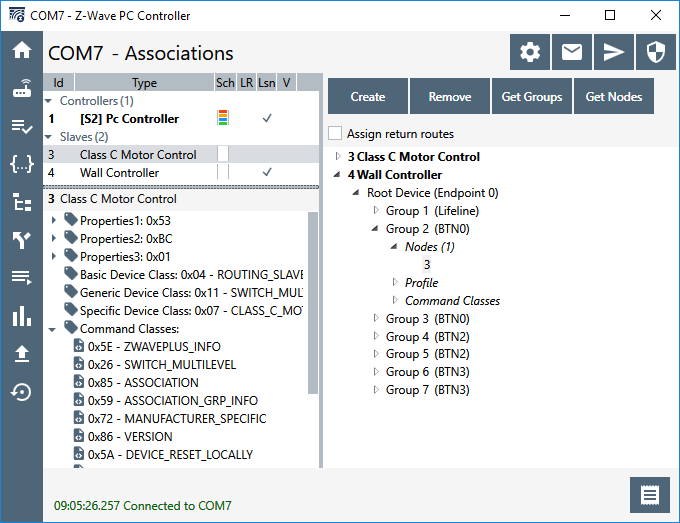
The first step in directly controlling the shades from a wall switch is to assign the shade to an Association Group. Using the PC Controller application to add the association is done by selecting the destination in the left window and then choosing the Association Group to add it to in the right window. In this case I’ve added the shade NodeID=3 to the Wall Controller NodeID=4 Group 2 which will send a BASIC_SET when I press button 0.

Note the checkbox for Assign Return Routes. Initially I’ll leave this unchecked. This is what many Hubs fail to do properly – set the Return Route anytime an association is made. So what happens when I press Button 0?

The Wall Controller (nodeID=4) sends the Basic Set command 3 times but the Shade (nodeID=3) does not ACK. The Wall Controller tries two more time with Explorer Frames trying enlist anyone else in the network to deliver the frame. But they all fail. Why? Because the Shade is asleep waiting for a Wakeup Beam.

Assign Return Route

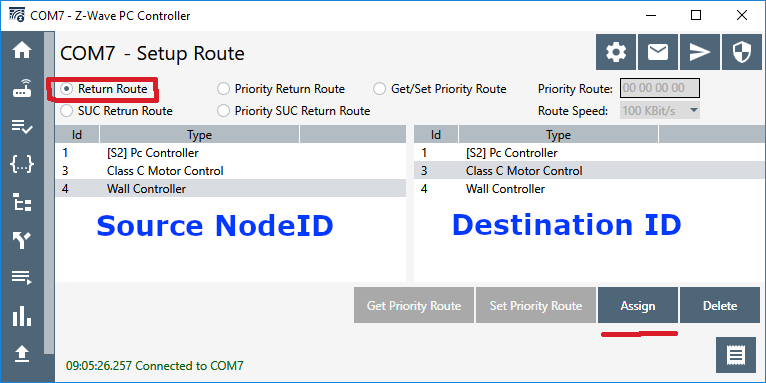
To get the Wall Controller to send a FLiRS Wakeup Beam we have to tell it to send one! That is done by assigning a Return Route. In the PC Controller the easy way to do that is to simply check the box in the Association window. The way a Hub should do it is with the SerialAPI command ZW_AssignReturnRoute( SourceNodeID, DestNodeID, callback) which is SerialAPI command 0x46 (see section 4.4.4 of INS13954). We can do this manually in the PC Controller using the Setup Route window shown here. The key is to select the Return Route radio button, then in the left pane select the Wall Controller (the Source NodeID) and in the right pane select the Shade (the Destination), then click on Assign.

When you click on assign you’ll see 4 frames sent from the Hub to the Wall Controller which includes the information to send a FLiRS Beam to the Shade.

These Assign Return Route frames are not officially documented but you can pretty quickly figure out the details of the data. Once the Return Route frames have been delivered to the Wall Controller, it will then send a Wakeup Beam to the Shade before sending the Basic Set.

Here we can see the Shade ACKing the Basic Set in line 72 so the Wakeup Beam did its job and woke up the shade so it was ready to receive the basic set and close the shade.

Z-Wave Long Range Impact

Z-Wave Long Range supports FLiRS types of devices but it doesn’t support Associations. Z-Wave Long Range is a star network so all communication has to go thru the hub. Then the hub forwards the message on to the FLiRS device after Beaming to wake it up. There is no way for a Long Range end device to send a frame to another end device, it has to go thru the controller.

Z-Wave Summit 2017 at Jasco in Oklahoma City

“IoT Device Testing Best Practices” by Eric Ryherd

Summit1Click HERE to see the entire presentation including my notes. If you are a Z-Wave Alliance member a video of the presentation is usually posted on the members only section of their web site. The main takeaways from my presentation are:

  • Have a written test plan
  • Use the Compliance Test Tool (CTT) as the START of your test plan
  • Vary the environmental conditions during testing
  • Test using real world applications
  • Test using complex Z-Wave networks with routing and marginal RF links
  • Test with other hubs and devices
  • Automate testing using tools like the ZWP500
  • Code firmware with failure in mind
  • Utilize the WatchDog timer built into the Z-Wave chip

ZWaveSummit2017aThe presentation goes into detail on each of these topics so I won’t duplicate the information here. I also go thru several failures of devices I’ve been working with. You learn more from failures than you do when everything just works. Feel free to comment and let me know what topic you’d like to see for next years summit.

Z-Wave Summit Notes

One of the main purposes of the summit is to learn what’s new in Z-Wave and what Sigma is planning for the future. The most important news at this year’s summit is SmartStart. The goal for SmartStart is to simplify the user experience of installing a new device on a Z-Wave network. The concept is that a customer will open the package for a device, plug it in, the hub is already waiting for the device to be joined and the device just shows up on their phone without having to press a button or enter the 5 digit pin code. This is a “game changer” as Sigma pointed out many times during the summit. Typically a user has to put their hub into inclusion mode, read the product manual to determine the proper button press sequence to put the device into inclusion mode, wait for the inclusion to go thru, write down the NodeID number, with an S2 device they have to read the teeny-tiny 5 digit PIN code printed on the product (or scan the QR code) and then MAYBE the device is properly included. Or more often, they have to exclude and retry the process all over again a couple of times. SmartStart as you can see will make the user experience much easier to get started with Z-Wave.

SmartStart enables “pre-kitting” where a customer buys a hub and several devices as a kit. The hub and the devices in the kit are all scanned at the distribution warehouse and are all white listed on the hub web site. When the customer plugs all the devices in, they automatically join and all just magically show up ready to be used without the frustration of trying to get all the devices connected together. Unfortunately there are no devices that support SmartStart and there are no hubs that support it either – yet. We’ll get over that eventually but I suspect it’ll take a year before any significant numbers of SmartStart supported devices show up on Amazon.

SmartStart is enabled in the SDK release 6.81 which occurred during the summit. There are some other handy features in this release. The main new feature (after SmartStart) is the ability to send a multi-cast FLiR beam. One problem with FLiR devices is that they are all sleeping devices and briefly wake up once per second to see if someone wants to talk to them. Prior to 6.81 you had to wake up the devices one at a time and each one would take more than one second to wake up. If you have battery powered window shades like I do, there is a noticeable delay as the shades start moving one at a time instead of all together. Both the shades and the remote (or hub) will need to be upgraded to 6.81 before we can use this new feature. That means it’ll be again probably another year before this feature is widely available, but it’ll get there eventually.

There are rumors that Sigma will be announcing a new generation of the Z-Wave transceiver chip in early 2018. I am hoping it will will finally include the upgrade from an 8-bit 8051 CPU to a more capable 32-bit ARM CPU.  The current 500 series relies on the ancient 8051 with very limited debugging capabilities which significantly slows firmware development. With an ARM CPU developers like Express Controls will find it easier to hire engineers who can code and debug firmware and thus we’ll be able to bring more Z-Wave products to market in less time.

A new web site, Z-WavePublic.com, has been populated with the Z-Wave documentation as well as images for the Beagle Bone Black and Raspberry Pi loaded with Sigmas Z/IP and Z-Ware. With one of these boards and a USB Z-Stick anyone can start developing with Z-Wave without having to sign a license agreement. Nice way to get started with Z-Wave for you DIY nerds out there. There were many other presentations on Security S2, Certification, The CIT, Z/IP, HomeKit and many other topics on the technical track of the summit. The marketing track had a different set of presentations so I recommend sending both a technical person and a marketing person to the summit.

Summit isn’t all work, work, work

IMG_20170927_090355The Summit isn’t all work all day though the days are long and tiring. Tuesday evening was a reception at Coles Garden which is a beautiful event venue. Unfortunately it was raining so we couldn’t wander thru the gardens much but Mitch, the Alliance Chairman, kept us entertained.

Wednesday evening was the Members Night at the Cowboy museum. Oil profits made a lot of wealthy Oklahomans who were able to make sizable donations to this huge museum. There is a lot more to see than we had time to explore so I’d recommend spending more time here if anyone is visiting Oklahoma City. Lots of food and drink made for an ideal networking environment with your fellow Z-Wave developers.


Eric Ryherd Presenting “IoT Device Testing Best Practices” at Z-Wave Summit in Oklahoma City September 26-28, 2017

Z-Wave Developers and Marketers will come together at the Z-Wave Summit at the Jasco facility in Oklahoma City September 26-28, 2017. You have to be a member of the Z-Wave Alliance to attend. I highly recommend attending if you are developing Z-Wave devices . Networking with other Z-Wave developers and having intimate access to the Sigma Design and Alliance engineers and marketing folks is invaluable. To attend, register via the Alliance member-only web site. The Alliance always has some fun in the evenings too so it’s not all work!

Eric Ryherd Presenting

Express Controls founder and Z-Wave expert Eric Ryherd (aka DrZWave) will be presenting at the summit for the 4th consecutive year. Last years presentation was “Seven Things you probably don’t know about Z-Wave” and was well received. I was surprised how many engineers were completely unaware of the many new features and command classes that have been added to Z-Wave in the past couple of years. This year’s topic is “IoT Device Testing Best Practices“. I’ll go over some of the failures I’ve found over the last several years in both my products and other products I’ve tested.

Abstract

Z-Wave wireless Internet of Things (IoT) devices are hard to test! There are countless devices already in customers hands with bugs in them that make Z-Wave seem unreliable when in fact many of the issues are bugs in the device firmware.  Eric Ryherd, Z-Wave expert and consultant, describes some of the  failures that are still shipping today and best practices when testing your IoT device to reduce the chance your device fails in your customers hands. Simple command sequences sent one at a time by a test engineer is not representative of the real world packet storms that occur in an apartment building with complex RF reflections and multiple interfering RF networks. Your device has to work in the real world and to do that you need to simulate those terrible conditions that do not happen on the engineers desk.

Author Bio

Eric Ryherd licensed Z-Wave in 2003 to develop IoT devices before the term IoT even existed. Light switches, motion & temperature sensors, water valves and meters, hubs, window shades, remote controls are just a sample of the Z-Wave IoT devices developed and tested by Express Controls. Eric applies his Z-Wave expertise in consulting, training and assisting with Z-Wave Certification to companies of all sizes. Read more by Eric at his blog – DrZWave.blog.