The Z-Wave Alliance is funding my writing of a blog that describes how to develop a Z-Wave product. The “Journey” is a series of ten blog postings with step-by-step descriptions of how to develop a Z-Wave product from idea to volume production. The full blog posting is on the Alliance web site but here is an abbreviated version.
Introduction
A Z-Wave Developer’s Journey is a series of ten blogs on the nuts and bolts of creating and bringing to market a wireless IoT product utilizing Z-Wave. The series provides a step-by-step roadmap for an engineering team to bring their idea from the concept to a product ready for volume manufacturing. Naturally, this series can’t delve into every aspect of the process but leverages vendor training, documentation and Github to flesh out the details. The journey focuses on Z-Wave end devices but a similar process would be followed by Z-Wave controllers. One thing to note is that everything is constantly changing. The Z-Wave specification continues to evolve with new Command Classes and updates to existing ones, the vendor Software Development Kits (SDKs) have new releases every few months and new silicon chips are always being released. While the guidance shared here is relevant today, details will inevitably evolve over time, so stay engaged and enjoy the ride.
Topics
The journey begins with this blog which describes the topics to be discussed in this ten-part series. You have the opportunity to comment on these topics as each is published. Feel free to comment or reach out to me directly at DrZWave@DrZWave.blog. I continue to learn by doing and enjoy exchanging best-in-class techniques for IoT product development of both hardware and software even in “retirement”. Below is a list of planned topics though the list may morph somewhat along the way based on your feedback. Don’t be shy, comment below or send me an email.
Which Z-Wave chip should you use for your project? Of course, the answer is… depends. The main challenge with the ZG23 is the limited amount of flash and RAM. The SDK uses virtually all the available resources. If your product is fairly simple, like a door/window sensor, the ZG23 should be fine. If you are designing a thermostat or door lock, I would recommend either the ZG28 or the CZ20. If you use the Silicon Labs QFN48 you can develop using the ZG28 and then potentially reduce cost by switching to the pin compatible ZG23 if the code fits. The ZG23 could also work out if you connect an external serial flash chip for the OTA image. That frees up half of the 512KB of flash for your application but it’s still tight on RAM. The ZGM230 module is easier to manufacture since the crystal is calibrated at the factory but is limited to +14dBm transmit power thus effectively cutting the RF range in half. The choice of Silicon Labs or Trident IoT is a more nuanced choice based on the support and relationship you have with the vendor.
Feel free to comment below or contact me with your thoughts or topics you need answers!
Save the DATE! EMEA Z-Wave Unplug Fest and Summit Vienna, Austria, May 27-29.
The 2025.6 Silicon Labs SSDK Z-Wave release changes the familiar DEBUGPRINT utility to ZPAL_LOG. A brief mention of the change is in the Important Changes for the Z-Wave 7.24.0 release however I’ll give a more detailed description of what has changed and how to use this new utility. If you’re trying to upgrade a project from an earlier SDK, this “breaking change” will make that effort more difficult as you have to switch any DPRINT statements to the new ZPAL_LOG format.
DEBUGPRINT
First a little history. The DEBUGPRINT utility came from the original early 2000s Zensys code running on the 8051 8-bit CPU. From the initial 100 series thru the 500 series, DEBUGPRINT was the ONLY debug utility we had! Even though this was the 2000s thru most of the 2010s, debugging using PRINTF was obsolete by the late 1980s – but not for Z-Wave. PRINTF would print out a short message and maybe a hex value or two and we would try to divine what was going on from these tiny details. There were no breakpoints, no ability to single step the CPU or watch RAM or registers change as the code was executing. Because sending characters out the UART would block the CPU until the UART was empty, you could only send a few characters and maybe a hex value. Sending more characters out the UART would alter the flow of the program and either mask the bug or break something else or often cause a watchdog reset! UGH. While primitive, it was all we had and we made do. DEBUGPRINT was easy to enable or disable – just #define DEBUGPRINT in the file you needed the print statements and recompile. Typically, only a few print statements were enabled at a time or the UART would spew out too much detail or messages would get mixed together making gibberish of the output.
Debugging Today
Debug is much easier with the modern ARM CM33 processor on todays Z-Wave chips. We have Single-Wire-Debug (SWD) and can set breakpoints, watchpoints, single step, view memory and peripherals. There’s even Trace where every instruction executed is logged enabling the precise flow of a program to be viewed after the trigger condition of a bug. We still have DEBUGPRINT which is handy for printing out high level messages like “eReset Reason=3′ each time the chip reboots. These messages are handy during debug and were easy to remove prior to building the final production code simply by commenting out the #define.
ZPAL_LOG
The Z-Wave Log component in a Simplicity Studio project .slcp file is installed by default in all the sample applications starting with the 7.24 release. This is good thing and a bad thing. It’s good since it’s already installed and printing messages before you’ve started modifying the code for your project. It’s bad because when you should remove this code for the final production build, we’ll get into that shortly.
General
When you Configure the Z-Wave Log component you get a lot of radio buttons to switch various features on or off. The first block “General” includes:
Size of the buffer (default is 96 bytes) – Leave this as-is
Display log level – prints 3 characters identifying Info, Debug, Warnings or Error messages
Display log source component – prints a number which identifes which module the print statement is from
Display log timestamp – prints a decimal number of ticks since reset
Enabling any of these messages slightly increases the total FLASH usage. The bigger problem is that it increases the number of characters sent out the UART potentially causing the CPU to block and thus changing the program flow. I recommend leaving these at their defaults.
The Display Log Source component would be useful IF SSv5 decoded the numeric value for you and displayed the name in the console window. Unfortunately it just prints a number which you then must manually decode by looking up the value in the enumerated type zpal_log_component in the zpal_log.h file. The trick would be to send just the numeric number out the UART (thus not taking up significant amounts of time or FLASH) and then SSv5 expanding it to the component name. I have suggested this to the SSv5 team in the past but hasn’t yet come to fruition. The source component is useful if there are several similar or even identical PRINT statements in different blocks of code to help identify where it is coming from. Also if you enable a lot of PRINT statements, it can help narrow down which block a specific message is coming from.
If you enable all 3 of these switches you get: “000000023 [I] (1) ApplicationInit eResetReason = 7”. Where the 00000023 is the timestamp; [i] is the Log Level (Info in this case) and (1) is the component which you have to then decode yourself as mentioned above (ZPAL_LOG_APP in this case) .
Output Channels
The next block is the Output Channels which can enable the four levels of messages: Debug, Info, Warning and Error messages. The default has just Info enabled with the word “vcom” entered into the Info box. I recommend enabling all four of these by entering “vcom” into all four of them. This will increase FLASH usage as the strings for all these messages are now stored on-chip.
Component Filtering
The final configuration block in the Z-Wave Log component is the Component Filtering section. This section has a bunch of radio buttons you can enable which will turn on various messages from the respective module. If you enable ALL of these, it’ll add about 10K bytes of FLASH so maybe only enable ones you think you need.
UART Blocking
The EUSART is only running at 115200 baud which makes each character take over 10 microseconds to send out the UART. This might seem fast, but when you’re transmitting long strings of characters this can seriously impact the program flow in real time. If the UART buffer fills, the code will stall and wait for more buffer space to fill (see the “while” loop in eusart_tx in sl_iostream_eusart.c). If you’re spitting out a lot of messages, the UART will fill causing the program flow to change potentially masking the bug or sending you down the wrong rathole. The baud rate is easily increased to 1mbps which will speed up the printing by 10X which helps, but you need to be aware of the amount of messages pouring out the limited speed of the UART.
Disabling ZPAL_LOG
Once debugging is complete, the next step is to compile all of these messages out of the production code. Fortunately this is easy – just remove “vcom” from all four of the Output Channels section of the Z-Wave Log component. While this removes most of the code for debug messages, the Command Line Interface (CLI) is still there and the EUSART is still used by the sample applications. When developing your own application you will typically want to remove ZPAL_LOG and the CLI as it’s not something your application needs – it is only for the Silicon Labs demos.
Conclusion
Why did silabs make this “breaking change”? I don’t have specific insights from Silicon Labs but the new format provides easily configured “levels” of logging. Is that worth a “breaking change”? I wish they’d spend more time testing the code to reduce the bugs than making a lot of file changes tweaking features that don’t really improve the developers experience. If you’re going to change an important feature, it’s also important to document it which is sorely lacking. But I hope this post helps you utilize this new feature and not be quite so frustrated when updating your project to the latest SDK.
The EFR32ZG23 Z-Wave 800 series MCU has limited FLASH and RAM available for the application. The 800 series actually has less FLASH than the 700 series which stored the bootloader in a dedicated 16K memory. Worse, the bootloader in the 800 series has grown from 16K to 24K! Features are always being added to the SDK making it ever larger leaving less for the application. Seems like Silicon Labs needs to spend some time squeezing the code instead of constantly adding features.
Here is the typical error message when FLASH overflows:
Description
FLASH memory overflowed !
make: *** [makefile:114: all] Error 2
make[1]: *** [makefile:123: SwOnOff_2024120_ZG23B_GeoLoc.axf] Error 1
region `FLASH' overflowed by 92 bytes
SwOnOff_2024120_ZG23B_GeoLoc.axf section `.nvm' will not fit in region `FLASH'
We can’t create more FLASH on the chip, it has what it has. But, there’s always software we can change! By default, the project has ZAF->Z-Wave Release installed which sets the C compiler optimization to -Os which optimizes for size which is probably what we want since we’re out of FLASH. However, deep in the configuration files there is the definition for SL_BOOTLOADER_STORAGE_SIZE which changes from 196K to 180Kbytes when NDEBUG is defined. NDEBUG is defined when the Z-Wave->ZAF->Z-Wave Debug component is installed. The question of why BOOTLOADER size is being reduced by only 16K when debug is enabled is unclear to me. However, in my testing, adding the DEBUG component still results in FLASH overflowing but now by 4344 bytes! Obviously the change in Optimization from -Os to -Og (debugging) blew up the code which is expected. I enabled DEBUGPRINT to get debugging information out the UART which increased the flash usage even more.
Since I am debugging and will not be testing OTA at this stage, I don’t care how big the bootloader storage size is since I am not using it. I need more FLASH space for debugging! Simply edit the sl_storage_config.h file and change SL_BOOTLOADER_STORAGE_SIZE from 0x2C000 to 0x20000 to free up another 48K bytes:
// <o SL_BOOTLOADER_STORAGE_SIZE> Size of the bootloader storage.
// <i> Default: 0x20000
// <i> Note that this value is only being used if BOOTLOADER_STORAGE_USE_DEFAULT
// <i> is set to false. This value will control how much of the flash memory
// <i> is reserved for bootloader storage.
#if defined(NDEBUG)
#define SL_BOOTLOADER_STORAGE_SIZE  0x00030000
#else /* defined(NDEBUG) */
//#define SL_BOOTLOADER_STORAGE_SIZE  0x0002C000    - original value
#define SL_BOOTLOADER_STORAGE_SIZE  0x00020000
#endif /* defined(NDEBUG) */
Now the project fits comfortably in FLASH with plenty of left over space. However, I cannot OTA it and definitely cannot ship it in this way for production. Once I’m done debugging, I’ll have to revert back to RELEASE mode and remove DEBUGPRINT. If FLASH is overflowing that will require some additional effort to squeeze back into the available space. I would first try Link-Time-Optimization (-flto) to the C compiler but that can introduce some instability and require significant amounts of testing time. Next, try looking for code you don’t need and remove it. After that, complain to Silicon Labs they need to shrink their code!
Ram usage       :    65532 /    65532 B (100.00 %)
Flash usage     :   446868 /   491520 B ( 90.92 %)
RAM usage is at 100% is OK because the HEAP is expanded to fill the available space. But there is very little left over for the application as any RAM usage is making the HEAP smaller. The HEAP is used for all sorts of things like temporary variables, buffers and FreeRTOS. I am very concerned that some of the bugs in Z-Wave products are due to heap overflows. Heap overflows are very difficult to reproduce and debug as they typically require several failures to happen at just the right time. Unfortunately these failures seem to happen with regularity in the real world.
Hope this helps you get back to debugging quickly. Leave me a comment below with your helpful hints that I can include in a future post.
Silicon Labs Simplicity Studio v5 (SSv5) has a steep learning curve but once you’re up the curve it can accelerate an IoT firmware development. However, sharing the project among several engineers isn’t as straightforward as it should be. Fortunately it is actually quite easy once you know the trick which I explain below.
Step 1 – Create the Repo
Create the repository using Github or your own private server. Typically this is done via a browser which also sets various options up such as the language and the license. Once this has been created, copy the name of the repository to use in the next step.
Step 2 – Clone the Repo locally
Clone the repo onto your computer using the typical “git clone HTTPS://github.com/<gitusername>/<projectName.git>“. Choose a folder on your computer that is convenient. I recommend the folder be under the SSv5 workspace folder which will make finding it later a little easier.
Step 3 – add a .gitignore file
Create a file at the top level of the repo to ignore the files you do not need to put under source code control. Use the lines below and include any other files or folders as needed. You may want to include the .hex, .gbl, .map, and .axf files which are under the GNU* folder or copy them to another folder so you have the binary files in case building the project proves to be difficult. Note that I am NOT checking in the SDK which is huge and Silabs keeps even quite old versions on github and via their website. Thus you don’t need to keep a copy of the SDK on your local servers – but you can if your are that kind of person.
################ Silabs files to ignore #####################
# Ignore the Build Directory entirely
GNU*
# Other SSv5 files to ignore
.trash
.uceditor
.projectlinkstore
*.bak
Step 4 – Create the SSv5 Project
Create the SSv5 project within this folder. Typically this is done using the Project Wizard or selecting one of the sample applications. Be sure to locate the project within the repo folder.
At this point you can either clone the repo into a different folder to see if it works or have a team member clone it onto their computer. Try building the project to see if there are any missing files.
Step 6 – Import the Newly Cloned Repo into SSv5
This is the tricky bit! We’re going to Import the project into SSv5 but the TRICK is to import it into the cloned repo folder. By default, SSv5 will make a COPY of the project when importing. The problem with that is that you then lose the connection to the git repo which is the whole point!
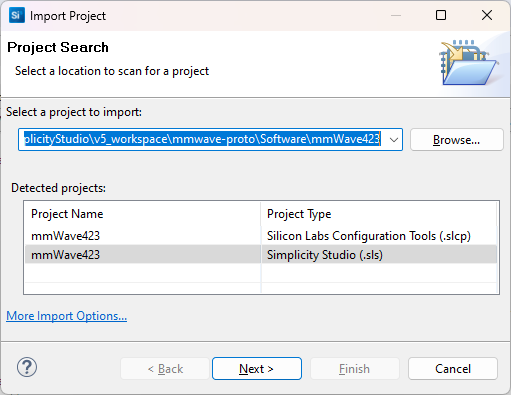
Use “File – Import” then browse to the cloned git repo folder. The project name should show up with a Simplicity Studio .sls file. Select this file by clicking on it then click Next.
Then the next screen pops up. Ensure the proper compiler is selected for the project! GCC10 or GCC12! These settings should come from the .sls so you shouldn’t need to change them.
Click on Next
THIS IS THE MOST IMPORTANT STEP! In the next screen, UNCHECK the “Use Default Location” button! Click on Browse and select the repo folder.
Click on Finish. Then check that the project builds properly.
Team members can now work collaboratively on the project and manage the check in/out and merging using standard git commands.
When the project is complete, be sure everything is checked in and the repo is clean, then in SSv5 right click on the project and select delete. But do not check the “delete project contents on disk” checkbox unless you want to also delete the local repo. This removes the project from the workspace in SSv5 but leaves the files where they are. You can clean up the files later.
The key to using git with SSv5 is to UNCHECK the Default Location button during the import. If you leave that checked, or browse to the wrong folder, SSv5 will make a COPY of all the files and you lose the connection to the git repo.
Debugging a HardFault is ROUGH, but with trace debugging, it’s a joy! A big problem with debugging firmware on a System-on-Chip (SoC) design is that the CPU and memory are encased in a plastic package severely limiting the visibility of what the CPU is doing. There are tons of interrupts and exceptions and just plain old bugs in your software that can send the CPU off into la-la land and you have no way of tracking down how it got there. Good ‘ol PRINTFs do not help since the CPU has gone off the rails. The most common method of debugging this kind of fault is to keep removing code or disabling interrupts until you magically divine the cause by inspection after a lot of tedious narrowing of possible causes and reverting checkins. In this post I’ll describe the joys of debugging using the Segger J-Trace and the Ozone debugger.
ARM CoreSight Architecture
ARM CPUs are intended to be implemented in SoCs so naturally ARM designed in a set of tools to enable visibility and debugging called the CoreSight architecture. For the embedded Cortex processors, and specifically the CM33 in the EFR32ZG23, the key components are the ARM ETMv4 which then feeds the TPIU. The ETM/TPIU tracks the CPU Program Counter (PC), packetizes changes in the PC and thus the program flow, compresses the data, then sends it out the trace pins to an external Trace Port Analyzer such as the Segger J-Trace. The Segger tools decompress and decode the trace data to match it with the image file of the compiled code to show exactly the path the program followed. ARM has a huge amount of documentation on their web site but the problem is there is too much information. ARM has many CPUs, architectures, versions and the entire ETM is an optional component with many configurable parts. This makes reading the ARM documentation much like reading the dictionary, lots of detailed information but it is tough to follow the story of how the pieces work together. Fortunately, Segger has read the documentation and figured out how to make it work.
ARM CoreSight provides CPU visibility using only 2, 3 or 5 pins
Segger J-Trace and Ozone Debugger
Segger is well known in the embedded industry for their J-Link hardware programmers, the Ozone debugger and lots of other services. They have wide support for virtually every MCU made including all of the Silicon Labs EFR32 chips. Their support for Trace debugging is excellent with reliable hardware and software. The Ozone debugger is able to read in your .AXF file out of Simplicity Studio, find all the source code, connect to the DUT via the J-Trace (which includes a J-Link for programming/debug), download the firmware in seconds and run to Main and then display the path your firmware took to get there. Easy and fast!
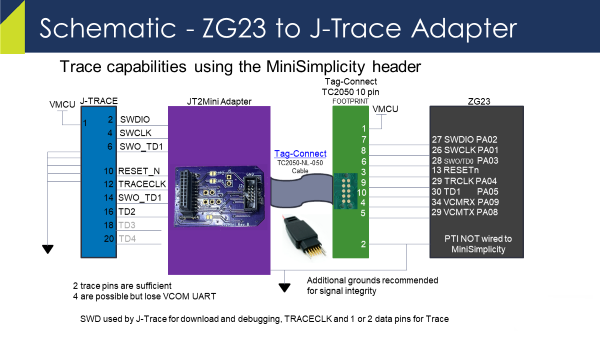
The SeggerJ-Trace Pro Cortex-M is required for Trace Debugging. While not, cheap, it’s also not expensive compared to the cost of an engineer working for days trying to capture how their firmware dropped into the weeds. The J-Trace connects to your PCB via a 20 pin header that is 50mil on centers so it is quite small. However, I’ve come up with a small PCB that lets you use the standard 10 pin MiniSimplicity header for Trace.
etm_zwave Github Repo and J2Mini Adapter
Most Z-Wave IoT products have very small PCBs and no room for another 20 pin header even if it is 50mil. I came up with a simple way to use the existing 10 pin tag-connect/MiniSimplicity header for Trace and placed all the files in a public github called etm_zwave. You do have to connect a couple of extra pins from the ZG23 to the tag-connect/MiniSimplicity header. Replace the PTI pins with the trace clock and a second data pin – the first data pin is the SWO pin already on the header. This header is tiny and you need a way to program the ZG23 anway and this is the way to go. The PTI pins are not that useful as they are only used for radio packet tracing which Z-Wave uses standalone Zniffers instead of wiring multiple nodes to the Network Analyzer. For less than $30 you can build your own JT2Mini adapter boards and then be able to use trace with just the MiniSimplicity header. You will need a extra ground connection as there is a single ground pin on the MiniSimplicity header. I’ll discuss that issue more in the troubleshooting section below.
JT2Mini adapter board plugs directly into the Segger J-Trace and MiniSimplicity cable. It only provides two trace data pins which Segger claims will only occasionally cause the CPU to stall. With 4 pins the CPU will almost never stall. Obviously with only 1 data pin you’ve cut the data rate to get the trace info out of the chip and it will stall (insert wait states) anytime the TPIU fifos will up until they are able to unload the data off-chip.
Setup Trace in Ozone
Now that the hardware is wired up, we have to enable Trace in Ozone.
Open Ozone
Include the *.JlinkScript file in the etm_zwave github repo
For the ZG23 use ZG23_Traceconfig.JLinkScript
There are comments in the file and more info in the repo ReadMe.md on how to properly insert the script into your Ozone *.jdebug project file.
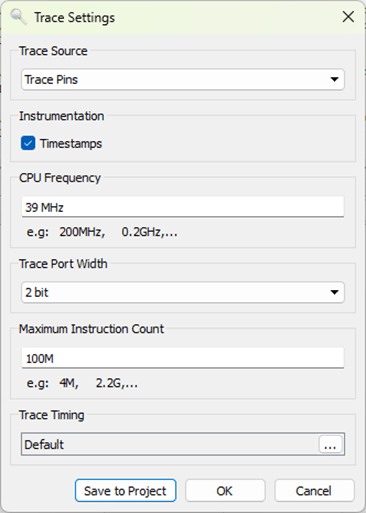
Click on Tools->Trace Settings
Change the Trace Source to Trace Pins
CPU Frequency=39MHz
Trace Port Width=2 (if using JT2Mini)
Click on Green Power button
Ozone will download the code and run to MAIN()
Open the Timeline and Code Profile windows
The TimeLine should look something like this – maybe “run” for just a fraction of a second:
This window shows how long the CPU has been in each function and the complete program flow in real time. Interrupts and switching RToS tasks are shown and make it much easier to immediately find where the hardfault occurred. Clicking in the timeline brings up the exact line of C code and optionally disassembly at that instant in time. You can quickly follow exactly where your code went wrong and the hardfault occurred.
The Timeline window also allows you to immediately see how long each function is taking. What is most important here is checking your interrupt service routines to ensure they are not busy burning a lot of CPU time doing less important work and starving other time sensitive functions. The obvious waster of time is the memset and memcpy functions which I am working on another post about those specific functions so stay tuned!
Ozone has a Code Coverage window which displays the number of lines of code that have been executed and the number of assembly instructions executed. Using this feature with a product validation suite you can quickly identify untested and potentially dead code.
Segger has plenty of training videos that go into a great deal of detail on how to use these tools. But first you need a J-Trace and get it wired up to your board.
How to get printfs via J-Trace
Unfortunately the Segger J-Trace Pro does not support the VCOM serial interface. Thus, if you want to open a terminal window and see the printfs in your code, you have to jumper the Rx/Tx pins (and ground) to a Serial to USB adapter. Fortunately I put a header on the JT2Mini PCB for exactly this purpose. The J5 header has the Rx (Pin 1 square pad) and Tx pins on it (Pin 2 round pad). J3 has ground on both pins. Use an FTDI serial to USB adapter and PuTTY or other serial terminal program to view the printfs. The DevKit EXP pins should be able to read in the serial data but I was not able to find the right combination of In/Out/MCU and AEM/Bat/USB and get SSv5 to work. Thus I recommend using a simple FTDI interface to watch the printfs when tracing.
Troubleshooting
The number one challenge with getting Trace to work is the signal integrity of the clock and the trace data pins. Once you have a clean connection, it seems to be rock stable and produces really valuable debugging data even with just two data pins. If Ozone if giving strange errors and specifically different errors with each run, odds are you have a signal integrity problem.
Yellow is Trace Data1, Green is TRACECLK – GPIOs are at max bandwidth
The EFR32 Series 2 (including the ZG23) GPIOs have only a 20MHz bandwidth. The Trace clock is a divide by 2 of the 39MHz CPU clock so it is running right at the maximum of the GPIO. Trace data is clocked out on both edges of the clock. Since the MiniSimplicity header has only 1 ground on it and there are at least 3 GPIOs toggling at their maximum rates, the signal integrity is marginal even in the best of circumstances. The JT2Mini has extra ground pins and I highly recommend connecting them with additional jumper wire while using Trace. The cable from your board to the JT2Mini should also be no more than 6 inches long. The .JlinkScript file has code in it for adjusting the slew rate of the GPIOs which can improve or possibly degrade the trace signal integrity. Ozone and J-Trace can also adjust the relative timing of the CLK to the data with sub-nanosecond resolution. You’ll have to experiment on your own if you are having problems.
Conclusion
I can’t live without Trace debugging. I don’t necessarily use it all the time but I will wire it up to every board I design in the future! I have spent weeks debugging hardfaults in the past and then solve the problem in 10 minutes using Trace. Get one for yourself!
See many of you next week at the Z-Wave Summit in Orlando Florida where I will be giving a presentation on The Joys of Trace Debugging and running the UnPlugFest on Monday!
To use an RTOS for your embedded project, or Not! That is the question poor Yorick! I digress from my usual focus on Z-Wave to discuss the general topic of using a Real-Time Operation System (RTOS) for simple embedded IoT devices. The question is moot for Z-Wave since the protocol has FreeRTOS built-in starting with the release of the 700 series. For the moment at least, the choice is To RTOS!
What is an RTOS?
My focus in this post is on small IoT devices like sensors, dimmers, window shades, to more complex devices like thermostats and door locks. Using an RTOS for simple devices like these brings different requirements than say a full Operating System like Windows or Linux. The purpose of an Operating System (OS) is to provide common resources to an application – things like memory management and insulating the application from hardware . The term “Real-Time” comes from basic concept of dividing up the resources of an embedded system so that tasks are completed within a certain timeframe. A hard-real-time system is often used in demanding applications like Engine Control. The precise management of firing the spark plugs at exactly the proper microsecond is critical to the efficient operation of an internal combustion engine. But simple IoT devices have much lower demands on the RTOS and instead are attracted to the coding efficiency and standardization of an RTOS – this is often called a soft-RTOS. All this comes at a cost in CPU and memory resources so the question remains – is an RTOS worth it for simple IoT devices?
FreeRTOS Features:
Trusted Reliable Kernel
MultiTasking/MultiThreaded
Mailboxes, Mutexes, Queues
Modular Libraries
Broad Eco-System support – 40+ MCU architectures
Small Scalable kernel size with power saving modes
Complete online documentation
Long Term Stable Support – Active support Community
Completely Free Open Source project
Z-Wave History with FreeRTOS
In the beginning Z-Wave ran on an 8-bit MCU with limited FLASH and RAM which meant life without an RTOS due to CPU performance and memory limitations. The Z-Wave protocol was built on “Bare Metal” and thus interrupt driven with a tick-timer and drivers to provide basic services. The 700 series opened the world of a 32-bit RISC MCU and significantly more memory which enabled the use of an RTOS as the foundation of the Z-Wave protocol.
I was a Field Applications Engineer for Silicon Labs for several years and in that time I would guess easily half the bugs I came across were caused by the complexity of the RTOS. I don’t have any hard statistics but it certainly seemed that way to me! The Z-Wave protocol code was ported from a Bare-Metal implementation on an 8-bit CPU to a 32-bit ARM running FreeRTOS – a challenging port to say the least! The developers treated FreeRTOS like a black-box (which is the whole point of an RTOS) and often made small mistakes that turned into really difficult to debug problems. Things like: not checking when a queue is full, not using the *FromISR() version of various calls inside interrupt service routines, hidden stack overflows by not enabling overflow checking, incomplete configuration of the many, many, many options just to name a few. An RTOS adds a LOT of complexity but you get a lot of features. The developers have to be fully trained and understand the best practices for using the complexity of the RTOS to achieve a robust system.
My primary complaint with the current implementation is that it continues to be pre-compiled into the Z-Wave library. More and more of the configuration files and various parts of FreeRTOS have been moved out of the library and into source code with each SDK release. Moving the entire RTOS into source form is not exposing any proprietary code – after all, it’s open source! It would allow developers to more quickly move to newer releases of the RTOS and related libraries. Perhaps this will come as part of the Open Source Work Group (OSWG) in the Z-Wave Alliance. We’ll have to wait and see…
The Case FOR an RTOS – Pros
I want to again note that I am talking about using an RTOS for small IoT devices. There are many other applications and environments for an RTOS which have different Pros/Cons. A few of the main features of an RTOS for IoT are:
Measuring the complexity and bug rate introduced by an RTOS unfortunately can’t be quantitatively measured. I contend that in the case of Z-Wave the complexity has outweighed the benefits. The “features” of an RTOS lead to its complexity. For one task to communicate with another, you need to setup queues in both directions. That’s a lot of code and RAM where a simple handshake would most likely do the job as was done in the Bare Metal days.
Complexity
Resource Usage – CPU, FLASH, RAM
Development Tools
Training of developers
Final Thoughts
Simple devices like light switches, sensors, window shades, and the like barely need an RTOS. These simple devices rarely need multiple tasks or the other features compared to the complexity added. More complex devices like thermostats and door locks often have a high performance application CPU where even more resources are available for things like OLED screen drivers and fingerprint readers. In this case, the Z-Wave chip is relegated to a minor role of just providing wireless connectivity which again does not need an RTOS. All that being said, the current Z-Wave protocol is fundamentally based on FreeRTOS so the To RTOS or Not To RTOS question has already been settled – To RTOS we go!
One final point on code reuse – I find Code Reuse to be a double edge sword. One the one hand, the name sounds very attractive – code once, use many times. The reality is that most code is not reusable and in the effort to make it modular, more bugs are introduced than are saved. In many cases I can write a function in a fraction of the lines of code compared to the “driver” that does it all for every flavor of chip. There’s many research papers that discuss that bugs/line of code is fairly constant. So the fewer lines of code, the fewer bugs. The fewer lines of code the easier to read and to test. Not to say that all reusable code is bad and certainly code that has been extensively tested in many ways is super valuable, but every engineer needs to make that judgement for their specific application. That’s why you get paid the big bucks!
Z-Wave Long Range (ZWLR) claims to reach over 1 mile, but does it actually reach that far in the real world? The answer is YES. However, in the real world we are operating inside a building and surrounded by trees and other buildings. The more important answer is how does ZWLR do in a building and in an neighborhood? I recently captured some data in my home town just outside of Boston which shows ZWLR easily reaches the entire yard and then some.
The first thing to understand about the RF range of Z-Wave are the different power levels used by regular Z-Wave (ZW) and ZWLR. I’m comparing the values used in the US but the rules are different in each region. In the EU the max transmit power is +13dBm with regular Z-Wave which is why the range in the EU is so much further than in the US. But let’s focus just on the US for now.
RF Transmit Power
There are 3 levels of Z-Wave RF transmit power in the US:
-1dBm – Regular Z-Wave GFSK modulation – 12mA
+14dBm – ZWLR DSSS-OQPSK modulation – 41mA
+20dBm – ZWLR DSSS-OQPSK modulation – 92mA
The huge increase in transmit power is why ZWLR has over double the range of ZW. The reason ZWLR can transmit at such high power levels is that the spread spectrum modulation spreads that energy across a 1MHz carrier compared to the narrow band FSK of ZW. The FCC allows the transmit power to be as high as +30dBm but that would be a challenge for a battery powered device as it would likely need half an amp of current!
Why are there two power levels for ZWLR? The RF transmit power is matched to the power supply of the typical use case. The ZGM230 module is limited to +14dBm since it is most often used in battery powered devices where even the 41mA current is a bit challenging for low-cost batteries. The +20dBm ZG23 is best suited to mains-powered devices to get the maximum range. ZWLR utilizes dynamic RF power so for nodes that are close enough, the battery life is extended by using only enough RF power to reliably reach the controller. the dynamic power algorithm is built into the Z-Wave protocol so you don’t have to manage it at all.
RF Range at Home
The Yellow circle is the regular Z-Wave mesh range with a controller in a room on the 2nd floor. My home is surrounded by large pine trees which limit the range. Using 700/800 series Z-Wave chips there are no dead spots anywhere in my home. I still have a few 100 series devices, several 300 series and a lot of 500 series devices many of which need the mesh to hop to reach my controller. This demonstrates the increasing range of each generation of Z-Wave. If I were to upgrade all of my devices there would be little if any routing using regular ZW.
The Red circle shows over double the range of regular Z-Wave at +14dBm. The combination of higher transmit power and increased sensitivity due to the spread spectrum modulation yields a strong signal over my entire neighborhood. Note the bump on the right side caused by the open field and the swampy area with a lot fewer trees. Each wall or tree or building reduces the range but ZWLR easily reaches well beyond the end of the yard. I couldn’t test 20dBm because there just isn’t enough open space for me to measure it! So I moved to a building in the center of town.
RF Range in Town
The photo above shows the relative range of all three transmit powers. In this case the controller is in the upper right corner of a commercial building as shown in the inset in the lower left. Regular Z-Wave is not quite able to reach the two rooms at the far end of this 35m building. But ZWLR easily reaches the entire building and well beyond. Each step, +14 and then +20 roughly doubles the range in this typical application where there are still a number of trees and buildings reducing the signal. Recall from middle school geometry that the circumference of a circle is 2*pi*radius or roughly 6*radius. On the day I performed this test, I doubled my daily step goal and walked over 20,000 steps!
In both of these measurements the line is roughly where full 2-way, fully secure, supervision encapsulated Basic Set commands were being sent to a battery powered SwitchOnOff sample application using SDK 7.18.3. I used a Raspberry Pi running Unify and a small python program to send Basic Set On/Off commands every half second to the Dev Kit and then noted where the LED stopped blinking. Once I stepped a few paces back toward the controller, the two devices would resync and the blinking would restart. Z-Wave is very adept at re-connecting to devices that are at the margin of the RF range.
During the Z-Wave summit earlier this month we did a live demonstration of the range versus the transmit power. While regular Z-Wave reached well beyond the conference center, it couldn’t quite get to the adjacent hotel. ZWLR however reliably reached the hallways in the hotel thru the concrete and glass of each building.
How to Set Tx Power
For regular Z-Wave the transmit power is normally set pretty close to the maximum of -1dBm. There are two configuration parameters to set based on the results of FCC testing. See INS14664 in Simplicity Studio for details. For ZWLR, setting the transmit power easier. Simply set APP_MAX_TX_POWER_LR in zw_config_rf.h to either 140 for +14dBm or 200 for +20dBm but that only works if the EFR you are using supports +20. The 700 series EFR32ZG14 supports +20 but the balun has to be wired to +3.3V to have enough power to reach +20. The ZGM130/230 are both limited to just +14. The EFR32ZG23 part number chooses either +14 or +20 – EFR32ZG23B0X0F512 – If the X is 1 it’s +14, if 2 then +20.
One last configuration setting is to make sure ZWLR is enabled. This is in zw_region_config.h and all you need to do is set it to REGION_US_LR. The protocol code completely handles everything relative to ZW or ZWLR for you so just a 3 character change enables ZWLR.
Conclusion
All new Z-Wave devices for the US market should support Z-Wave Long Range. The low-latency (no routing), high reliability and long range make it a must for any new product. The question is +14 or +20? All controllers should be using the SoC (EFR32ZG23A/B020) to get the most range. The SoC requires calibration of the crystal for each unit as described in UG517. The module (ZGM130/ZGM230) are limited to +14 only and come pre-calibrated from Silicon Labs and thus are ideal for end devices that are battery powered. The SoC should be used for any mains-powered end device since the current draw is not an issue but be careful to specify the right part number with the 020 in it.
Here we go again… Once again I’ve been given yet another board with randomly placed test points instead of a nice neat, reliable header to connect via my MiniSimplicity cable. So I’m spending an hour on my microscope soldering thin little wires to the tiny little test points to be able to flash and then debug the firmware on a new ZG23 based product. Once I’m done soldering, I’m left with a very fragile board which is unreliable at best and at worst will result in even less hair on my thinning head. My post from 2019 described using a zero cost header for a reliable connection, but it seems not everyone is reading my blog!
On the flip side, a different customer sent me their board with a Tag-ConnectEdge-Connect that I had not seen before but is absolutely brilliant. The Edge-Connect uses the EDGE of your PCB for the test points. Barely 1mm wide and about 20mm long it is possible to include this debug connector on virtually any PCB. There is a locking pin to hold the cable secure while the spring loaded tabs press into the castellated notches to ensure solid contact.
Close up of the locking pin and castellated notches
There are several sizes of the Edge-Connect but the recommended one is the 10-pin EC10-IDC-050 which matches the MiniSimplicity header on the WSTK DevKit board. Note that the the 6pin cable in the photo above is NOT the one I would recommend but it was the only one in stock at the time and it worked fine for debugging but doesn’t have the UART or PTI pins.
Tag-Connect has many other types of debug headers/cables of various configurations to hold the cable to the PCB securely. The original Tag-Connect cables have plastic clips that snap into fairly large thru-holes in your PCB. While this is a reliable connection, the thru-holes eat up a lot of PCB real estate. The next evolution was to use a small retaining clip under the PCB that grips onto the metal alignment pins. The photo below shows the PCB pads are not much bigger than an 0805 footprint and only requires three small thru-holes.
Note the smallest header is about the same as an 0805 in lower left corner
The lowest cost approach is to simply add a 10-pin header footprint on your PCB that matches the pinout of the MiniSimplicity header. See section 5.1.1 of Application Node AN958 for the pinout of the 10-pin MiniSimplicity header. You don’t need to solder the header onto the PCB except when debugging. Thus the header can be under a battery or some relatively inaccessible location as when you are debugging in the lab the PCB is usually not installed in the product enclosure.
Please use ANY of these standard connectors on your next project. Without a solid connection between your computer and the chip you will find yourself chasing ghosts and losing hair.
Z-Wave is a wireless mesh protocol with over two decades of real-world learning built into the latest version. While the other new wireless protocols are still writing the specification for their mesh network, Z-Wave has learned a thing or two over the past twenty years. Z-Wave is a Source Routing protocol where the Primary Controller of the network keeps track of the best paths thru the network to/from any point to any other point.
Z-Wave limits the number of hops thru the mesh to four hops to bound the routing calculations to something an inexpensive microprocessor can handle. These four hops quickly explode into a huge number of routing combinations as the size of the network grows to more than a few dozen nodes. The trick is to pick the optimal set of routes to get from one node to the next. This is where the two decades of learning have proven to be the key to Z-Waves robust delivery.
Source Routing Introduction
The 500 series Appl. Prg. Guide section 3.4 describes the “routing principles” used in Z-Wave. While this is a 500 series document the 700 series uses the same algorithm with a few minor enhancements. The key to source routing is that the Primary Controller (PC) calculates the route from Node A to Node B. Each node along the way does not need to know anything about the routing, it just follows the route in the packet header determined by the PC. When an end node needs to talk to the PC or any other node, the PC will send the end node four routes to get from Node A to Node B. As a final backup route, Node A can send out an Explorer Frame asking all nodes within radio range if they can help get the message to Node B. If a node is able to help and the message is delivered, this route becomes what is known as the Last Working Route (LWR). Node A will then use the LWR route whenever it needs to talk to Node B.
There are a total of five routes stored in any node to get to any other node. Note that routes are calculated and stored only if a node is Associated with another node. Since most nodes usually only talk to the PC (Associated via the Lifeline – Association Group 1), that is the only set of routes it stores. The primary controller has the full network topology but still follows the same basic algorithm when sending a message to a node. The five routes are held in a list for each destination. If a message is delivered successfully, that route is moved to the top of list and is called the Last Working Route (LWR). The LWR will be used from now on until it fails for some reason. RF communication is fraught with failures and they will happen occasionally so the LWR often changes over time. When the LWR route fails, the list is pushed down and once a working route is found, it is placed at the top of the list as the new LWR.
Application Priority Routes
Application Priority Routes (APR) are special routes the Application can assign to a node to get messages from Node A to Node B. They are called “Application” Priority Routes because the protocol never assigns APRs, only the APPLICATION can assign APRs. Typically the application is the software that is talking directly to the PC – a Hub application like SmartThings or Hubitat or one of the many other Hub applications. The protocol assumes that someone smarter than it (meaning an expensive powerful CPU with tons of memory) can figure out a better route from A to B than it can. The protocol places the APR at the top of the 5 routes in the list and always keeps it there. Even ahead of the LWR. While this gives the application a great deal of power, it also means the application can make a mess of routing and inadvertently cause a lot of latency. Large Z-Wave networks tend to have dynamic routing which is why the LWR has been the key to the routing algorithm – Once you find a working route, keep using it!
PCC Icon for APR
I generally don’t recommend using APRs since the routing tends to be dynamic and it is often best to let the protocol find the best route. However, adding Direct Route APRs where the node will talk back to the Hub directly rather than routing thru other nodes can reduce latency. This sometimes solves the problem where the LWR gets stuck with a multi-hop route when the Hub could reach it directly. A direct route is the fastest way to deliver messages and multi-hop messages often can have noticeable delay to them. When a motion sensor detects motion in a dark room, speed and low-latency are central to maintaining a high WAF factor and quickly turn on a light.
Using the PC Controller to Assign APRs
The PC Controller has a section called “Setup Route” which has a number of ways of setting up various routes.
There are 5 different types of Routes that the PCC can setup:
#
Route
Description
SerialAPI Command
1
Return Route
Assigns 4 controller computed routes between 2 nodes
ZW_AssignReturnRoute() (0x46)
2
Priority Return Route
Assigns an Application Priority Route between 2 nodes
ZW_AssignPriorityRoute() (0x4F)
3
Set Priority Route
Assigns an Application Priority Route from the controller to a node
ZW_SetPriorityRoute() (0x93)
4
SUC Return Route
Assigns 4 controller computed routes from the end node to the controller
ZW_AssignSUCReturnRoute() (0x51)
5
Priority SUC Return Route
Assigns an Application Priority Route from the controller to an end node
ZW_AssignPrioritySUCReturnRoute() (0x58)
1. Return Route
Return Route assigns four routes to the source node (left) to reach the destination node (right). Anytime an Association is made from one node to another, a Return Route MUST be assigned so the source knows how to reach the destination. The most common application is a motion sensor turning on a light without going thru the hub. For example; a motion sensor (Node 10) is associated with the light (Node 20) and then a call to ZW_AssignReturnRoute(10,20,SessionID) will send four messages to node 10 with four different routes to get to node 20. In this case the Application does NOT specify the route to be used but lets the Primary Controller calculate the best 4 routes. The source node can still use Explorer Frames to find a route if all four fail. During inclusion a controller should always assign return routes to the end node back to the PC so the end node has routes for any unsolicited messages (or use the SUC Return Route below). If the network topology changes significantly (nodes added or removed), then all the return routes of every node in the network should be reassigned to ensure the optimal route is used.
2. Priority Return Route
Priority Return Route is used to assign an Application Priority Route between two nodes. The only time I recommend using this command is to assign a priority route back to the controller to use no routing assuming the node is within direct range of the controller. It is too easy to mess up the routing with this command so in general I do not recommend using it.
3. Get/Set Priority Route
Get or Set the Application Priority Route (APR) the primary controller uses to reach a node. Since the node will use the same route to return the ACK this will become the LWR for the end node so both sides will use this route first. Note that this route is not set at the end node, only the controller will use this route. If the end node needs to send a message to the controller it will use this route if it is the LWR otherwise it will use one of its own assigned routes. Note that you can set the speed in this command. Be careful not to blindly set the speed to 100kbps. If the nodes in the path are older or the destination is a FLiRS device then they may only support 40kbps. Old 100 series nodes can only do 9.6kbps but they can still be part of the mesh. Note that you can GET the priority route (0x92) with this command if one has been assigned. If a Priority Route has not been assigned then the current LWR is returned.
The only application of Set Priority Route I recommend is to force nodes close to the controller to always try direct communication first. In this case, you would Set Priority Route with all zeroes in the route. This tends to make scenes that turn on a lot of lights run quickly so there is less popcorn effect. If a scene with a lot of lighting nodes fails to deliver to one of the nodes, the PC then searches thru routes to find a new route, the routed route becomes the LWR and the controller will continue to use the LWR until that route fails for some reason. By assigning a Priority direct route the controller will always try the direct route first. Since 700 series devices usually have excellent RF, if the controller is in the same room or at least on the same floor as the lights it is controlling, then the direct routes will minimize the popcorn delay. However, if the lights are not in direct range, it will just delay everything making the popcorn worse! So be careful in assigning APRs! Don’t make things worse.
Set the Application Priority Route to Node 2 to direct (no hops) at 100kbps
The example above shows how to assign an APR direct route to Node 2. The function call for this would be: ZW_SetPriorityRoute(2, 0, 0, 0, 0, 3); Every time the PC sends a message to node 2 it will always try this direct route first, if that fails to ACK, then it will use the LWR then the other return routes it has calculated.
APR to Node 6 thru 5->4->3->2 at 100kbps
The example above shows an extreme example where we force routing to be the maximum number of hops of four. This is a handy way to test your product with a lot of routing! A zniffer trace of a message looks like:
Node 1 sending Basic Set to Node 6 via 1->5->4->3->2->6
The function call for this would be: ZW_SetPriorityRoute(6, 5, 4, 3, 2, 3); The PC will always use the route to send a message to node 6, if it fails, it will try the LWR and then the other return routes and finally an Explorer Frame.
4. SUC Return Route
The SUC Return Route is a shorter version of the Assign Return Route (1. above) which simply sets the Destination NodeID to be the SUC which in most cases is the Primary Controller.
5. Priority SUC Return Route
The Priority SUC Return route is again a short version of the Assign Priority Return Route (2. above) which automatically sets the Destination NodeID to be the SUC. It is generally easier to simply use the normal Return Route commands (1. aan 2. above) and fill in the Destination NodeID as the PC (which is usually the SUC) than to use these two commands.
Conclusion
The techniques explained here are not intended for general Z-Wave users but instead for the Hub developers and end-device developers. Since these are low-level commands and not something a user typically has access to, you’ll have to pressure your Hub developer to follow these recommendations.
Hub developers MUST assign return routes ANY time an Association is made between two nodes especially back to the Hub immediately after inclusion and assignment of the Lifeline. If the network topology changes such as when a node is added or removed, it may be necessary to reassign ALL of the routes to all nodes to take advantage of the new routes or eliminate nodes that no longer exist. Be careful assigning Priority routes especially if a node in a Priority Route is removed from the network. If a now non-existent NodeID is in an APR, the node will try really hard using the APR with the missing node before finally giving up using the LWR. This will result in annoying delays in delivering commands or status updates. Z-Wave will still deliver the message, but only after you’ve banged your shin into the coffee table in the dark because the motion sensor is still trying to send thru the missing NodeID in the Application Priority Route.
All wireless protocols can be jammed often using an inexpensive battery powered transmitter. The protocol doesn’t even have to be radio frequency (RF) based as Infra-Red (IR) and any other communication medium that travels thru the air can be jammed by blasting out noise in the same spectrum as the protocol. Think of a busy street corner where you and a friend are having a conversation and a firetruck with their sirens blareing go by. Your conversation stops because your friend simply can’t hear you above all the noise. The same thing can happen in Z-Wave where a “bad actor” brings a small battery powered transmitter and blasts out RF in the same frequency bands that Z-Wave uses. In this post I’ll explain how to jam Z-Wave and also how to detect and inform the user that jamming has occurred.
Security System Requirements
Jamming applies primarily to security systems. After all, if someone wants to jam your house from turning on the kitchen lights at night, what’s the point other than to get a laugh when you bang your knee into the table? Z-Wave has enjoyed a great deal of success in the security system market. Z-Wave is interoperable, easy to use, low-power and the mesh networking protocol means users or installers don’t have to be concerned with getting everything to talk to everything else as the protocol automatically handles (mostly) everything. Security systems however are very concerned about jamming to the point that Underwriters Laboratory has a specification for it. UL1023 is the US standard for Safety Household Burglar-Alarm Systems.
The reality of the situation for a security system is that it is unlikely a burglar will try to bypass your security system by jamming it. Burglars are simply not that tech savvy. The FBI doesn’t even track the numbers of burglaries via jamming – one would assume because the number is essentially zero. A burglar will simply bash in a window or door or more often simply walk in an unlocked door. However, if it’s easy enough and cheap enough, a burglar might just try! CNET demonstrated just how easy it is to use a $3 transmitter to bypass a popular security system using a cheap RF transmitter. Regardless of the reality of the situation, the bad press of having an easy to jam security system can crater a company.
Anti-Jamming Techniques in Z-Wave
Z-Wave was designed from day one to be robust and reliable. The very first requirement for robustness is to acknowledge that the device receiving the message did in fact receive it. Every Z-Wave message is acknowledged (ACK) otherwise the sender will try again using different mesh routes or other RF frequencies. After several retries, the protocol will give up and the application can then decide if it wants to try even more ways to deliver the message. If the message is not very important (like a battery level report), the application can just drop it. If a sensor detects smoke! Then the application will continue trying to get this life-safety message thru in every way possible for as long as possible.
Z-Wave requires two-way communication – all messages are acknowledged
Here’s a list of the techniques Z-Wave uses for robustly delivering messages:
Z-Wave
All frames are Acknowledged
Multiple mesh routes
Frequency Hopping – Two frequencies – 3 different baud rates (in US)
RSSI Measurements indicating jamming
Supervision CC confirms decryption & data integrity
Z-Wave Long Range
All frames are Acknowledged
Dynamic TX Power
Frequency hopping to alternate channel
RSSI Measurements indicating jamming
Supervision CC confirms decryption & data integrity
Even with all these different measures in place, it is still possible to jam Z-Wave. But it’s not cheap nor is it easy. But let’s give it a try for fun!
Jamming Z-Wave
Jamming Z-Wave starts with a Silicon Labs Z-Wave Developers Kit and Simplicity Studio. However, these kits are not cheap costing at least $150 for just one. It may be possible to find a cheap 900MHz transmitter but you will need two of them and they must have the ability to tune them to the specific Z-Wave frequencies of 908.4MHz and 916MHz in the US. These are not going to be $3 battery powered transmitters and they require a significant amount of technical knowledge. Neither cheap nor easy so I think we’re pretty safe from your typical burglar.
Z-Wave uses two channels (frequencies) in the US: 908.4MH for 9.6 and 40Kbps and 916MHz for 100Kbps. Z-Wave Long Range (ZWLR) also has two channels but uses spread-spectrum encoding which spreads the signal out across a band of frequencies centered at 912MHz and 920MHz. By using two channels Z-Wave is frequency agile which makes it harder to jam since you need two transmitters instead of just one. The spectrum analyzer plot below shows four DevKits blasting all 4 channels at once.
Z-Wave jamming all four frequencies – 912 & 920 are Z-Wave Long Range
Creating the jammer firmware utilizes the RailTest utility in Simplicity Studio V5. Select the DevKit in the Debug Adapters window, click on the Example Projects & Demos tab then check the Proprietary button. The only example project should be the “Flex (RAIL) – RAILtest application”. Click on Create and use the defaults. The default frequency will state it is 868 but ignore that as the Z-Wave modes are all built into RailTest and do not need to be configured. Once the project is created, click on Build and then download to a devkit. Right click on the devkit in the Debug Adapters window and click on Launch Console. Click on the Serial 1 tab then click in the command box at the bottom and press ENTER. You should get a RailTest prompt of >.
Once you're at the RailTest prompt, enter the following commands:

rx 0                 -- disables the radio which must be done before changing the configuration
setzwavemode 1 3     -- Puts the radio into Z-Wave mode
setpower 24 raw      -- 24=0dbm radio transmit power - valid range is 1 to 155 but is non-linear
setchannel 0         -- ch0=916 ch1=908.4 ch2=908.42 - ZWLR ch0=912 ch1=920
setzwaveregion 1     -- EU=0, 1=US, 13=US Long Range
Do one of the following 2 commands:
SetTxTone 1          -- narrow band Carrier Wave - unmodulated
SetTxStream 1        -- Pseudo-Random data - modulated and in ZWLR uses Spread Spectrum (DSSS)
Use the same command with a 0 to turn the radio off
Remember to "rx 0" before changing any other configuration values
RAILtest is a powerful utility and can do all sorts of things beyond just Z-Wave. The radio in the Silicon Labs chips are Software Defined Radios, they can be customized to many common frequency bands. It is easy to create customized versions of RAILtest that will transmit a carrier wave (CW) or a modulated signal at just about any frequency band, not just Z-Wave. But that’s more complex than I have time to discuss here.
Now that we know how to jam, how do we detect it and inform the user that jamming is taking place? Detecting jamming takes place at both ends of the Z-Wave network, the Controller and the End Device. Let’s first look into the End Device which in a security system is typically a motion sensor or a door/window sensor.
End Device Jamming Detection
Most end devices are battery powered so they spend most of their time sleeping and are completely unaware of any RF jamming that might be taking place. Only when motion is detected or a door is opened will the sensor wake up and find the radio waves being jammed. The best way to check for RF jamming is to first try to send a message. When the message fails to be acknowledged, then start looking to see if jamming is occurring.
The Z-Wave Application Framework (ZAF) handles sending the message and eventually calls a callback to report status. The callback comes through EventHandlerZwCommandStatus() which will be called several seconds after sending the message. The protocol tries various mesh routes, power levels and baud rates which takes time so be sure to stay awake long enough to receive the callback. The callback returns the TxStatus variable which is typically TRANSMIT_COMPLETE_OK (0x00) which means the message was delivered. But if jamming is taking place and the radio was unable to go through it, you’ll get a TRANSMIT_COMPLETE_FAIL (0x02). This status is different than the TRANSMIT_COMPLETE_NO_ACK (0x01) which means the message was not acknowledged which is usually because the destination is offline but could also be due to jamming.
The next step is to verify that jamming is taking place by getting the current Received Signal Strength Indicator (RSSI) level by queuing the EZWAVECOMMANDTYPE_GET_BACKGROUND_RSSI event . The RSSI is a simple value in dB of the strength of signal at the radio receiver when its not actively receiving a frame. In normal operation, this value should be around -100dB. Every environment is different so the threshold for the radio being jammed needs to be a value that is significantly higher than the average value. This is particularly tough in dense housing like apartments where perhaps every unit has a Z-Wave network. This results in a relatively high RSSI average. The key here is you can’t use a simple hard-coded threshold for jamming detection based on RSSI. Instead you must average the RSSI values across a long time-span (typically hours).
Z-Wave Notification of Jamming
The next step after detecting jamming has occurred is to notify the hub. But if the jamming is still in progress, how can the notification get thru? Naturally you can’t get thru while the jamming is still happening. The trick is to keep trying and hope that the jamming is short term. The problem is that a battery powered sensor can’t keep trying constantly as it will run out of battery power perhaps in just a few minutes. You must manage battery power and at the same time keep trying with a longer and longer timeout between attempts. At some point the jamming should end, perhaps hours after the initial break-in but the jammer will eventually run out of battery power.
The Z-Wave Notification Command Class has a pre-defined value for RF Jamming – Notification Type of Home Security (0x07) with an Event of RF Jamming (0x0C) and the current average RSSI level. This notification is a critical notification so it should be wrapped in Supervision Command Class to guarantee it has been delivered and understood by the controller.
Sample Code
The code below first checks the TxStatus, if is not OK, then the RSSI level is checked by queuing the GET_BACKGROUND_RSSI event. Once the RSSI is sampled, the function will be called again with the switch going thru the GET_BACKGROUND_RSSI case below. This section of code then compares the current RSSI level with a background RSSI level and if the current level is above it then the SendRFJamNotificationPending global variable is set. When a frame is able to get thru then the pending RF Jam notification is sent since it appears the jamming has ended. This ensures the Hub is informed that there was jamming so the Hub can then decide if it needs to inform the user. The basics of the algorithm are coded here:
...
static void EventHandlerZwCommandStatus(void)
...
switch (Status.eStatusType)
...
    case EZWAVECOMMANDSTATUS_TX:  // callback from attempted message delivery
...

        if (pTxStatus->TxStatus != TRANSMIT_COMPLETE_OK) { // failed to deliver - check RSSI
            EZwaveCommandType event = EZWAVECOMMANDTYPE_GET_BACKGROUND_RSSI;
            QueueNotifyingSendToBack(g_pAppHandles->pZwCommandQueue, &event, 0); // Queue GET_RSSI
        } else { // message delivered OK
            // more cleanup happens here...
            if (SendRfJamNotificationPending) { // Is there a pending Jam Notification?
               SendRfJamNotificationPending=false;   // Send it!
               void * pData = PrepareNotifyJamReport(&zaf_tse_local_actuation);
               ZAF_TSE_Trigger((void *)CC_NotifyJam_report_stx, pData, true);
            }
        }
...
    case EZWAVECOMMANDSTATUS_GET_BACKGROUND_RSSI:  // only called if failed to deliver a message
        if (Status.Content.GetBackgroundRssiStatus.rssi > BackgroundRSSIThreshold) {
            // Set a global to send an RF Jamming Notification which will be sent when jamming ends
            SendRfJamNotificationPending=true;
            SendRfJamNotifRSSI= Status.Content.GetBackgroundRssiStatus.rssi;
        }
... // Not shown are application level retries and various other checking
Now that we have jamming detection enabled on the end-device side, let’s look at the controller end of the communication.
Controller Jamming Detection
Obviously the main thing the controller needs to do is react to a jamming notification from an End Device. The ultimate action the controller performs is left to the controller developer but clearly the end user should be notified that jamming has been detected. But that notification needs to be qualified with enough information about the average RSSI noise level to avoid false jamming detection notifications.
If the jammer is way out at 200+ meters, the RSSI level may not jump up significantly as measured by the controller. Thus, it is important to react to the End Device notification of jamming. However, the controller must poll the RSSI level at regular intervals to determine if jamming is taking place nearby. The question is how often should it poll and when to react to a sudden change in the RSSI level? There is no definite answer to this question other than “it depends” and it depends on a lot of different factors. Typically, the RSSI should be sampled a few times per minute – perhaps every 30 seconds. If a value seems unusually high, perhaps sample several more times at a much faster rate to confirm that the RSSI has jumped and its not glitch. Like the End Device case, the average RSSI value needs to be calculated across a fairly long time frame (minutes to perhaps an hour) and when there is a change from the average value then the user should be notified.
ZW_GetBackgroundRSSI
The SerialAPI function ZW_GetBackgroundRSSI() (0x3B) will return three or four bytes of RSSI values for the various channels supported by the controller. This function can be sent to the Z-Wave controller frequently as it does not cause any delays in the radio. It does use UART bandwidth so it can’t be called too frequently or it may interfere with normal Z-Wave traffic. The polling function should coded with a low priority so it is only sent when the UART has been idle for a few seconds to avoid collisions with Z-Wave radio traffic. The one-byte RSSI values are coded as shown in the table below.
RSSI values returned by the ZW_GetBackgroundRSSI():
Hex
Decimal (2s Comp)
Description
0x80-0xFF
-128 – -1
Measured RSSI in dBm
0x00-0x7C
0 – 124
Measured RSSI in dBm
0x7D
125
RSSI is below sensitivity and cannot be measured
0x7E
126
Radio saturated and could not be measured as it is too high
0x7F
127
RSSI is not available
Typically a 700 series Z-Wave controller will measure about -100dBm when the airwaves are fairly quiet. During a transmission the RSSI is often about -30dBm when the node is within a few meters of the controller.
TxStatusReport
The TxStatusReport is returned after a frame was transmitted which includes several fields with a variety of RSSI measurements. There is a Noise Floor of the sender as well as a NoiseFloor of the receiver. The RSSI values can be monitored during normal Z-Wave traffic without polling. It is best to use these values while Z-Wave traffic is taking place and to temporarily pause the polling while the Z-Wave UART is busy. Once the UART is idle, resume RSSI polling.
Missing Heartbeats
Another aspect of jamming is that battery powered devices typically send a “heartbeat” message every hour so the controller knows for sure the device is online and working (mostly that the battery isn’t dead). The controller should be keeping track of how long it has been since the last time a battery powered node has checked in and if it has missed two or at most three heartbeats, the controller should inform the user (or the installer) that the device is offline and unable to communicate. If the battery was already low, then the battery is probably dead. If the battery was fine, then there is a possibility that the device is being jammed.





 DrZWave