The 2025.6 Silicon Labs SSDK Z-Wave release changes the familiar DEBUGPRINT utility to ZPAL_LOG. A brief mention of the change is in the Important Changes for the Z-Wave 7.24.0 release however I’ll give a more detailed description of what has changed and how to use this new utility. If you’re trying to upgrade a project from an earlier SDK, this “breaking change” will make that effort more difficult as you have to switch any DPRINT statements to the new ZPAL_LOG format.
DEBUGPRINT
First a little history. The DEBUGPRINT utility came from the original early 2000s Zensys code running on the 8051 8-bit CPU. From the initial 100 series thru the 500 series, DEBUGPRINT was the ONLY debug utility we had! Even though this was the 2000s thru most of the 2010s, debugging using PRINTF was obsolete by the late 1980s – but not for Z-Wave. PRINTF would print out a short message and maybe a hex value or two and we would try to divine what was going on from these tiny details. There were no breakpoints, no ability to single step the CPU or watch RAM or registers change as the code was executing. Because sending characters out the UART would block the CPU until the UART was empty, you could only send a few characters and maybe a hex value. Sending more characters out the UART would alter the flow of the program and either mask the bug or break something else or often cause a watchdog reset! UGH. While primitive, it was all we had and we made do. DEBUGPRINT was easy to enable or disable – just #define DEBUGPRINT in the file you needed the print statements and recompile. Typically, only a few print statements were enabled at a time or the UART would spew out too much detail or messages would get mixed together making gibberish of the output.
Debugging Today
Debug is much easier with the modern ARM CM33 processor on todays Z-Wave chips. We have Single-Wire-Debug (SWD) and can set breakpoints, watchpoints, single step, view memory and peripherals. There’s even Trace where every instruction executed is logged enabling the precise flow of a program to be viewed after the trigger condition of a bug. We still have DEBUGPRINT which is handy for printing out high level messages like “eReset Reason=3′ each time the chip reboots. These messages are handy during debug and were easy to remove prior to building the final production code simply by commenting out the #define.
ZPAL_LOG
The Z-Wave Log component in a Simplicity Studio project .slcp file is installed by default in all the sample applications starting with the 7.24 release. This is good thing and a bad thing. It’s good since it’s already installed and printing messages before you’ve started modifying the code for your project. It’s bad because when you should remove this code for the final production build, we’ll get into that shortly.
General
When you Configure the Z-Wave Log component you get a lot of radio buttons to switch various features on or off. The first block “General” includes:
Size of the buffer (default is 96 bytes) – Leave this as-is
Display log level – prints 3 characters identifying Info, Debug, Warnings or Error messages
Display log source component – prints a number which identifes which module the print statement is from
Display log timestamp – prints a decimal number of ticks since reset
Enabling any of these messages slightly increases the total FLASH usage. The bigger problem is that it increases the number of characters sent out the UART potentially causing the CPU to block and thus changing the program flow. I recommend leaving these at their defaults.
The Display Log Source component would be useful IF SSv5 decoded the numeric value for you and displayed the name in the console window. Unfortunately it just prints a number which you then must manually decode by looking up the value in the enumerated type zpal_log_component in the zpal_log.h file. The trick would be to send just the numeric number out the UART (thus not taking up significant amounts of time or FLASH) and then SSv5 expanding it to the component name. I have suggested this to the SSv5 team in the past but hasn’t yet come to fruition. The source component is useful if there are several similar or even identical PRINT statements in different blocks of code to help identify where it is coming from. Also if you enable a lot of PRINT statements, it can help narrow down which block a specific message is coming from.
If you enable all 3 of these switches you get: “000000023 [I] (1) ApplicationInit eResetReason = 7”. Where the 00000023 is the timestamp; [i] is the Log Level (Info in this case) and (1) is the component which you have to then decode yourself as mentioned above (ZPAL_LOG_APP in this case) .
Output Channels
The next block is the Output Channels which can enable the four levels of messages: Debug, Info, Warning and Error messages. The default has just Info enabled with the word “vcom” entered into the Info box. I recommend enabling all four of these by entering “vcom” into all four of them. This will increase FLASH usage as the strings for all these messages are now stored on-chip.
Component Filtering
The final configuration block in the Z-Wave Log component is the Component Filtering section. This section has a bunch of radio buttons you can enable which will turn on various messages from the respective module. If you enable ALL of these, it’ll add about 10K bytes of FLASH so maybe only enable ones you think you need.
UART Blocking
The EUSART is only running at 115200 baud which makes each character take over 10 microseconds to send out the UART. This might seem fast, but when you’re transmitting long strings of characters this can seriously impact the program flow in real time. If the UART buffer fills, the code will stall and wait for more buffer space to fill (see the “while” loop in eusart_tx in sl_iostream_eusart.c). If you’re spitting out a lot of messages, the UART will fill causing the program flow to change potentially masking the bug or sending you down the wrong rathole. The baud rate is easily increased to 1mbps which will speed up the printing by 10X which helps, but you need to be aware of the amount of messages pouring out the limited speed of the UART.
Disabling ZPAL_LOG
Once debugging is complete, the next step is to compile all of these messages out of the production code. Fortunately this is easy – just remove “vcom” from all four of the Output Channels section of the Z-Wave Log component. While this removes most of the code for debug messages, the Command Line Interface (CLI) is still there and the EUSART is still used by the sample applications. When developing your own application you will typically want to remove ZPAL_LOG and the CLI as it’s not something your application needs – it is only for the Silicon Labs demos.
Conclusion
Why did silabs make this “breaking change”? I don’t have specific insights from Silicon Labs but the new format provides easily configured “levels” of logging. Is that worth a “breaking change”? I wish they’d spend more time testing the code to reduce the bugs than making a lot of file changes tweaking features that don’t really improve the developers experience. If you’re going to change an important feature, it’s also important to document it which is sorely lacking. But I hope this post helps you utilize this new feature and not be quite so frustrated when updating your project to the latest SDK.
The EFR32ZG23 Z-Wave 800 series MCU has limited FLASH and RAM available for the application. The 800 series actually has less FLASH than the 700 series which stored the bootloader in a dedicated 16K memory. Worse, the bootloader in the 800 series has grown from 16K to 24K! Features are always being added to the SDK making it ever larger leaving less for the application. Seems like Silicon Labs needs to spend some time squeezing the code instead of constantly adding features.
Here is the typical error message when FLASH overflows:
Description
FLASH memory overflowed !
make: *** [makefile:114: all] Error 2
make[1]: *** [makefile:123: SwOnOff_2024120_ZG23B_GeoLoc.axf] Error 1
region `FLASH' overflowed by 92 bytes
SwOnOff_2024120_ZG23B_GeoLoc.axf section `.nvm' will not fit in region `FLASH'
We can’t create more FLASH on the chip, it has what it has. But, there’s always software we can change! By default, the project has ZAF->Z-Wave Release installed which sets the C compiler optimization to -Os which optimizes for size which is probably what we want since we’re out of FLASH. However, deep in the configuration files there is the definition for SL_BOOTLOADER_STORAGE_SIZE which changes from 196K to 180Kbytes when NDEBUG is defined. NDEBUG is defined when the Z-Wave->ZAF->Z-Wave Debug component is installed. The question of why BOOTLOADER size is being reduced by only 16K when debug is enabled is unclear to me. However, in my testing, adding the DEBUG component still results in FLASH overflowing but now by 4344 bytes! Obviously the change in Optimization from -Os to -Og (debugging) blew up the code which is expected. I enabled DEBUGPRINT to get debugging information out the UART which increased the flash usage even more.
Since I am debugging and will not be testing OTA at this stage, I don’t care how big the bootloader storage size is since I am not using it. I need more FLASH space for debugging! Simply edit the sl_storage_config.h file and change SL_BOOTLOADER_STORAGE_SIZE from 0x2C000 to 0x20000 to free up another 48K bytes:
// <o SL_BOOTLOADER_STORAGE_SIZE> Size of the bootloader storage.
// <i> Default: 0x20000
// <i> Note that this value is only being used if BOOTLOADER_STORAGE_USE_DEFAULT
// <i> is set to false. This value will control how much of the flash memory
// <i> is reserved for bootloader storage.
#if defined(NDEBUG)
#define SL_BOOTLOADER_STORAGE_SIZE  0x00030000
#else /* defined(NDEBUG) */
//#define SL_BOOTLOADER_STORAGE_SIZE  0x0002C000    - original value
#define SL_BOOTLOADER_STORAGE_SIZE  0x00020000
#endif /* defined(NDEBUG) */
Now the project fits comfortably in FLASH with plenty of left over space. However, I cannot OTA it and definitely cannot ship it in this way for production. Once I’m done debugging, I’ll have to revert back to RELEASE mode and remove DEBUGPRINT. If FLASH is overflowing that will require some additional effort to squeeze back into the available space. I would first try Link-Time-Optimization (-flto) to the C compiler but that can introduce some instability and require significant amounts of testing time. Next, try looking for code you don’t need and remove it. After that, complain to Silicon Labs they need to shrink their code!
Ram usage       :    65532 /    65532 B (100.00 %)
Flash usage     :   446868 /   491520 B ( 90.92 %)
RAM usage is at 100% is OK because the HEAP is expanded to fill the available space. But there is very little left over for the application as any RAM usage is making the HEAP smaller. The HEAP is used for all sorts of things like temporary variables, buffers and FreeRTOS. I am very concerned that some of the bugs in Z-Wave products are due to heap overflows. Heap overflows are very difficult to reproduce and debug as they typically require several failures to happen at just the right time. Unfortunately these failures seem to happen with regularity in the real world.
Hope this helps you get back to debugging quickly. Leave me a comment below with your helpful hints that I can include in a future post.
Debugging a HardFault is ROUGH, but with trace debugging, it’s a joy! A big problem with debugging firmware on a System-on-Chip (SoC) design is that the CPU and memory are encased in a plastic package severely limiting the visibility of what the CPU is doing. There are tons of interrupts and exceptions and just plain old bugs in your software that can send the CPU off into la-la land and you have no way of tracking down how it got there. Good ‘ol PRINTFs do not help since the CPU has gone off the rails. The most common method of debugging this kind of fault is to keep removing code or disabling interrupts until you magically divine the cause by inspection after a lot of tedious narrowing of possible causes and reverting checkins. In this post I’ll describe the joys of debugging using the Segger J-Trace and the Ozone debugger.
ARM CoreSight Architecture
ARM CPUs are intended to be implemented in SoCs so naturally ARM designed in a set of tools to enable visibility and debugging called the CoreSight architecture. For the embedded Cortex processors, and specifically the CM33 in the EFR32ZG23, the key components are the ARM ETMv4 which then feeds the TPIU. The ETM/TPIU tracks the CPU Program Counter (PC), packetizes changes in the PC and thus the program flow, compresses the data, then sends it out the trace pins to an external Trace Port Analyzer such as the Segger J-Trace. The Segger tools decompress and decode the trace data to match it with the image file of the compiled code to show exactly the path the program followed. ARM has a huge amount of documentation on their web site but the problem is there is too much information. ARM has many CPUs, architectures, versions and the entire ETM is an optional component with many configurable parts. This makes reading the ARM documentation much like reading the dictionary, lots of detailed information but it is tough to follow the story of how the pieces work together. Fortunately, Segger has read the documentation and figured out how to make it work.
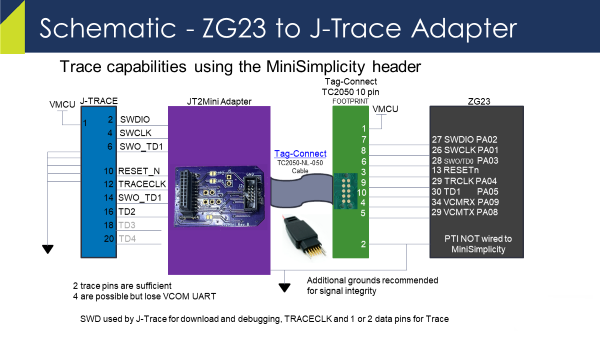
ARM CoreSight provides CPU visibility using only 2, 3 or 5 pins
Segger J-Trace and Ozone Debugger
Segger is well known in the embedded industry for their J-Link hardware programmers, the Ozone debugger and lots of other services. They have wide support for virtually every MCU made including all of the Silicon Labs EFR32 chips. Their support for Trace debugging is excellent with reliable hardware and software. The Ozone debugger is able to read in your .AXF file out of Simplicity Studio, find all the source code, connect to the DUT via the J-Trace (which includes a J-Link for programming/debug), download the firmware in seconds and run to Main and then display the path your firmware took to get there. Easy and fast!
The SeggerJ-Trace Pro Cortex-M is required for Trace Debugging. While not, cheap, it’s also not expensive compared to the cost of an engineer working for days trying to capture how their firmware dropped into the weeds. The J-Trace connects to your PCB via a 20 pin header that is 50mil on centers so it is quite small. However, I’ve come up with a small PCB that lets you use the standard 10 pin MiniSimplicity header for Trace.
etm_zwave Github Repo and J2Mini Adapter
Most Z-Wave IoT products have very small PCBs and no room for another 20 pin header even if it is 50mil. I came up with a simple way to use the existing 10 pin tag-connect/MiniSimplicity header for Trace and placed all the files in a public github called etm_zwave. You do have to connect a couple of extra pins from the ZG23 to the tag-connect/MiniSimplicity header. Replace the PTI pins with the trace clock and a second data pin – the first data pin is the SWO pin already on the header. This header is tiny and you need a way to program the ZG23 anway and this is the way to go. The PTI pins are not that useful as they are only used for radio packet tracing which Z-Wave uses standalone Zniffers instead of wiring multiple nodes to the Network Analyzer. For less than $30 you can build your own JT2Mini adapter boards and then be able to use trace with just the MiniSimplicity header. You will need a extra ground connection as there is a single ground pin on the MiniSimplicity header. I’ll discuss that issue more in the troubleshooting section below.
JT2Mini adapter board plugs directly into the Segger J-Trace and MiniSimplicity cable. It only provides two trace data pins which Segger claims will only occasionally cause the CPU to stall. With 4 pins the CPU will almost never stall. Obviously with only 1 data pin you’ve cut the data rate to get the trace info out of the chip and it will stall (insert wait states) anytime the TPIU fifos will up until they are able to unload the data off-chip.
Setup Trace in Ozone
Now that the hardware is wired up, we have to enable Trace in Ozone.
Open Ozone
Include the *.JlinkScript file in the etm_zwave github repo
For the ZG23 use ZG23_Traceconfig.JLinkScript
There are comments in the file and more info in the repo ReadMe.md on how to properly insert the script into your Ozone *.jdebug project file.
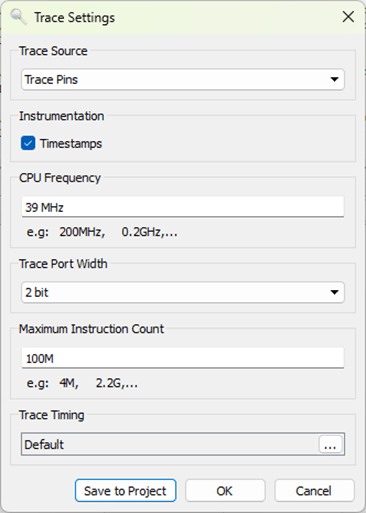
Click on Tools->Trace Settings
Change the Trace Source to Trace Pins
CPU Frequency=39MHz
Trace Port Width=2 (if using JT2Mini)
Click on Green Power button
Ozone will download the code and run to MAIN()
Open the Timeline and Code Profile windows
The TimeLine should look something like this – maybe “run” for just a fraction of a second:
This window shows how long the CPU has been in each function and the complete program flow in real time. Interrupts and switching RToS tasks are shown and make it much easier to immediately find where the hardfault occurred. Clicking in the timeline brings up the exact line of C code and optionally disassembly at that instant in time. You can quickly follow exactly where your code went wrong and the hardfault occurred.
The Timeline window also allows you to immediately see how long each function is taking. What is most important here is checking your interrupt service routines to ensure they are not busy burning a lot of CPU time doing less important work and starving other time sensitive functions. The obvious waster of time is the memset and memcpy functions which I am working on another post about those specific functions so stay tuned!
Ozone has a Code Coverage window which displays the number of lines of code that have been executed and the number of assembly instructions executed. Using this feature with a product validation suite you can quickly identify untested and potentially dead code.
Segger has plenty of training videos that go into a great deal of detail on how to use these tools. But first you need a J-Trace and get it wired up to your board.
How to get printfs via J-Trace
Unfortunately the Segger J-Trace Pro does not support the VCOM serial interface. Thus, if you want to open a terminal window and see the printfs in your code, you have to jumper the Rx/Tx pins (and ground) to a Serial to USB adapter. Fortunately I put a header on the JT2Mini PCB for exactly this purpose. The J5 header has the Rx (Pin 1 square pad) and Tx pins on it (Pin 2 round pad). J3 has ground on both pins. Use an FTDI serial to USB adapter and PuTTY or other serial terminal program to view the printfs. The DevKit EXP pins should be able to read in the serial data but I was not able to find the right combination of In/Out/MCU and AEM/Bat/USB and get SSv5 to work. Thus I recommend using a simple FTDI interface to watch the printfs when tracing.
Troubleshooting
The number one challenge with getting Trace to work is the signal integrity of the clock and the trace data pins. Once you have a clean connection, it seems to be rock stable and produces really valuable debugging data even with just two data pins. If Ozone if giving strange errors and specifically different errors with each run, odds are you have a signal integrity problem.
Yellow is Trace Data1, Green is TRACECLK – GPIOs are at max bandwidth
The EFR32 Series 2 (including the ZG23) GPIOs have only a 20MHz bandwidth. The Trace clock is a divide by 2 of the 39MHz CPU clock so it is running right at the maximum of the GPIO. Trace data is clocked out on both edges of the clock. Since the MiniSimplicity header has only 1 ground on it and there are at least 3 GPIOs toggling at their maximum rates, the signal integrity is marginal even in the best of circumstances. The JT2Mini has extra ground pins and I highly recommend connecting them with additional jumper wire while using Trace. The cable from your board to the JT2Mini should also be no more than 6 inches long. The .JlinkScript file has code in it for adjusting the slew rate of the GPIOs which can improve or possibly degrade the trace signal integrity. Ozone and J-Trace can also adjust the relative timing of the CLK to the data with sub-nanosecond resolution. You’ll have to experiment on your own if you are having problems.
Conclusion
I can’t live without Trace debugging. I don’t necessarily use it all the time but I will wire it up to every board I design in the future! I have spent weeks debugging hardfaults in the past and then solve the problem in 10 minutes using Trace. Get one for yourself!
See many of you next week at the Z-Wave Summit in Orlando Florida where I will be giving a presentation on The Joys of Trace Debugging and running the UnPlugFest on Monday!
To use an RTOS for your embedded project, or Not! That is the question poor Yorick! I digress from my usual focus on Z-Wave to discuss the general topic of using a Real-Time Operation System (RTOS) for simple embedded IoT devices. The question is moot for Z-Wave since the protocol has FreeRTOS built-in starting with the release of the 700 series. For the moment at least, the choice is To RTOS!
What is an RTOS?
My focus in this post is on small IoT devices like sensors, dimmers, window shades, to more complex devices like thermostats and door locks. Using an RTOS for simple devices like these brings different requirements than say a full Operating System like Windows or Linux. The purpose of an Operating System (OS) is to provide common resources to an application – things like memory management and insulating the application from hardware . The term “Real-Time” comes from basic concept of dividing up the resources of an embedded system so that tasks are completed within a certain timeframe. A hard-real-time system is often used in demanding applications like Engine Control. The precise management of firing the spark plugs at exactly the proper microsecond is critical to the efficient operation of an internal combustion engine. But simple IoT devices have much lower demands on the RTOS and instead are attracted to the coding efficiency and standardization of an RTOS – this is often called a soft-RTOS. All this comes at a cost in CPU and memory resources so the question remains – is an RTOS worth it for simple IoT devices?
FreeRTOS Features:
Trusted Reliable Kernel
MultiTasking/MultiThreaded
Mailboxes, Mutexes, Queues
Modular Libraries
Broad Eco-System support – 40+ MCU architectures
Small Scalable kernel size with power saving modes
Complete online documentation
Long Term Stable Support – Active support Community
Completely Free Open Source project
Z-Wave History with FreeRTOS
In the beginning Z-Wave ran on an 8-bit MCU with limited FLASH and RAM which meant life without an RTOS due to CPU performance and memory limitations. The Z-Wave protocol was built on “Bare Metal” and thus interrupt driven with a tick-timer and drivers to provide basic services. The 700 series opened the world of a 32-bit RISC MCU and significantly more memory which enabled the use of an RTOS as the foundation of the Z-Wave protocol.
I was a Field Applications Engineer for Silicon Labs for several years and in that time I would guess easily half the bugs I came across were caused by the complexity of the RTOS. I don’t have any hard statistics but it certainly seemed that way to me! The Z-Wave protocol code was ported from a Bare-Metal implementation on an 8-bit CPU to a 32-bit ARM running FreeRTOS – a challenging port to say the least! The developers treated FreeRTOS like a black-box (which is the whole point of an RTOS) and often made small mistakes that turned into really difficult to debug problems. Things like: not checking when a queue is full, not using the *FromISR() version of various calls inside interrupt service routines, hidden stack overflows by not enabling overflow checking, incomplete configuration of the many, many, many options just to name a few. An RTOS adds a LOT of complexity but you get a lot of features. The developers have to be fully trained and understand the best practices for using the complexity of the RTOS to achieve a robust system.
My primary complaint with the current implementation is that it continues to be pre-compiled into the Z-Wave library. More and more of the configuration files and various parts of FreeRTOS have been moved out of the library and into source code with each SDK release. Moving the entire RTOS into source form is not exposing any proprietary code – after all, it’s open source! It would allow developers to more quickly move to newer releases of the RTOS and related libraries. Perhaps this will come as part of the Open Source Work Group (OSWG) in the Z-Wave Alliance. We’ll have to wait and see…
The Case FOR an RTOS – Pros
I want to again note that I am talking about using an RTOS for small IoT devices. There are many other applications and environments for an RTOS which have different Pros/Cons. A few of the main features of an RTOS for IoT are:
Measuring the complexity and bug rate introduced by an RTOS unfortunately can’t be quantitatively measured. I contend that in the case of Z-Wave the complexity has outweighed the benefits. The “features” of an RTOS lead to its complexity. For one task to communicate with another, you need to setup queues in both directions. That’s a lot of code and RAM where a simple handshake would most likely do the job as was done in the Bare Metal days.
Complexity
Resource Usage – CPU, FLASH, RAM
Development Tools
Training of developers
Final Thoughts
Simple devices like light switches, sensors, window shades, and the like barely need an RTOS. These simple devices rarely need multiple tasks or the other features compared to the complexity added. More complex devices like thermostats and door locks often have a high performance application CPU where even more resources are available for things like OLED screen drivers and fingerprint readers. In this case, the Z-Wave chip is relegated to a minor role of just providing wireless connectivity which again does not need an RTOS. All that being said, the current Z-Wave protocol is fundamentally based on FreeRTOS so the To RTOS or Not To RTOS question has already been settled – To RTOS we go!
One final point on code reuse – I find Code Reuse to be a double edge sword. One the one hand, the name sounds very attractive – code once, use many times. The reality is that most code is not reusable and in the effort to make it modular, more bugs are introduced than are saved. In many cases I can write a function in a fraction of the lines of code compared to the “driver” that does it all for every flavor of chip. There’s many research papers that discuss that bugs/line of code is fairly constant. So the fewer lines of code, the fewer bugs. The fewer lines of code the easier to read and to test. Not to say that all reusable code is bad and certainly code that has been extensively tested in many ways is super valuable, but every engineer needs to make that judgement for their specific application. That’s why you get paid the big bucks!
All wireless protocols can be jammed often using an inexpensive battery powered transmitter. The protocol doesn’t even have to be radio frequency (RF) based as Infra-Red (IR) and any other communication medium that travels thru the air can be jammed by blasting out noise in the same spectrum as the protocol. Think of a busy street corner where you and a friend are having a conversation and a firetruck with their sirens blareing go by. Your conversation stops because your friend simply can’t hear you above all the noise. The same thing can happen in Z-Wave where a “bad actor” brings a small battery powered transmitter and blasts out RF in the same frequency bands that Z-Wave uses. In this post I’ll explain how to jam Z-Wave and also how to detect and inform the user that jamming has occurred.
Security System Requirements
Jamming applies primarily to security systems. After all, if someone wants to jam your house from turning on the kitchen lights at night, what’s the point other than to get a laugh when you bang your knee into the table? Z-Wave has enjoyed a great deal of success in the security system market. Z-Wave is interoperable, easy to use, low-power and the mesh networking protocol means users or installers don’t have to be concerned with getting everything to talk to everything else as the protocol automatically handles (mostly) everything. Security systems however are very concerned about jamming to the point that Underwriters Laboratory has a specification for it. UL1023 is the US standard for Safety Household Burglar-Alarm Systems.
The reality of the situation for a security system is that it is unlikely a burglar will try to bypass your security system by jamming it. Burglars are simply not that tech savvy. The FBI doesn’t even track the numbers of burglaries via jamming – one would assume because the number is essentially zero. A burglar will simply bash in a window or door or more often simply walk in an unlocked door. However, if it’s easy enough and cheap enough, a burglar might just try! CNET demonstrated just how easy it is to use a $3 transmitter to bypass a popular security system using a cheap RF transmitter. Regardless of the reality of the situation, the bad press of having an easy to jam security system can crater a company.
Anti-Jamming Techniques in Z-Wave
Z-Wave was designed from day one to be robust and reliable. The very first requirement for robustness is to acknowledge that the device receiving the message did in fact receive it. Every Z-Wave message is acknowledged (ACK) otherwise the sender will try again using different mesh routes or other RF frequencies. After several retries, the protocol will give up and the application can then decide if it wants to try even more ways to deliver the message. If the message is not very important (like a battery level report), the application can just drop it. If a sensor detects smoke! Then the application will continue trying to get this life-safety message thru in every way possible for as long as possible.
Z-Wave requires two-way communication – all messages are acknowledged
Here’s a list of the techniques Z-Wave uses for robustly delivering messages:
Z-Wave
All frames are Acknowledged
Multiple mesh routes
Frequency Hopping – Two frequencies – 3 different baud rates (in US)
RSSI Measurements indicating jamming
Supervision CC confirms decryption & data integrity
Z-Wave Long Range
All frames are Acknowledged
Dynamic TX Power
Frequency hopping to alternate channel
RSSI Measurements indicating jamming
Supervision CC confirms decryption & data integrity
Even with all these different measures in place, it is still possible to jam Z-Wave. But it’s not cheap nor is it easy. But let’s give it a try for fun!
Jamming Z-Wave
Jamming Z-Wave starts with a Silicon Labs Z-Wave Developers Kit and Simplicity Studio. However, these kits are not cheap costing at least $150 for just one. It may be possible to find a cheap 900MHz transmitter but you will need two of them and they must have the ability to tune them to the specific Z-Wave frequencies of 908.4MHz and 916MHz in the US. These are not going to be $3 battery powered transmitters and they require a significant amount of technical knowledge. Neither cheap nor easy so I think we’re pretty safe from your typical burglar.
Z-Wave uses two channels (frequencies) in the US: 908.4MH for 9.6 and 40Kbps and 916MHz for 100Kbps. Z-Wave Long Range (ZWLR) also has two channels but uses spread-spectrum encoding which spreads the signal out across a band of frequencies centered at 912MHz and 920MHz. By using two channels Z-Wave is frequency agile which makes it harder to jam since you need two transmitters instead of just one. The spectrum analyzer plot below shows four DevKits blasting all 4 channels at once.
Z-Wave jamming all four frequencies – 912 & 920 are Z-Wave Long Range
Creating the jammer firmware utilizes the RailTest utility in Simplicity Studio V5. Select the DevKit in the Debug Adapters window, click on the Example Projects & Demos tab then check the Proprietary button. The only example project should be the “Flex (RAIL) – RAILtest application”. Click on Create and use the defaults. The default frequency will state it is 868 but ignore that as the Z-Wave modes are all built into RailTest and do not need to be configured. Once the project is created, click on Build and then download to a devkit. Right click on the devkit in the Debug Adapters window and click on Launch Console. Click on the Serial 1 tab then click in the command box at the bottom and press ENTER. You should get a RailTest prompt of >.
Once you're at the RailTest prompt, enter the following commands:

rx 0                 -- disables the radio which must be done before changing the configuration
setzwavemode 1 3     -- Puts the radio into Z-Wave mode
setpower 24 raw      -- 24=0dbm radio transmit power - valid range is 1 to 155 but is non-linear
setchannel 0         -- ch0=916 ch1=908.4 ch2=908.42 - ZWLR ch0=912 ch1=920
setzwaveregion 1     -- EU=0, 1=US, 13=US Long Range
Do one of the following 2 commands:
SetTxTone 1          -- narrow band Carrier Wave - unmodulated
SetTxStream 1        -- Pseudo-Random data - modulated and in ZWLR uses Spread Spectrum (DSSS)
Use the same command with a 0 to turn the radio off
Remember to "rx 0" before changing any other configuration values
RAILtest is a powerful utility and can do all sorts of things beyond just Z-Wave. The radio in the Silicon Labs chips are Software Defined Radios, they can be customized to many common frequency bands. It is easy to create customized versions of RAILtest that will transmit a carrier wave (CW) or a modulated signal at just about any frequency band, not just Z-Wave. But that’s more complex than I have time to discuss here.
Now that we know how to jam, how do we detect it and inform the user that jamming is taking place? Detecting jamming takes place at both ends of the Z-Wave network, the Controller and the End Device. Let’s first look into the End Device which in a security system is typically a motion sensor or a door/window sensor.
End Device Jamming Detection
Most end devices are battery powered so they spend most of their time sleeping and are completely unaware of any RF jamming that might be taking place. Only when motion is detected or a door is opened will the sensor wake up and find the radio waves being jammed. The best way to check for RF jamming is to first try to send a message. When the message fails to be acknowledged, then start looking to see if jamming is occurring.
The Z-Wave Application Framework (ZAF) handles sending the message and eventually calls a callback to report status. The callback comes through EventHandlerZwCommandStatus() which will be called several seconds after sending the message. The protocol tries various mesh routes, power levels and baud rates which takes time so be sure to stay awake long enough to receive the callback. The callback returns the TxStatus variable which is typically TRANSMIT_COMPLETE_OK (0x00) which means the message was delivered. But if jamming is taking place and the radio was unable to go through it, you’ll get a TRANSMIT_COMPLETE_FAIL (0x02). This status is different than the TRANSMIT_COMPLETE_NO_ACK (0x01) which means the message was not acknowledged which is usually because the destination is offline but could also be due to jamming.
The next step is to verify that jamming is taking place by getting the current Received Signal Strength Indicator (RSSI) level by queuing the EZWAVECOMMANDTYPE_GET_BACKGROUND_RSSI event . The RSSI is a simple value in dB of the strength of signal at the radio receiver when its not actively receiving a frame. In normal operation, this value should be around -100dB. Every environment is different so the threshold for the radio being jammed needs to be a value that is significantly higher than the average value. This is particularly tough in dense housing like apartments where perhaps every unit has a Z-Wave network. This results in a relatively high RSSI average. The key here is you can’t use a simple hard-coded threshold for jamming detection based on RSSI. Instead you must average the RSSI values across a long time-span (typically hours).
Z-Wave Notification of Jamming
The next step after detecting jamming has occurred is to notify the hub. But if the jamming is still in progress, how can the notification get thru? Naturally you can’t get thru while the jamming is still happening. The trick is to keep trying and hope that the jamming is short term. The problem is that a battery powered sensor can’t keep trying constantly as it will run out of battery power perhaps in just a few minutes. You must manage battery power and at the same time keep trying with a longer and longer timeout between attempts. At some point the jamming should end, perhaps hours after the initial break-in but the jammer will eventually run out of battery power.
The Z-Wave Notification Command Class has a pre-defined value for RF Jamming – Notification Type of Home Security (0x07) with an Event of RF Jamming (0x0C) and the current average RSSI level. This notification is a critical notification so it should be wrapped in Supervision Command Class to guarantee it has been delivered and understood by the controller.
Sample Code
The code below first checks the TxStatus, if is not OK, then the RSSI level is checked by queuing the GET_BACKGROUND_RSSI event. Once the RSSI is sampled, the function will be called again with the switch going thru the GET_BACKGROUND_RSSI case below. This section of code then compares the current RSSI level with a background RSSI level and if the current level is above it then the SendRFJamNotificationPending global variable is set. When a frame is able to get thru then the pending RF Jam notification is sent since it appears the jamming has ended. This ensures the Hub is informed that there was jamming so the Hub can then decide if it needs to inform the user. The basics of the algorithm are coded here:
...
static void EventHandlerZwCommandStatus(void)
...
switch (Status.eStatusType)
...
    case EZWAVECOMMANDSTATUS_TX:  // callback from attempted message delivery
...

        if (pTxStatus->TxStatus != TRANSMIT_COMPLETE_OK) { // failed to deliver - check RSSI
            EZwaveCommandType event = EZWAVECOMMANDTYPE_GET_BACKGROUND_RSSI;
            QueueNotifyingSendToBack(g_pAppHandles->pZwCommandQueue, &event, 0); // Queue GET_RSSI
        } else { // message delivered OK
            // more cleanup happens here...
            if (SendRfJamNotificationPending) { // Is there a pending Jam Notification?
               SendRfJamNotificationPending=false;   // Send it!
               void * pData = PrepareNotifyJamReport(&zaf_tse_local_actuation);
               ZAF_TSE_Trigger((void *)CC_NotifyJam_report_stx, pData, true);
            }
        }
...
    case EZWAVECOMMANDSTATUS_GET_BACKGROUND_RSSI:  // only called if failed to deliver a message
        if (Status.Content.GetBackgroundRssiStatus.rssi > BackgroundRSSIThreshold) {
            // Set a global to send an RF Jamming Notification which will be sent when jamming ends
            SendRfJamNotificationPending=true;
            SendRfJamNotifRSSI= Status.Content.GetBackgroundRssiStatus.rssi;
        }
... // Not shown are application level retries and various other checking
Now that we have jamming detection enabled on the end-device side, let’s look at the controller end of the communication.
Controller Jamming Detection
Obviously the main thing the controller needs to do is react to a jamming notification from an End Device. The ultimate action the controller performs is left to the controller developer but clearly the end user should be notified that jamming has been detected. But that notification needs to be qualified with enough information about the average RSSI noise level to avoid false jamming detection notifications.
If the jammer is way out at 200+ meters, the RSSI level may not jump up significantly as measured by the controller. Thus, it is important to react to the End Device notification of jamming. However, the controller must poll the RSSI level at regular intervals to determine if jamming is taking place nearby. The question is how often should it poll and when to react to a sudden change in the RSSI level? There is no definite answer to this question other than “it depends” and it depends on a lot of different factors. Typically, the RSSI should be sampled a few times per minute – perhaps every 30 seconds. If a value seems unusually high, perhaps sample several more times at a much faster rate to confirm that the RSSI has jumped and its not glitch. Like the End Device case, the average RSSI value needs to be calculated across a fairly long time frame (minutes to perhaps an hour) and when there is a change from the average value then the user should be notified.
ZW_GetBackgroundRSSI
The SerialAPI function ZW_GetBackgroundRSSI() (0x3B) will return three or four bytes of RSSI values for the various channels supported by the controller. This function can be sent to the Z-Wave controller frequently as it does not cause any delays in the radio. It does use UART bandwidth so it can’t be called too frequently or it may interfere with normal Z-Wave traffic. The polling function should coded with a low priority so it is only sent when the UART has been idle for a few seconds to avoid collisions with Z-Wave radio traffic. The one-byte RSSI values are coded as shown in the table below.
RSSI values returned by the ZW_GetBackgroundRSSI():
Hex
Decimal (2s Comp)
Description
0x80-0xFF
-128 – -1
Measured RSSI in dBm
0x00-0x7C
0 – 124
Measured RSSI in dBm
0x7D
125
RSSI is below sensitivity and cannot be measured
0x7E
126
Radio saturated and could not be measured as it is too high
0x7F
127
RSSI is not available
Typically a 700 series Z-Wave controller will measure about -100dBm when the airwaves are fairly quiet. During a transmission the RSSI is often about -30dBm when the node is within a few meters of the controller.
TxStatusReport
The TxStatusReport is returned after a frame was transmitted which includes several fields with a variety of RSSI measurements. There is a Noise Floor of the sender as well as a NoiseFloor of the receiver. The RSSI values can be monitored during normal Z-Wave traffic without polling. It is best to use these values while Z-Wave traffic is taking place and to temporarily pause the polling while the Z-Wave UART is busy. Once the UART is idle, resume RSSI polling.
Missing Heartbeats
Another aspect of jamming is that battery powered devices typically send a “heartbeat” message every hour so the controller knows for sure the device is online and working (mostly that the battery isn’t dead). The controller should be keeping track of how long it has been since the last time a battery powered node has checked in and if it has missed two or at most three heartbeats, the controller should inform the user (or the installer) that the device is offline and unable to communicate. If the battery was already low, then the battery is probably dead. If the battery was fine, then there is a possibility that the device is being jammed.
Door locks, thermostats and other Z-Wave devices often need to know at least the time and day of the week. In many cases they need to know the full date and time to enable a lock User Code when a renters code is valid or set the thermostat into energy save mode. These devices need a way to determine the current date and time to within a few seconds of accuracy.
Z-Wave provides three different command classes (CC) for getting various parts of the date/time. Time Command Class is mandatory for all Gateways. Unfortunately, not all gateways support it yet, so most devices need to support one of the other command classes for use with older hubs. The question then is how is a device supposed to get the current date/time so the schedule can operate properly?
Time CC – Recommended
Time command class is described in SDS13782 (Z-Wave Management Command Class Specification). Time CC is mandatory for all Z-Wave Plus Gateways and thus is the recommended method for a device to set its clock to the current local date and time. Time CC Version 2 adds time zones and daylight savings time support if desired however V1 provides the necessary data in most cases.
The Z-Wave specification recommends having an association group to identify the time server node however the Gateway is expected to have an accurate time reference so using the Lifeline is acceptable.
The Time CC does NOT have a date/time SET command. Thus, the hub cannot set the date/time and instead must wait for the device to GET it. When a device is included in a network, it must send a Time GET command within the first few minutes to accurately set its internal clock. The device should then periodically send a Time GET to ensure the internal clock remains accurate to the local time. Note that for certification purposes a device CONTROLs Time CC, it does not SUPPORT it. The Hub is required to SUPPORT Time CC.
Time Parameters CC – Optional
The Time Parameters command can SET/GET/REPORT the year, month, day, hour, minute & second of the UTC time. However, it does not set the time zone which must be done via the Time CC V2. Thus, Time Parameters CC relies on the hub to send the current UTC time but the device can also send a GET and adjust its internal clock to match the one from the hub. However, this requires support on the hub software which is not mandatory so not all hubs will be able to provide the current date/time.
Clock CC – NOT Recommended
Clock command class is sent by a Hub and can set the local weekday and time. Thus, it only supports a 7-day schedule since it cannot set the date, just the day of the week. Typically, the Hub would send a Clock Set as part of inclusion in the network. Since the clock on the device will drift, the device must periodically send a Clock Get to the Hub and to maintain time accurately. This method is NOT recommended. However, on some old hubs this is the only method available.
Recommended Time Setting Algorithm
Wait for Inclusion into a Z-Wave Network
Wait for Security negotiation to complete
Send a Time CC DATE GET
Wait for a Time CC DATE REPORT for ~30s
If DATE REPORT arrives, Send a Time CC TIME GET and wait for ~30s
if the Time REPORT arrives then the date/time is now set and use Time CC for future clock adjustments
Exit the search for the local time
If Time CC DATE REPORT times out:
Retry 2 more times with random delay of a few minutes between each retry
During steps 3-6, If a Time Parameters CC SET or a Clock CC REPORT is received, use those to update the date/time but if a Time CC report arrives use Time CC
Send a Clock CC GET
If a REPORT arrives within ~30s then use Clock CC GET to update the date/time
If CLOCK fails
Send Time Parameters CC GET to get the current date/time
If those fail, there is no source for the current date/time, disable all scheduling features
Depending on the accuracy of the local clock circuitry, the functioning time setting command class should be used to update the local clock at a sufficient rate to match the desired settings. Typically, this would be once per day assuming a 100ppm or better 32Khz crystal is used for the 700 series low frequency external crystal oscillator (LFXCO).
Conclusion
End Devices should send a Time CC Date/Time GET shortly after inclusion in a Z-Wave network and then periodically send Date/Time GETs based on the accuracy of the real-time clock circuitry. Updating at 3:10am ensures the clock will be accurate to daylight savings time should be sufficient for a low-cost 32kHz crystal. The algorithm above works for just about any hub that has at least minimal support for time keeping.
You have a second MCU or other data files you want to update using Over-The-Air (OTA) via Z-Wave. How can you reuse the Bootloader firmware to verify the signature and decrypt the data?
The code to verify and decrypt the file already exists in the bootloader and is known good. Reusing the existing bootloader code is smaller and safer than re-inventing the wheel – or in this case encryption.
The attached project is a modified Z-Wave Door Lock Key Pad sample application that demonstrates how to OTA code/data other than the Z-Wave firmware. OTA of the Z-Wave firmware works in the sample application already – but first the encryption keys MUST be generated. See https://www.silabs.com/community/wireless/z-wave/knowledge-base.entry.html/2019/04/09/z-wave_700_ota_ofe-i00M on how to generate the keys. See the two .BAT files in the comments section which will run all the necessary commands for you. They are also included in this .sls file in the KEYS directory. You MUST create your own project keys to OTA either the Z-Wave Firmware or any other data.
To OTA other types of files you need to start with a binary file. Most microprocessor development environments will output a binary file so use that instead of a HEX file. If you have an Intel hex or Mototola S record file, use a utility like SREC_CAT to convert it to a binary file. SREC_CATcan convert just about any file type into any other file type. If the file is more than 200K bytes, you will need to break the file into 200K or smaller files and OTA each, one at a time. Doing that is beyond the scope of this project. Note there is no need to encrypt the file. We will be using Commander to sign and encrypt it using the keys generated here.
Theory of Operation:
Changes to the SSv4 DoorlockKeyPad sample project are indicated with the comment “AKER” – search for these to find what changed. You can also diff the files with a fresh copy of the DoorLockKeyPad sample app from SSv4. Most of the code to support OTA of an external processor is in this file. A few changes have been made to ota_util.c in ZAF_CommandClasses_FirmwareUpdate but these are expected to be included in a future release of the SDK (currently tested on 7.13).
Commander is used to generate a pair of public and private keys. The private key is then programmed into every device to be OTAed. Commander then encrypts and signs the binary file and wraps it with bootloader tokens. The gbl file is downloaded, the signature checked and the encrypted data is then passed to a callback function 64 bytes at a time. You then have to store the data or pass it to the external MCU. This example simply prints the data out a UART.
Procedure:
Step 1: Generate the keys
There two .BAT files in the KEYS directory for this project. These are windows script files. For other platforms you can easily convert them to the platform specific commands. See the comments in the files for more details. In a windows shell type: GenGblToken.bat This will use Commander to generate a project set of keys in the files vendor_*.*. Only execute this command ONCE. The same keys are used for the duration of the project. If you change the keys then you cannot OTA the devices as the keys no longer match.
Step 2: Program the key into a devkit and every DUT
Each device manufactured must have the private key programmed into FLASH. Use the PgmToken.bat to program the key into a target device connected via USB. Note that EVERY unit manufactured must have these keys programmed into it.
Step 3: Generate the .gbl file
Create the .gbl file from the binary file using the following command: commander gbl create <OTA_FileName>.gbl –metadata <BinaryFile> –sign vendor_sign.key –encrypt vendor_encrypt.key The –metadata option will wrap the binary data with the necessary tokens for the bootloader to parse the data. Do not use the –compress option. If the data needs to be compressed, use your own algorithm for that. There are 3 sample binary files in the KEYS directory – a small .WAV audio file, a large .M4A audio file and a PNG image file. Use the command above to wrap the file with the necessary tokens for OTA.
Step 4: OTA the .gbl file
Use the PC Controller or other application to send the gbl file over Z-Wave. Once the entire file has been sent and the CRC checked to be good, the FinishFwUpdate function is called to begin processing the image. Note that in the PCC you have to first GET the Current Firmware, then select the Target: 1 to download the metadata. Then click on UPDATE and the OTA will begin. Connect a terminal to the VCOM port of the WSTK to view the data streaming down during the OTA. Once all the data is sent down, the signature is checked and the decrypted data is sent out the UART. This is where you would need to change the code to store the data instead of printing it out the UART.
Step 5: Verify the Signature and pass in the callback function
The bootloader_verifyImage() function is called and the metadataCallback function is passed in. bootloader_verifyImage first returns a zero if the signature matches. If the signature fails an error value is returned giving some details on why it failed. The time to verify the signature can be fairly long depending on the size of the image so the watchdog timer is disabled during the processing.
Step 6: MetadataCallback passes blocks of 64 bytes of the decrypted data
The function passed in to bootloader_verifyImage is called with a pointer to the data and the number of bytes in each block. The size of the block can vary up to 64 bytes. In this example the data is simply printed out the UART. In your application you would replace this function with code to store the data as needed on the other MCU or external NVM.
Step 7: Reboot
It is recommended to reboot after the image data has been stored to ensure the FLASH is cleaned up properly. The current demo however does not reboot.
Note: This is an SSv4 SDK 7.13 sample but the same concepts should work in SSv5. The changes to ota_util.c will be folded into the SDK in a future release but for now those changes are necessary.
Silicon Labs is hosting what was intended to be an in-person conference in Austin Texas but is now a virtual online conference on IoT ecosystems – the Works WithSmart Home Developer Event September 9-10. The best part is it is now FREE to attend any of the in-depth technical sessions and you don’t have to wear a mask. The downside is that we don’t get to experience all that great music down in Austin – well, there’s always next year!
I am hosting the Z-Wave track and will be making several presentations including a detailed look at Silicon Labs latest release of Simplicity Studio V5 which just came out yesterday. We’ll also have presentations on developing Z-Wave Smart Hubs and Z-Wave Certification. I’ll also be describing some IoT failures – you learn more from your failures than your successes. We have speakers and engineers from all of the ecosystem partners, not just Silicon Labs folks. Learn from the experts from across the industry!
What is Works With 2020? The smart home developer’s virtual event where you will have the opportunity to interact with our ecosystem partners from Amazon, Google, Samsung, and Z-Wave to connect devices, platforms and protocols and be able to immerse yourself in keynotes, a panel discussion on Project CHIP, hands-on, and technical sessions led by smart home engineers who are building the latest advanced IoT devices. The Works With event is live, all-online, free of charge, and you can join from anywhere around the world.
Click here to Register Today and feel free to forward to the rest of your team.
Here’s an overview of what you won’t want to miss:
Specialized Engineer-Led Tracks – Educational sessions and technical training designed for engineers, executives, developers, business development and product managers.
Hands-On Workshops More than 12 workshops and hands-on sessions to give you experience, knowledge and confidence to develop and accelerate smart home development.
One-on-One Developer Meetings – Schedule a meeting with Silicon Labs or an ecosystem partner to get 1:1 technical guidance.
Join me in September and learn how to smoothly get your IoT device plugged into any and all of the ecosystem partners. Register today, it’s totally free and you can join from anywhere in the world. See you September!
One of the most common questions in embedded programming is “How much FLASH/RAM am I using?” or more precisely, “How much do I have left before I run out?” or even “How much do I have to squeeze my code to fit in the available space?” Yikes! Very often the code size quickly fills to fit the available space and then you start struggling to fit all the features in your product. This problem afflicts the Z-Wave 700 series just as much as any other IoT development. I’ll give you a few hints on tools to measure the code size and figure out where the bloat is and options to squeeze a little more code in.
ZGM130S Resources
The first step is to understand how much FLASH/RAM we have in the Z-Wave ZGM130S. Open the datasheet and we see there is 512K FLASH and 64K RAM. Seems like a TON! But wait, a closer look at the datasheet and there is a note that only 64KB FLASH is available for the application and 8KB RAM. That’s not a lot for a complex IoT device like a thermostat with an OLED screen but is plenty for a simple on/off light switch. Like any engineering trade off, the chip balances the available resources to match the most common use cases.
The Z-Wave stack isn’t huge so fortunately there is sufficient space available for most applications. However, the stack developers have reserved most of the the FLASH and RAM space for future upgrades. There is no easy to use tool that precisely measures how much code space is being used for the stack versus the application. In this post I’ll give you some tools to see how close you are to the total and then subtract a typical sample application size to find the amount your application is using. INS14259 section 5.1 gives the typical FLASH usage for the Z-Wave sample applications.
Half of FLASH (256K) is reserved for the Over-The-Air (OTA) firmware image. This block of flash is used when the firmware is updated and the data is stored here temporarily until the signature is checked and the code can be decrypted. Once that test has passed then the code is copied down into the normal FLASH space and the chip reboots into the new firmware version. If you need a lot more than 64K of FLASH you can consider moving the OTA storage from the upper half of the ZGM130S to an external serial FLASH. This is supported in the Silicon Labs Gecko Bootloader but requires some coding to free up all that space. This also requires hardware support for the external FLASH chip. So if you think you’re going to be short on code space, I highly recommend adding a serial FLASH chip even if you don’t use it right away. I plan to describe the OTA to external FLASH process in a future blog posting so stay tuned.
ARM Tools
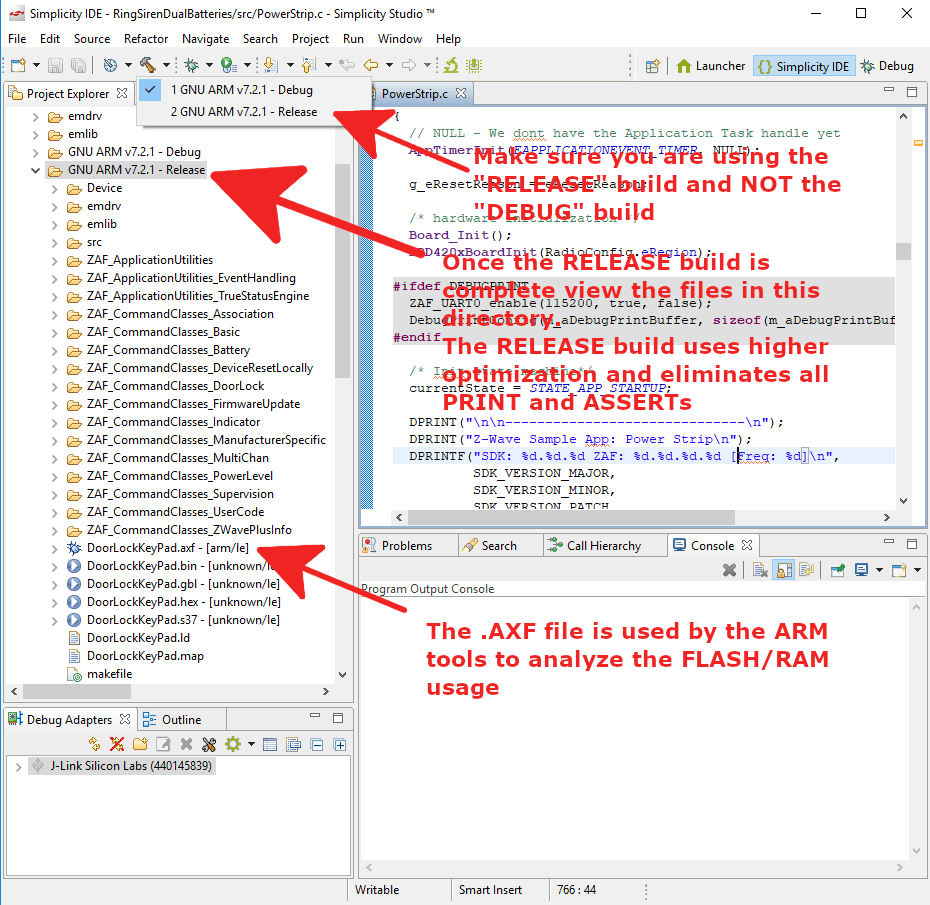
Before starting with code size analysis be sure you are working with the “release” build and not the debug build. Click on Project->Build Configurations->Set Active and select the Release build. Then build the project. The debug build uses minimal optimization and has tons of ASSERT and PRINTF code in it which invalidates the code size analysis.
ARM eabi-size
When you compile a Z-Wave project it will run the arm-none-eabi-size -A <project.axf> command which prints out an obscure listing of the sizes of various FLASH segments. The DoorLockKeyPad sample application produces the following:
.text = code which lives and runs out of on-chip FLASH
.data = initialized variables
IE: int myvar=12345; results in 12345 being stored in FLASH and then copied to RAM on power up
Thus .data uses both FLASH and RAM
The other 2 segments are in FLASH space but subtract from the total available
.nvmApp = Application non-volatile memory
.simee = SDK non-volatile memory
RAM = .bss + .data
.bss = Variables not explicitly initialized
gcc normally zeroes on power up
.data = initialized variables
.heap = heap used for dynamic memory allocation
.stack = the stack for pushing return addresses, function parameters and other things
The other segments can be largely ignored
The available FLASH is 256K minus the .simee and .nvmApp=256K-12K-36k=208K
The available RAM is 64K minus the heap/stack=64K-3K-1K=60K
Thus:
FLASH=168760+1132 = 169,892 bytes = 80% utilized
RAM=28956+1132 = 30,088 bytes = 49% utilized
You can see that the SDK code and the application are all mashed together without a way to identify how much the application is using. But at least you know when you are running out. Note that each release of the SDK will change the amount of flash used by the SDK code and possibly the ZAF. Note that the ZAF is considered part of the Application code.
Commander Flash Map
Another easy way to check how much FLASH is being utilized is to use Commander to display a map of FLASH. Start commander and connect to the DUT then use Device Info->Flash Map to get a chart like this one:
ARM eabi-nm
If you want to know which functions and variables are the biggest chunks of FLASH/RAM usage use the nm command: arm-none-eabi-nm <project.axf> --print-size --size-sort -l | tail -30
Address  Size   Type Symbol
00018c84 00000444 t process_event
0001c760 00000454 T IsMyExploreFrame
000172a4 00000454 T TransportService_ApplicationCommandHandler
000185aa 000004d2 T S2_application_command_handler
0001de00 000004e4 T crypto_scalarmult_curve25519
0001098c 0000054c T IsMyFrame
00017ee4 00000590 t S2_fsm_post_event
00010318 00000674 T IsMyFrame3ch
20006c14 00000708 B channelHoppingBuffer
000138a0 000007e8 T CommandHandler
00021960 00000888 T FRC_IRQHandler
00011790 00000890 T ReceiveHandler
2000628c 000008ac B the_context
20007590 00000c00 N __HeapBase
00019788 00000e04 T mbedtls_internal_sha1_process
00026f68 000019cc T RAILINT_0cdb976df793f6799e20dfa42e2be4c6
00074000 00003000 b nvm3AppStorage
00077000 00009000 B __nvm3Base
00077000 00009000 B nvm3Storage
The third column need a little decoding: T/t=.text (FLASH), B/b=.bss (RAM) D/d=.data (both FLASH and RAM)
You can also tell if it’s FLASH or RAM by the address – FLASH starts at 0 and RAM starts at 0x20000000. Starting from the bottom of the list above you can see that the NVM3Storage is 36K which is naturally the largest block of FLASH. Followed by the 12K of NVM3 Application storage. From there the sizes drop fairly quickly but you can guess the function based on the name. RAILINT is a bunch of Hardware Abstraction Layer (HAL) code. mbedtls is the Security S2 encryption functions. The HEAP is the largest single block of RAM followed by “the_context” which is a fairly large structure the ZAF and the SDK use to store the security and routing information.
Now that you can see the heavy users you can see if there is something amiss. Perhaps a buffer can be reused instead of using unique buffers for various functions. Look carefully for any unused functions in your source code. GCC often will leave “dead” code in place because it can’t tell if you’re using it as a dynamic callback function so to be safe it leaves the code in there. Thus, review your code and make sure you don’t have dead functions or variables or entire buffers that are never used.
The most common method to squeeze more code in is to try various options in the GCC compiler. The more recent versions of GCC have added Link Time Optimization (LTO) which can significantly reduce the code size (claims are up to 20%!). Simplicity Studio is moving to newer versions of GCC later this year so more of these options will be available. Worst case is to refactor your code to make it more efficient or drop features.
Other Tools
There are other tools like Puncover and Bloaty which can help with managing code size growth. I haven’t personally tried these but they seem like they would help. If you use a tool that helps manage code/RAM let me know in the comments below. We all need help in squeezing into the available space which is never enough!
Z-Wave Virtual Webinar Wednesdays at Noon Eastern US time
Doctor Z-Wave will be giving a hands-on live demo of getting started using Z-Wave with Simplicity Studio on Wednesday June 17. This is a live demo with just a couple of slides so you don’t want to miss it. The session is a short roughly 30 minutes with time for Q&A afterward. I will show you some simple things on setting up Simplicity to make your life easier when getting started. If you can’t make it, it will be recorded and available via the Alliance web site.
There are lots of other topics for Webinar Wednesdays:
Webinar Wednesday Schedule*:*This schedule will be updated regularly on the Z-Wave Alliance website as the series progresses
May 27, 2020 Manufacturing During a Global Pandemic: Insight & Strategy from Companies Who Are Coping Hosted by: Avi Rosenthal – Bluesalve Partners
June 3, 2020Social Distance Sales for Uncertain Times: Tips & Insight for Integrators Hosted by: Jeremy McLerran – Qolsys
June 10, 2020Residential Smart Lock Market: Trends, Use-Cases & Opportunities Hosted by: Colin DePree – Salto Systems
June 17, 2020Z-Wave 700 Series: Getting Started Hosted by: Eric Ryherd – Silicon Labs
June 24, 2020 Feature of Leedarson Z-Wave 700 Series Security Products Hosted by: Vincent Zhu & Michael Bailey Smith – Leedarson







 DrZWave