The Z-Wave Alliance is funding my writing of a blog that describes how to develop a Z-Wave product. The “Journey” is a series of ten blog postings with step-by-step descriptions of how to develop a Z-Wave product from idea to volume production. The full blog posting is on the Alliance web site but here is an abbreviated version.
Introduction
A Z-Wave Developer’s Journey is a series of ten blogs on the nuts and bolts of creating and bringing to market a wireless IoT product utilizing Z-Wave. The series provides a step-by-step roadmap for an engineering team to bring their idea from the concept to a product ready for volume manufacturing. Naturally, this series can’t delve into every aspect of the process but leverages vendor training, documentation and Github to flesh out the details. The journey focuses on Z-Wave end devices but a similar process would be followed by Z-Wave controllers. One thing to note is that everything is constantly changing. The Z-Wave specification continues to evolve with new Command Classes and updates to existing ones, the vendor Software Development Kits (SDKs) have new releases every few months and new silicon chips are always being released. While the guidance shared here is relevant today, details will inevitably evolve over time, so stay engaged and enjoy the ride.
Topics
The journey begins with this blog which describes the topics to be discussed in this ten-part series. You have the opportunity to comment on these topics as each is published. Feel free to comment or reach out to me directly at DrZWave@DrZWave.blog. I continue to learn by doing and enjoy exchanging best-in-class techniques for IoT product development of both hardware and software even in “retirement”. Below is a list of planned topics though the list may morph somewhat along the way based on your feedback. Don’t be shy, comment below or send me an email.
Which Z-Wave chip should you use for your project? Of course, the answer is… depends. The main challenge with the ZG23 is the limited amount of flash and RAM. The SDK uses virtually all the available resources. If your product is fairly simple, like a door/window sensor, the ZG23 should be fine. If you are designing a thermostat or door lock, I would recommend either the ZG28 or the CZ20. If you use the Silicon Labs QFN48 you can develop using the ZG28 and then potentially reduce cost by switching to the pin compatible ZG23 if the code fits. The ZG23 could also work out if you connect an external serial flash chip for the OTA image. That frees up half of the 512KB of flash for your application but it’s still tight on RAM. The ZGM230 module is easier to manufacture since the crystal is calibrated at the factory but is limited to +14dBm transmit power thus effectively cutting the RF range in half. The choice of Silicon Labs or Trident IoT is a more nuanced choice based on the support and relationship you have with the vendor.
Feel free to comment below or contact me with your thoughts or topics you need answers!
Save the DATE! EMEA Z-Wave Unplug Fest and Summit Vienna, Austria, May 27-29.
The EFR32ZG23 Z-Wave 800 series MCU has limited FLASH and RAM available for the application. The 800 series actually has less FLASH than the 700 series which stored the bootloader in a dedicated 16K memory. Worse, the bootloader in the 800 series has grown from 16K to 24K! Features are always being added to the SDK making it ever larger leaving less for the application. Seems like Silicon Labs needs to spend some time squeezing the code instead of constantly adding features.
Here is the typical error message when FLASH overflows:
Description
FLASH memory overflowed !
make: *** [makefile:114: all] Error 2
make[1]: *** [makefile:123: SwOnOff_2024120_ZG23B_GeoLoc.axf] Error 1
region `FLASH' overflowed by 92 bytes
SwOnOff_2024120_ZG23B_GeoLoc.axf section `.nvm' will not fit in region `FLASH'
We can’t create more FLASH on the chip, it has what it has. But, there’s always software we can change! By default, the project has ZAF->Z-Wave Release installed which sets the C compiler optimization to -Os which optimizes for size which is probably what we want since we’re out of FLASH. However, deep in the configuration files there is the definition for SL_BOOTLOADER_STORAGE_SIZE which changes from 196K to 180Kbytes when NDEBUG is defined. NDEBUG is defined when the Z-Wave->ZAF->Z-Wave Debug component is installed. The question of why BOOTLOADER size is being reduced by only 16K when debug is enabled is unclear to me. However, in my testing, adding the DEBUG component still results in FLASH overflowing but now by 4344 bytes! Obviously the change in Optimization from -Os to -Og (debugging) blew up the code which is expected. I enabled DEBUGPRINT to get debugging information out the UART which increased the flash usage even more.
Since I am debugging and will not be testing OTA at this stage, I don’t care how big the bootloader storage size is since I am not using it. I need more FLASH space for debugging! Simply edit the sl_storage_config.h file and change SL_BOOTLOADER_STORAGE_SIZE from 0x2C000 to 0x20000 to free up another 48K bytes:
// <o SL_BOOTLOADER_STORAGE_SIZE> Size of the bootloader storage.
// <i> Default: 0x20000
// <i> Note that this value is only being used if BOOTLOADER_STORAGE_USE_DEFAULT
// <i> is set to false. This value will control how much of the flash memory
// <i> is reserved for bootloader storage.
#if defined(NDEBUG)
#define SL_BOOTLOADER_STORAGE_SIZE  0x00030000
#else /* defined(NDEBUG) */
//#define SL_BOOTLOADER_STORAGE_SIZE  0x0002C000    - original value
#define SL_BOOTLOADER_STORAGE_SIZE  0x00020000
#endif /* defined(NDEBUG) */
Now the project fits comfortably in FLASH with plenty of left over space. However, I cannot OTA it and definitely cannot ship it in this way for production. Once I’m done debugging, I’ll have to revert back to RELEASE mode and remove DEBUGPRINT. If FLASH is overflowing that will require some additional effort to squeeze back into the available space. I would first try Link-Time-Optimization (-flto) to the C compiler but that can introduce some instability and require significant amounts of testing time. Next, try looking for code you don’t need and remove it. After that, complain to Silicon Labs they need to shrink their code!
Ram usage       :    65532 /    65532 B (100.00 %)
Flash usage     :   446868 /   491520 B ( 90.92 %)
RAM usage is at 100% is OK because the HEAP is expanded to fill the available space. But there is very little left over for the application as any RAM usage is making the HEAP smaller. The HEAP is used for all sorts of things like temporary variables, buffers and FreeRTOS. I am very concerned that some of the bugs in Z-Wave products are due to heap overflows. Heap overflows are very difficult to reproduce and debug as they typically require several failures to happen at just the right time. Unfortunately these failures seem to happen with regularity in the real world.
Hope this helps you get back to debugging quickly. Leave me a comment below with your helpful hints that I can include in a future post.
Geographic Location Command Class was introduced around 2014 but it appears no one ever implemented it. How do I know no one implemented it you ask? Because version 1 is not particularly useful. I asked the Z-Wave Certification manager to search the certified database and no product has ever claimed support for it. The problem with V1 is that the 16-bit coordinates limit the resolution to about two kilometers. Two kilometers is sufficient to determine the time for sunrise or sunset, but not to locate a device within a home or yard. With the arrival of Z-Wave Long Range where devices could be placed in an area as large as twelve square miles, we need a way for the device to store and report its location within a few meters or less. Thus, while the first pass (version 1) has some usefulness, with new technology (ZWLR) we have new needs and thus there is a need for a new version of Geographic Location CC. Updating a command class demonstrates the living document nature of the Z-Wave specification and how you and I can add new features to the standard!
Resolution of a Location on the Earth
The circumference of the earth is about 40,075,000 meters. There are 360 degrees of longitude so each degree is 111,319 meters. The earth isn’t a perfect spheroid but for our purposes, a sphere is close enough. In embedded systems with limited resources, we need to represent the latitude/longitude with enough bits for sufficient accuracy to meet our needs. I propose a resolution of approximately one centimeter which is certainly more than enough and currently beyond the resolution of todays (but not tomorrows) low-cost GPS receivers.
The current Z-Wave Geographic Location Command Class V1 uses 1 bit for the sign, 8 bits for the Degrees and 7 bits for the Minutes. Since the 7 bits are in minutes instead of a fraction of a degree, the 7-bit value only ranges from 0-60 which means there are actually less than 6 bits of resolution. Thus, the resolution of the current V1 is 111319m/60=1.855km. Two kilometers of resolution isn’t enough to locate a device within a single Z-Wave network.
How many bits are needed for 1 centimeter resolution?
Degree Fraction Bits
Resolution
Comments
0
111,319m
1 degree=111km
1
55,6560m
2
27,830m
3 … 16
…
Each bit doubles the resolution
17
0.85m
18
0.42m
19
0.21m
20
0.11m
21
0.05m
22
0.03m
23
0.01m
Centimeter resolution
GPS Coordinate Degree Fraction Bits of Resolution
The proposal is to update Geographic Location CC to V2 and make the values 32-bits to achieve roughly 1 centimeter resolution. Using only fractional degrees gives more resolution with fewer bits and is easier to compute. We need 8 bits to represent Longitude from 0 to 180 plus the sign bit for a total of 9 bits. Then another 23 bits for the fraction. Version 1 has the sign bit in the Minutes field which doesn’t make for an easy number to manipulate. We have to bit-swizzle the sign and then divide minutes by 60 to get the fraction. The proposal for V2 is a simple fixed-point fraction as shown below:
Geographic Location SET
7
6
5
4
3
2
1
0
Command Class = COMMAND_CLASS_GEOGRAPHIC_LOCATION (0x8C)
Command = GEOGRAPHIC_LOCATION_SET (0x01)
Lo Sign
Longitude Degree Integer[7:1]
Lo[0]
Long Fraction[22:16]
Longitude Fraction[15:8]
Longitude Fraction[7:0]
La Sign
Latitude Degree Integer[7:1]
La[0]
Lat Fraction[22:16]
Latitude Fraction[15:8]
Latitude Fraction[7:0]
Altitude[23:16] MSB
Altitude[15:8]
Altitude[7:0] LSB
Geographic Location CC V2 proposal
Longitude/Latitude
Longitude and Latitude formats are the same with a sign bit, 8 bits of integer Degree and 23 bits of fraction. The values are signed Degrees which for longitude varies from -180 to +180 and for latitude varies from -90 to +90. The rest of the bits are a fraction of a degree which yields roughly centimeter resolution.
Altitude
Altitude is a twos-complement signed 24 bit integer which yields a maximum of 83km in centimeters (more than enough!) to as much as -6,000km which is the radius of the earth. Note that altitude can be negative as the altitude is relative to sea level. Most GPS receivers will provide altitude so why not include it here in the Z-Wave standard? We need altitude because ZWLR devices could be spaced out vertically as well as horizontally.
Geographic Location GET
Geographic Location GET is the same as the existing V1.
7
6
5
4
3
2
1
0
Command Class = COMMAND_CLASS_GEOGRAPHIC_LOCATION (0x8C)
Command = GEOGRAPHIC_LOCATION_Get (0x02)
Geographic Location REPORT
7
6
5
4
3
2
1
0
Command Class = COMMAND_CLASS_GEOGRAPHIC_LOCATION (0x8C)
Command = GEOGRAPHIC_LOCATION_REPORT (0x03)
Lon Sign
Longitude Integer[7:1]
Lon Int[0]
Long Fraction[22:16]
Longitude Fraction[15:8]
Longitude Fraction[7:0]
Lat Sign
Latitude Integer[7:1]
Lat Int[0]
Lat Fraction[22:16]
Latitude Fraction[15:8]
Latitude Fraction[7:0]
Altitude[23:16] MSB
Altitude[15:8]
Altitude[7:0] LSB
Qual
RO
Al Valid
La Valid
Lo Valid
REPORT is the same as SET with the additional STATUS byte
Status Byte
The additional Status byte provides additional information about the long/lat/alt values:
Qual: From the NMEA GPS Quality Indicator: GPS receivers need a minimum of four satellites to compute the location. Thus, QUAL is the number of satellites used for the most recent computation. If more than 15 satellites are used, then the value is clamped to 15. The values 0-3 are reserved for debugging.
RO: Read Only – Long/Lat/Alt are Read-Only when set to 1. Devices with GPS receivers set this bit to indicate that the values are from an on-board sensor. SET commands are ignored. Devices without a GPS receiver clear this bit to zero and will have their location set at commissioning time typically using a phone to set the GPS coordinates.
Al Valid: The Altitude value is valid when set to 1. When cleared to 0, the Altitude value is unknown and MUST be ignored.
La & Lo Valid: Each bit signifies when the Latitude and Longitude values are valid. When cleared to zero, the Latitude or Longitude MUST be ignored.
If a SET command was sent, the Longitude, Latitude and Altitude is then considered valid and is retained thru a power cycle but will be cleared if excluded or factory reset.
GPS Receiver to Geographic Location Conversion
All GPS receivers use the NMEA 0183 standard for reporting the coordinates. The string of ASCII characters for longitude and latitude is defined to be [D]DDMM.MMM[M] where D is decimal degrees and M are the miutes. The MM.MMMM value must be divided by 60 to convert minutes into fractions of a degree.
The repository implements Geographic Location CC in an end-device such as the Z-Wave Alliance ZRAD project or on a Silicon Labs Devkit using a QWIIC I2C based GPS receiver like the M8Q from Sparkfun.
See the repo for more examples and details. The official Z-Wave Alliance specification update with GeoLocV2 is currently being reviewed and expected to be published in one of the 2025 releases.
Heat Map Examples
One of the drivers to create GeoLocV2 is to generate heat maps of the RF Range for testing Z-Wave Long Range. In previous Unplugfests we use a very subjective measurement of having an LED stop blinking when out of range. Often the LED would pause, but then start blinking again, then stop so it was difficult to determine the exact edge of RF range. With GeoLocV2 we can map the exact locations where the device is when it is able to make 100% error free, encrypted connection.
The Silicon Labs Works With 2024 conference produced a fantastic video (featuring DrZWave! – well, I have a supporting role) demonstrating GeoLocV2 in action on a motorcycle! Skip to minute 43:40 (about 3/4 of the way thru the video) to see the video.
Below is a heat map from a skydiving test that we will be producing a video in the near future. Z-Wave Long Range demonstrated 2.7 mile range – straight UP! A ZRAD was used as the controller running Z-Wave JS and a small Javascript program to extract the GeoLoc data from a commercial Z-Wave device using a PCB antenna stuffed inside a fanny pack of the jumper. This example demonstrates the need for the Altitude in the specification.
Below is a heat map with the color showing the transmit power needed to make an error free connection which ranges from -6dBm to +20dBm. The test took place in a residential neighborhood outside Boston Massachusetts where the ZRAD controller is in a wood frame building on the second floor and a ZRAD End Device was driven around the neighborhood reaching a general 500m and a maximum of over 1.4km. This demonstrates the dynamic power of Z-Wave Long Range where it saves battery power anywhere within 100 meters but can extend the range thru many obstacles to over a kilometer.
Be sure to attend the upcoming Z-Wave Unplugfest and Summit in Barcelona Spain in February 2025 or the one in Carlsbad CA in April to see GeoLocV2 in action.
Have you always wanted your very own Z-Wave widget-thing-a-ma-bob-doohickey? Silicon Labs recently released the Thunderboard Z-Wave (TBZ) which is an ideal platform for building your own Z-Wave device. Officially known as the ZGM230-DK2603A, the TBZ has sensors galore, expansion headers to connect even more stuff, comes with a built-in debugger via USB-C and can be powered with a single coin cell. Totally cool! I am working on a github repo for the TBZ but right now there are three simple sample apps in Simplicity Studio to get started.
ZGM230 Z-Wave Long Range Module – +14dBm radio – 1mi LOS RF range
ARM Cortex-M33, 512/64K FLASH/RAM, UARTs, I2C, SPI, Timers, DAC/ADC and more
Built-in Segger J-Link debugger
USB-C connectivity for SerialAPI and/or debugging
RGB LED, 2 yellow LEDs, 2 pushbuttons
Temperature/Humidity sensor
Hall Effect sensor
Ambient Light sensor
6-Axis Inertial sensor
Metal sensor
1Mbyte SPI FLASH
Qwiic I2C connector
Break-out holes
SMA connector for antenna
Coin cell, USB or external power
Firmware development support via Simplicity Studio
Sample Applications
There are three sample applications in Simplicity Studio at the time of this writing (Aug 2022 – SDK 7.18.1);
SerialAPI,
SwitchOnOff
SensorMultilevel
The TBZ ships with the SerialAPI pre-programmed into it so you can use it as a Z-Wave controller right out of the box. Connect the TBZ to a Raspberry Pi or other computer to build a Z-Wave network. Use the Unify SDK to get a host controller up and running quickly or use the PC-Controller tool within Simplicity Studio for development and testing. The SwitchOnOff sample app as the name implies simply turns an LED on/off on the board via Z-Wave. This is the best application to get started as the ZGM230 chip is always awake and is easy to debug and try out. The SensorMultilevel sounds like a great app as it returns a temperature and humidity but at the moment it does not use the sensor on the TBZ and simply always returns a fixed value. SensorMultilevel shows how to develop a coin-cell powered device. Additional sample apps are expected to be available in future SDK releases but I am working on a github repo with a lot of sensor support.
Naturally a single Z-Wave Node doesn’t do much without a network. You’ll need some sort of a hub to connect to. Most of the common hubs (SmartThings, Hubitat, Home Assistant, etc) will at least let you join your widget to the network and do some basic control or status reporting. You need either a pair of TBZs or perhaps purchase the even cheaper UZB7 for the controller side and then the TBZ for the end-device. Then you have a network and can build your doohickey and talk to it over the Z-Wave radio.
Getting Started
Plug in the TBZ to your computer and open Simplicity Studio which will give you a list of applicable documents including the TBZ User Guide. Writing code for the TBZ definitely requires strong C programming skills. This is not a kit for an average Z-Wave user without strong programming skills. There is a steep learning curve to learn how to use the Z-Wave Application Firmware (ZAF) so only experienced programmers should take this on. I would recommend watching the Unboxing the 800 series video on the silabs web site to get started using Simplicity Studio. I hope to make a new video on the TBZ and publish the github repo so stay tuned.
Have you created a Thing-a-ma-bob using the TBZ? Let me know in the comments below!
The two Z-Wave 800 series chips from Silicon Labs have flexible GPIOs but figuring out which one is the best for which function can be challenging. There are a number of restrictions based on the function and the energy (sleep) mode you need the GPIO to operate in. Similar to my posting on the 700 series, this post will guide you to make wise decisions on which pin to use for which function.
The tables below are a compilation of several reference documents but all of the data here was manually copied out of the documents and I could have made a mistake or two. Please post a comment if you see something wrong and I’ll fix it right away.
The table below lists the pins from the most flexible to the most fixed function. There are more alternate functions than the ones listed in this table. The most commonly used alternate functions are listed here to keep the table readable. Refer to the schematics and datasheets for more details.
Port A and B are operational down to EM2, other GPIOs will retain their state but will not switch or pass inputs. Thus, use port A and B for anything special and use C and D for simple things not needed when sleeping (LEDs, enables, etc).
WSTK GPIO Probe Points
Only the ZG23 QFN48 pin numbers are listed in the table. The QFN48 is expected to be pin compatible with future version of the ZG23 with additional Flash/RAM so I recommend using it over the QFN40. The WSTK2 is the Pro DevKit board with the LCD on it which comes as part of the PK800 kit. There are two sets of holes labeled with Pxx numbers on them which are handy to probe with an oscilloscope. The Thunderboard Z-Wave (TBZ) also has 2 rows of holes which are ideal for probing or connecting to external devices for rapid prototyping.
Name
ZG23
ZGM230
WSTK2
TBZ
ALT FUNC
Comments
PB2
22
9
P19
EXP5 BTN1
Use the pins at the top of this list first as they are the most flexible
PB6
NA
5
EXP15 I2CSDA
TBZ Qwiic I2C_SDA
PB5
NA
6
EXP16 I2CSCL
TBZ Qwiic I2C_SCL
PB4
NA
7
PA10
35
23
PC1
2
35
P1
EXP4
PC and PD are static in EM2/3
PC2
3
36
P3
EXP6
PC3
4
37
P5
EXP8
PC4
5
38
P35
BLUE
PC6
7
40
P33
EXP9
PC8
9
42
P31
LED0
PC9
10
43
P37
LED1
PD3
45
30
P26
IMUEN
PB0
24
11
P15
VDAC0CH0
PA0
25
12
P2
GREEN
IDACVREF
PB1
23
10
P17
RED
EM4WU3 VDAC0CH1
EM4WUx pins can wake up from EM4 sleep mode on a transition of the GPIO
PB3
21
8
P21
EXP3 BTN0
EM4WU4
PC0
1
34
P7
EXP10
EM4WU6
PC5
6
39
P12
EXP7
EM4WU7
PC7
8
41
P13
SNSEN
EM4WU8
PD2
46
31
P6
EXP11
EM4WU9
PD0_LFXTAL_O
48
33
XC32
XC32
BRD4210 and TBZ have 32KHz crystal mounted
PD1_LFXTAL_I
47
32
XC32
XC32
Accurate timing while sleeping – Time CC
PA7
32
20
P10
TraceD3
Trace pins for debug & code coverage
PA6
31
19
P8
TraceD2
Trace is configurable for 4, 2 or 1 data pin
PA5
30
17
P4
IMUINT
EM4WU0 TraceD1
PA4_TDI
29
16
P41
EXP13
JTAG_TDI TraceCLK
JTAG data in Trace Clock out
Pins below here should be used primarily for debug
PD4_PTIDATA
44
29
P25
Packet Trace Interface (PTI) data
PD5_PTISYNC
43
28
P24
EM4WU10
PTI Sync
PA9_URX
34
22
P11
EXP14
VCOM UART
PA8_UTX
33
21
P9
EXP12
VCOM UART
PA3_SWO
28
15
P16
JTAG_TDO TraceD0
RTT UART printf and Trace D0
PA2_SWDIO
27
14
P18
JTAG_TMS
These two SWD pins should ONLY be used for debug and programming
PA1_SWCLK
26
13
P20
JTAG_TCK
SWD debug clock
Pins below here are fixed function only
SUBG_O1
18
NA
Not used by Z-Wave
SUBG_I1
16
NA
Not used by Z-Wave
SUBG_O0
19
3
RFIO on ZGM230
SUBG_I0
17
NA
Matching network to SMA
RESET_N
13
1
F4
Push buttons on DevKit boards
HFXTAL_O
12
NA
39MHz crystal
HFXTAL_I
11
NA
39MHz crystal
DECOUPLE
36
18
1.0uF X8L cap (unconnected on ZGM230)
VREGSW
37
NA
Inductor to DVDD for DCDC – 3.3V
VREGVDD
38
25
3.3V In/Out based on mode
DVDD
40
24
VDCDC on ZGM230
AVDD
41
NA
Highest voltage – typically battery voltage
IOVDD
42
26
1.8-3.8V
PAVDD
20
NA
3.3V for +20, 1.8V for +14dBm
RFVDD
14
NA
1.8V or 3.3V but less than PAVDD
VREGVSS
39
27, 44
GND
RFVSS
15
2, 4
GND
Power Supply Pins
Obviously the power supply pins are fixed function pins. The only really configurable parts to this set of pins is the voltage to apply to the IOVDD, AVDD and whether to use the on-chip DC to DC converter or not. If your device is battery powered, AVDD should be the battery voltage assuming the battery is nominally 3V (coin cells or CR123A). AVDD can be measured by the IADC in a divide by 4 mode to give an accurate voltage reading of the battery. This avoids using GPIOs and resistor dividers to measure the battery level thereby freeing up GPIOs and reducing battery drain. IOVDD should be set to whatever voltage needed by other chips on the board. Typically either 1.8 or 3.3V. The DCDC should be used in most battery powered applications unless a larger DCDC is present on the board already to power other chips.
The other configurable voltage is the RFVDD and PAVDD and the choice there depends on the radio Transmit Power you wish to use. For +14dBm PA an RF VDD are typically 1.8V. For +20dBm PAVDD must be 3.3V.
Every product has unique requirements and sources of power so I can’t enumerate all possible combinations here but follow the recommendations in the datasheets carefully. Copy the radio board or Thunderboard example schematics for most typical applications.
Debug, PTI and Trace Pins
The two Serial Wire Debug (SWD) pins (SWCLK and SWDIO) are necessary to program the chip FLASH and are the minimum required to be able to debug firmware. While it is possible to use these pins for other simple purposes like LEDs, it is best if they are used exclusively for programming/debug. These should be connected to a MiniSimplicity or other debug header.
The SWO debug pin is the next most valuable pin which can be used for debug printfs in the firmware and output to a debugging terminal. Alternatively, the UART TX and RX pins can also be used for debugging with both simple printfs and able to control the firmware using the receive side of the UART to send commands.
The two Packet Trace Interface (PTI) pins provide a “sniffer” feature for the radio. These pins are read by Simplicity Studios Network Analyzer to give a detailed view of all traffic both out of and into the radio. The main advantage of these pins is that they are exactly the received data by the radio. The Z-Wave Zniffer can also be used as a standalone sniffer thereby freeing these pins for any use. The standalone Zniffer however does not show you exactly the same traffic that the PTI pins do especially in noisy or marginal RF conditions. Thus, the PTI pins on the device provide a more accurate view of the traffic to the device under test.
The Trace pins provide additional levels of debug using the Segger J-Trace tool. These pins output compressed data that the debugger can interpret to track the exact program flow of a running program in real time. This level of debug is invaluable for debugging exceptions, interrupts, multi-tasking RTOS threads as well as tracking code coverage to ensure all firmware has been tested. Often these pins are used for other purposes that would not be necessary during firmware debug and testing. Typically LEDs or push buttons can be bypassed during trace debug. There are options to use either 4, 2 or even 1 trace data pin but each reduction in pins cuts the bandwidth and make debugging less reliable.
LFXO and EM4WU Pins
The Low Frequency Crystal Oscillator (LFXO) pins are typically connected to a 32KHz crystal to enable accurate time keeping within several seconds per day. If supporting the Time Command Class, I strongly suggest adding the 32KHz crystal. While you can rely on the LFRCO for time keeping, it can drift by as much as a minute per hour. While you can constantly get updated accurate time from the Hub every now and then, that wastes Z-Wave bandwidth and battery power. Both the Thunderboard and BRD4210 include a 32KHz crystal so you can easily compare the accuracy of each method.
Reserve the EM4WU pins for functions that need to wake the EFR32 from EM4 sleep mode. These are the ONLY pins that can wake from EM4! Note that ports PC and PD are NOT able to switch or input from peripherals while in EM2. See the datasheet and reference manual for more details.
Remaining GPIOs
Many of the remaining GPIOs have alternate functions too numerous for me to mention here. Refer to the datasheet for more details. Most GPIOs can have any of the digital functions routed to them via the PRS. Thus, I2C, SPI, UARTs, Timers and Counters can generally be connected to almost any GPIO but there are some limitations. Analog functions have some flexibility via the ABUS but certain pins are reserved for special functions. Hopefully these tables help you make wise choices about which pin to use for which function on your next Z-Wave product.
Here we go again… Once again I’ve been given yet another board with randomly placed test points instead of a nice neat, reliable header to connect via my MiniSimplicity cable. So I’m spending an hour on my microscope soldering thin little wires to the tiny little test points to be able to flash and then debug the firmware on a new ZG23 based product. Once I’m done soldering, I’m left with a very fragile board which is unreliable at best and at worst will result in even less hair on my thinning head. My post from 2019 described using a zero cost header for a reliable connection, but it seems not everyone is reading my blog!
On the flip side, a different customer sent me their board with a Tag-ConnectEdge-Connect that I had not seen before but is absolutely brilliant. The Edge-Connect uses the EDGE of your PCB for the test points. Barely 1mm wide and about 20mm long it is possible to include this debug connector on virtually any PCB. There is a locking pin to hold the cable secure while the spring loaded tabs press into the castellated notches to ensure solid contact.
Close up of the locking pin and castellated notches
There are several sizes of the Edge-Connect but the recommended one is the 10-pin EC10-IDC-050 which matches the MiniSimplicity header on the WSTK DevKit board. Note that the the 6pin cable in the photo above is NOT the one I would recommend but it was the only one in stock at the time and it worked fine for debugging but doesn’t have the UART or PTI pins.
Tag-Connect has many other types of debug headers/cables of various configurations to hold the cable to the PCB securely. The original Tag-Connect cables have plastic clips that snap into fairly large thru-holes in your PCB. While this is a reliable connection, the thru-holes eat up a lot of PCB real estate. The next evolution was to use a small retaining clip under the PCB that grips onto the metal alignment pins. The photo below shows the PCB pads are not much bigger than an 0805 footprint and only requires three small thru-holes.
Note the smallest header is about the same as an 0805 in lower left corner
The lowest cost approach is to simply add a 10-pin header footprint on your PCB that matches the pinout of the MiniSimplicity header. See section 5.1.1 of Application Node AN958 for the pinout of the 10-pin MiniSimplicity header. You don’t need to solder the header onto the PCB except when debugging. Thus the header can be under a battery or some relatively inaccessible location as when you are debugging in the lab the PCB is usually not installed in the product enclosure.
Please use ANY of these standard connectors on your next project. Without a solid connection between your computer and the chip you will find yourself chasing ghosts and losing hair.
The new Z-Wave 800 Series silicon is now shipping in volume and fully supported by the Silicon Labs tools so it’s time to get to work designing new products! In this post I’ll describe the main advantages and the difference between the chip version (SoC) and the module. But first I want to invite everyone to watch the Tech Talk on using the new 800 series developers kit: ZWAVE-PK800A.
I am presenting the new Z-Wave Developers Kit – ZWAVE-PK800A in a webinar on 22 March 2022. The webinar is recorded so if you missed it, you can still view it anytime, just click the image.
Unlike the 700 series, either the SiP module or the SoC can be used for either controllers or end devices. In the 700 series the EFR32ZG14 SoC is only usable on gateways and only runs the SerialAPI. The ZGM130 module is used for all end devices and can be used on gateways. Thus, the 800 series gives you more choices for which chip/module to use that best matches your product needs.
What’s the difference between 800 series Module vs. SoC?
Here’s the short list of differences:
ZGM230S SiP Module – easier to use
Integrated crystal, RF match, decoupling
Factory calibrated CTUNE
34 GPIO – 44 pin SiP 6.5×6.5mm
+14dBm Max RF Transmit power (lower battery current targeting End Devices)
More expensive unit cost but just add antenna and a few passives
23/31 GPIO – 40/48 QFN 5×5/6x6mm (48 pin compatible with a future larger flash/ram device)
+14dBm or +20dBm Z-Wave Long Range RF Tx power
Line powered devices should use +20 for additional RF Range
Lower unit cost but more companion parts, antenna and crystal calibration required
Both require an external antenna and require regulatory (FCC/CE) testing
ZGM230S Module
The ZGM230S System-in-Package (SiP) Module is a superset of the EFR32ZG23 System-on-Chip (SoC). The module adds a handful of inductors and capacitors for the DC-to-DC regulator and RF matching and the 39MHz crystal which is pre-calibrated at the Silicon Labs factory. The module is easier to manufacture (fewer components and no calibration) but is limited to +14dBm transmit power in Z-Wave Long Range. Modules are more expensive due to the integration but the cost crossover is at pretty high volumes.
ZGM230S SiP Module contains the ZG23 SoC chip, a calibrated crystal and a few passive components
ZG23 SoC
The ZG23 SoC is the chip inside the module. The main advantage of using the SoC is that at high volumes, it is cheaper. The SoC supports +20dBm Z-Wave Long Range transmit power which can nearly double the radio range over the module. But +20dBm demands a lot of battery power so it typically cannot be powered with coin cells but must use a CR123A or AA batteries. Getting FCC to pass at +20dBm can also be a challenge and careful matching of the antenna is required. On the factory test floor, every unit manufactured must have the 39MHz crystal calibrated. Details of the calibration process are described in User Guide 522. The crystal calibration is necessary to ensure reliable radio communication and is a process that requires a spectrum analyzer and several seconds of testing. Your manufacturing partner has to be equipped and knowledgeable to properly calibrate each unit efficiently.
500 vs. 700 vs. 800 Series Comparison
Are you still working with the Z-Wave 500 series and need more details on which series to upgrade to? Fortunately we’ve put together this comparison table to answer those questions. I have to say that once you’ve written and debugged code for a modern ARM processor, you will NEVER want to use the 500 series 8051 8-bit CPU ever again!
Which Z-Wave Series to use?
In these times of long lead times and limited silicon availability, the main question of which Z-Wave chip/module to use may come down to which ones you can get! Silicon Labs keeps some inventory of all of our chips available thru our distributors Digikey, Mouser and Arrow. Each day a few hundred chips of all types are placed into inventory so anyone can buy enough to build prototypes. If there are zero available today, try again tomorrow or the next day. At this time (end of Q1 2022), we are able to supply the 500 series pretty well but the supply outlook for 2023 is uncertain. The 700 series has limited availability so if you already have orders placed and have been given allocation, you are OK. The 800 series is our most advanced process which Silicon Labs and our fabrication partners are investing in upgrading capacity so availability will improve late in 2022 and into 2023. Any new product development or upgrading of 500 series products should use the 800 series. This outlook changesliterally daily so contact your Silicon Labs sales person for the latest recommendation.
Conclusion
The choice of 800 series is easy – do it! The improvements and availability over the 500 and 700 series makes using the 800 series a no-brainer. So the next question is Module or SoC? That decision has to be done on a case-by-case basis as there are a lot of factors to be weighed. The first hurdle is the total unit volume you expect to purchase. If you’re not in the 100,000+ per year stage, then the recommendation is to use the module as it is simply easier to manufacture. The crystal calibration requirement for the SoC is non-trivial and demands expertise and equipment to do it properly. If your target market is not the US, then the module is also the way to go as the additional RF power isn’t available except in the US region as Z-Wave Long Range is only available in North America. I recommend you contact your local FAE to discuss your needs and we’ll help guide to the appropriate solution that balances cost vs. complexity.
Z-Wave is a wireless mesh protocol with over two decades of real-world learning built into the latest version. While the other new wireless protocols are still writing the specification for their mesh network, Z-Wave has learned a thing or two over the past twenty years. Z-Wave is a Source Routing protocol where the Primary Controller of the network keeps track of the best paths thru the network to/from any point to any other point.
Z-Wave limits the number of hops thru the mesh to four hops to bound the routing calculations to something an inexpensive microprocessor can handle. These four hops quickly explode into a huge number of routing combinations as the size of the network grows to more than a few dozen nodes. The trick is to pick the optimal set of routes to get from one node to the next. This is where the two decades of learning have proven to be the key to Z-Waves robust delivery.
Source Routing Introduction
The 500 series Appl. Prg. Guide section 3.4 describes the “routing principles” used in Z-Wave. While this is a 500 series document the 700 series uses the same algorithm with a few minor enhancements. The key to source routing is that the Primary Controller (PC) calculates the route from Node A to Node B. Each node along the way does not need to know anything about the routing, it just follows the route in the packet header determined by the PC. When an end node needs to talk to the PC or any other node, the PC will send the end node four routes to get from Node A to Node B. As a final backup route, Node A can send out an Explorer Frame asking all nodes within radio range if they can help get the message to Node B. If a node is able to help and the message is delivered, this route becomes what is known as the Last Working Route (LWR). Node A will then use the LWR route whenever it needs to talk to Node B.
There are a total of five routes stored in any node to get to any other node. Note that routes are calculated and stored only if a node is Associated with another node. Since most nodes usually only talk to the PC (Associated via the Lifeline – Association Group 1), that is the only set of routes it stores. The primary controller has the full network topology but still follows the same basic algorithm when sending a message to a node. The five routes are held in a list for each destination. If a message is delivered successfully, that route is moved to the top of list and is called the Last Working Route (LWR). The LWR will be used from now on until it fails for some reason. RF communication is fraught with failures and they will happen occasionally so the LWR often changes over time. When the LWR route fails, the list is pushed down and once a working route is found, it is placed at the top of the list as the new LWR.
Application Priority Routes
Application Priority Routes (APR) are special routes the Application can assign to a node to get messages from Node A to Node B. They are called “Application” Priority Routes because the protocol never assigns APRs, only the APPLICATION can assign APRs. Typically the application is the software that is talking directly to the PC – a Hub application like SmartThings or Hubitat or one of the many other Hub applications. The protocol assumes that someone smarter than it (meaning an expensive powerful CPU with tons of memory) can figure out a better route from A to B than it can. The protocol places the APR at the top of the 5 routes in the list and always keeps it there. Even ahead of the LWR. While this gives the application a great deal of power, it also means the application can make a mess of routing and inadvertently cause a lot of latency. Large Z-Wave networks tend to have dynamic routing which is why the LWR has been the key to the routing algorithm – Once you find a working route, keep using it!
PCC Icon for APR
I generally don’t recommend using APRs since the routing tends to be dynamic and it is often best to let the protocol find the best route. However, adding Direct Route APRs where the node will talk back to the Hub directly rather than routing thru other nodes can reduce latency. This sometimes solves the problem where the LWR gets stuck with a multi-hop route when the Hub could reach it directly. A direct route is the fastest way to deliver messages and multi-hop messages often can have noticeable delay to them. When a motion sensor detects motion in a dark room, speed and low-latency are central to maintaining a high WAF factor and quickly turn on a light.
Using the PC Controller to Assign APRs
The PC Controller has a section called “Setup Route” which has a number of ways of setting up various routes.
There are 5 different types of Routes that the PCC can setup:
#
Route
Description
SerialAPI Command
1
Return Route
Assigns 4 controller computed routes between 2 nodes
ZW_AssignReturnRoute() (0x46)
2
Priority Return Route
Assigns an Application Priority Route between 2 nodes
ZW_AssignPriorityRoute() (0x4F)
3
Set Priority Route
Assigns an Application Priority Route from the controller to a node
ZW_SetPriorityRoute() (0x93)
4
SUC Return Route
Assigns 4 controller computed routes from the end node to the controller
ZW_AssignSUCReturnRoute() (0x51)
5
Priority SUC Return Route
Assigns an Application Priority Route from the controller to an end node
ZW_AssignPrioritySUCReturnRoute() (0x58)
1. Return Route
Return Route assigns four routes to the source node (left) to reach the destination node (right). Anytime an Association is made from one node to another, a Return Route MUST be assigned so the source knows how to reach the destination. The most common application is a motion sensor turning on a light without going thru the hub. For example; a motion sensor (Node 10) is associated with the light (Node 20) and then a call to ZW_AssignReturnRoute(10,20,SessionID) will send four messages to node 10 with four different routes to get to node 20. In this case the Application does NOT specify the route to be used but lets the Primary Controller calculate the best 4 routes. The source node can still use Explorer Frames to find a route if all four fail. During inclusion a controller should always assign return routes to the end node back to the PC so the end node has routes for any unsolicited messages (or use the SUC Return Route below). If the network topology changes significantly (nodes added or removed), then all the return routes of every node in the network should be reassigned to ensure the optimal route is used.
2. Priority Return Route
Priority Return Route is used to assign an Application Priority Route between two nodes. The only time I recommend using this command is to assign a priority route back to the controller to use no routing assuming the node is within direct range of the controller. It is too easy to mess up the routing with this command so in general I do not recommend using it.
3. Get/Set Priority Route
Get or Set the Application Priority Route (APR) the primary controller uses to reach a node. Since the node will use the same route to return the ACK this will become the LWR for the end node so both sides will use this route first. Note that this route is not set at the end node, only the controller will use this route. If the end node needs to send a message to the controller it will use this route if it is the LWR otherwise it will use one of its own assigned routes. Note that you can set the speed in this command. Be careful not to blindly set the speed to 100kbps. If the nodes in the path are older or the destination is a FLiRS device then they may only support 40kbps. Old 100 series nodes can only do 9.6kbps but they can still be part of the mesh. Note that you can GET the priority route (0x92) with this command if one has been assigned. If a Priority Route has not been assigned then the current LWR is returned.
The only application of Set Priority Route I recommend is to force nodes close to the controller to always try direct communication first. In this case, you would Set Priority Route with all zeroes in the route. This tends to make scenes that turn on a lot of lights run quickly so there is less popcorn effect. If a scene with a lot of lighting nodes fails to deliver to one of the nodes, the PC then searches thru routes to find a new route, the routed route becomes the LWR and the controller will continue to use the LWR until that route fails for some reason. By assigning a Priority direct route the controller will always try the direct route first. Since 700 series devices usually have excellent RF, if the controller is in the same room or at least on the same floor as the lights it is controlling, then the direct routes will minimize the popcorn delay. However, if the lights are not in direct range, it will just delay everything making the popcorn worse! So be careful in assigning APRs! Don’t make things worse.
Set the Application Priority Route to Node 2 to direct (no hops) at 100kbps
The example above shows how to assign an APR direct route to Node 2. The function call for this would be: ZW_SetPriorityRoute(2, 0, 0, 0, 0, 3); Every time the PC sends a message to node 2 it will always try this direct route first, if that fails to ACK, then it will use the LWR then the other return routes it has calculated.
APR to Node 6 thru 5->4->3->2 at 100kbps
The example above shows an extreme example where we force routing to be the maximum number of hops of four. This is a handy way to test your product with a lot of routing! A zniffer trace of a message looks like:
Node 1 sending Basic Set to Node 6 via 1->5->4->3->2->6
The function call for this would be: ZW_SetPriorityRoute(6, 5, 4, 3, 2, 3); The PC will always use the route to send a message to node 6, if it fails, it will try the LWR and then the other return routes and finally an Explorer Frame.
4. SUC Return Route
The SUC Return Route is a shorter version of the Assign Return Route (1. above) which simply sets the Destination NodeID to be the SUC which in most cases is the Primary Controller.
5. Priority SUC Return Route
The Priority SUC Return route is again a short version of the Assign Priority Return Route (2. above) which automatically sets the Destination NodeID to be the SUC. It is generally easier to simply use the normal Return Route commands (1. aan 2. above) and fill in the Destination NodeID as the PC (which is usually the SUC) than to use these two commands.
Conclusion
The techniques explained here are not intended for general Z-Wave users but instead for the Hub developers and end-device developers. Since these are low-level commands and not something a user typically has access to, you’ll have to pressure your Hub developer to follow these recommendations.
Hub developers MUST assign return routes ANY time an Association is made between two nodes especially back to the Hub immediately after inclusion and assignment of the Lifeline. If the network topology changes such as when a node is added or removed, it may be necessary to reassign ALL of the routes to all nodes to take advantage of the new routes or eliminate nodes that no longer exist. Be careful assigning Priority routes especially if a node in a Priority Route is removed from the network. If a now non-existent NodeID is in an APR, the node will try really hard using the APR with the missing node before finally giving up using the LWR. This will result in annoying delays in delivering commands or status updates. Z-Wave will still deliver the message, but only after you’ve banged your shin into the coffee table in the dark because the motion sensor is still trying to send thru the missing NodeID in the Application Priority Route.
All wireless protocols can be jammed often using an inexpensive battery powered transmitter. The protocol doesn’t even have to be radio frequency (RF) based as Infra-Red (IR) and any other communication medium that travels thru the air can be jammed by blasting out noise in the same spectrum as the protocol. Think of a busy street corner where you and a friend are having a conversation and a firetruck with their sirens blareing go by. Your conversation stops because your friend simply can’t hear you above all the noise. The same thing can happen in Z-Wave where a “bad actor” brings a small battery powered transmitter and blasts out RF in the same frequency bands that Z-Wave uses. In this post I’ll explain how to jam Z-Wave and also how to detect and inform the user that jamming has occurred.
Security System Requirements
Jamming applies primarily to security systems. After all, if someone wants to jam your house from turning on the kitchen lights at night, what’s the point other than to get a laugh when you bang your knee into the table? Z-Wave has enjoyed a great deal of success in the security system market. Z-Wave is interoperable, easy to use, low-power and the mesh networking protocol means users or installers don’t have to be concerned with getting everything to talk to everything else as the protocol automatically handles (mostly) everything. Security systems however are very concerned about jamming to the point that Underwriters Laboratory has a specification for it. UL1023 is the US standard for Safety Household Burglar-Alarm Systems.
The reality of the situation for a security system is that it is unlikely a burglar will try to bypass your security system by jamming it. Burglars are simply not that tech savvy. The FBI doesn’t even track the numbers of burglaries via jamming – one would assume because the number is essentially zero. A burglar will simply bash in a window or door or more often simply walk in an unlocked door. However, if it’s easy enough and cheap enough, a burglar might just try! CNET demonstrated just how easy it is to use a $3 transmitter to bypass a popular security system using a cheap RF transmitter. Regardless of the reality of the situation, the bad press of having an easy to jam security system can crater a company.
Anti-Jamming Techniques in Z-Wave
Z-Wave was designed from day one to be robust and reliable. The very first requirement for robustness is to acknowledge that the device receiving the message did in fact receive it. Every Z-Wave message is acknowledged (ACK) otherwise the sender will try again using different mesh routes or other RF frequencies. After several retries, the protocol will give up and the application can then decide if it wants to try even more ways to deliver the message. If the message is not very important (like a battery level report), the application can just drop it. If a sensor detects smoke! Then the application will continue trying to get this life-safety message thru in every way possible for as long as possible.
Z-Wave requires two-way communication – all messages are acknowledged
Here’s a list of the techniques Z-Wave uses for robustly delivering messages:
Z-Wave
All frames are Acknowledged
Multiple mesh routes
Frequency Hopping – Two frequencies – 3 different baud rates (in US)
RSSI Measurements indicating jamming
Supervision CC confirms decryption & data integrity
Z-Wave Long Range
All frames are Acknowledged
Dynamic TX Power
Frequency hopping to alternate channel
RSSI Measurements indicating jamming
Supervision CC confirms decryption & data integrity
Even with all these different measures in place, it is still possible to jam Z-Wave. But it’s not cheap nor is it easy. But let’s give it a try for fun!
Jamming Z-Wave
Jamming Z-Wave starts with a Silicon Labs Z-Wave Developers Kit and Simplicity Studio. However, these kits are not cheap costing at least $150 for just one. It may be possible to find a cheap 900MHz transmitter but you will need two of them and they must have the ability to tune them to the specific Z-Wave frequencies of 908.4MHz and 916MHz in the US. These are not going to be $3 battery powered transmitters and they require a significant amount of technical knowledge. Neither cheap nor easy so I think we’re pretty safe from your typical burglar.
Z-Wave uses two channels (frequencies) in the US: 908.4MH for 9.6 and 40Kbps and 916MHz for 100Kbps. Z-Wave Long Range (ZWLR) also has two channels but uses spread-spectrum encoding which spreads the signal out across a band of frequencies centered at 912MHz and 920MHz. By using two channels Z-Wave is frequency agile which makes it harder to jam since you need two transmitters instead of just one. The spectrum analyzer plot below shows four DevKits blasting all 4 channels at once.
Z-Wave jamming all four frequencies – 912 & 920 are Z-Wave Long Range
Creating the jammer firmware utilizes the RailTest utility in Simplicity Studio V5. Select the DevKit in the Debug Adapters window, click on the Example Projects & Demos tab then check the Proprietary button. The only example project should be the “Flex (RAIL) – RAILtest application”. Click on Create and use the defaults. The default frequency will state it is 868 but ignore that as the Z-Wave modes are all built into RailTest and do not need to be configured. Once the project is created, click on Build and then download to a devkit. Right click on the devkit in the Debug Adapters window and click on Launch Console. Click on the Serial 1 tab then click in the command box at the bottom and press ENTER. You should get a RailTest prompt of >.
Once you're at the RailTest prompt, enter the following commands:

rx 0                 -- disables the radio which must be done before changing the configuration
setzwavemode 1 3     -- Puts the radio into Z-Wave mode
setpower 24 raw      -- 24=0dbm radio transmit power - valid range is 1 to 155 but is non-linear
setchannel 0         -- ch0=916 ch1=908.4 ch2=908.42 - ZWLR ch0=912 ch1=920
setzwaveregion 1     -- EU=0, 1=US, 13=US Long Range
Do one of the following 2 commands:
SetTxTone 1          -- narrow band Carrier Wave - unmodulated
SetTxStream 1        -- Pseudo-Random data - modulated and in ZWLR uses Spread Spectrum (DSSS)
Use the same command with a 0 to turn the radio off
Remember to "rx 0" before changing any other configuration values
RAILtest is a powerful utility and can do all sorts of things beyond just Z-Wave. The radio in the Silicon Labs chips are Software Defined Radios, they can be customized to many common frequency bands. It is easy to create customized versions of RAILtest that will transmit a carrier wave (CW) or a modulated signal at just about any frequency band, not just Z-Wave. But that’s more complex than I have time to discuss here.
Now that we know how to jam, how do we detect it and inform the user that jamming is taking place? Detecting jamming takes place at both ends of the Z-Wave network, the Controller and the End Device. Let’s first look into the End Device which in a security system is typically a motion sensor or a door/window sensor.
End Device Jamming Detection
Most end devices are battery powered so they spend most of their time sleeping and are completely unaware of any RF jamming that might be taking place. Only when motion is detected or a door is opened will the sensor wake up and find the radio waves being jammed. The best way to check for RF jamming is to first try to send a message. When the message fails to be acknowledged, then start looking to see if jamming is occurring.
The Z-Wave Application Framework (ZAF) handles sending the message and eventually calls a callback to report status. The callback comes through EventHandlerZwCommandStatus() which will be called several seconds after sending the message. The protocol tries various mesh routes, power levels and baud rates which takes time so be sure to stay awake long enough to receive the callback. The callback returns the TxStatus variable which is typically TRANSMIT_COMPLETE_OK (0x00) which means the message was delivered. But if jamming is taking place and the radio was unable to go through it, you’ll get a TRANSMIT_COMPLETE_FAIL (0x02). This status is different than the TRANSMIT_COMPLETE_NO_ACK (0x01) which means the message was not acknowledged which is usually because the destination is offline but could also be due to jamming.
The next step is to verify that jamming is taking place by getting the current Received Signal Strength Indicator (RSSI) level by queuing the EZWAVECOMMANDTYPE_GET_BACKGROUND_RSSI event . The RSSI is a simple value in dB of the strength of signal at the radio receiver when its not actively receiving a frame. In normal operation, this value should be around -100dB. Every environment is different so the threshold for the radio being jammed needs to be a value that is significantly higher than the average value. This is particularly tough in dense housing like apartments where perhaps every unit has a Z-Wave network. This results in a relatively high RSSI average. The key here is you can’t use a simple hard-coded threshold for jamming detection based on RSSI. Instead you must average the RSSI values across a long time-span (typically hours).
Z-Wave Notification of Jamming
The next step after detecting jamming has occurred is to notify the hub. But if the jamming is still in progress, how can the notification get thru? Naturally you can’t get thru while the jamming is still happening. The trick is to keep trying and hope that the jamming is short term. The problem is that a battery powered sensor can’t keep trying constantly as it will run out of battery power perhaps in just a few minutes. You must manage battery power and at the same time keep trying with a longer and longer timeout between attempts. At some point the jamming should end, perhaps hours after the initial break-in but the jammer will eventually run out of battery power.
The Z-Wave Notification Command Class has a pre-defined value for RF Jamming – Notification Type of Home Security (0x07) with an Event of RF Jamming (0x0C) and the current average RSSI level. This notification is a critical notification so it should be wrapped in Supervision Command Class to guarantee it has been delivered and understood by the controller.
Sample Code
The code below first checks the TxStatus, if is not OK, then the RSSI level is checked by queuing the GET_BACKGROUND_RSSI event. Once the RSSI is sampled, the function will be called again with the switch going thru the GET_BACKGROUND_RSSI case below. This section of code then compares the current RSSI level with a background RSSI level and if the current level is above it then the SendRFJamNotificationPending global variable is set. When a frame is able to get thru then the pending RF Jam notification is sent since it appears the jamming has ended. This ensures the Hub is informed that there was jamming so the Hub can then decide if it needs to inform the user. The basics of the algorithm are coded here:
...
static void EventHandlerZwCommandStatus(void)
...
switch (Status.eStatusType)
...
    case EZWAVECOMMANDSTATUS_TX:  // callback from attempted message delivery
...

        if (pTxStatus->TxStatus != TRANSMIT_COMPLETE_OK) { // failed to deliver - check RSSI
            EZwaveCommandType event = EZWAVECOMMANDTYPE_GET_BACKGROUND_RSSI;
            QueueNotifyingSendToBack(g_pAppHandles->pZwCommandQueue, &event, 0); // Queue GET_RSSI
        } else { // message delivered OK
            // more cleanup happens here...
            if (SendRfJamNotificationPending) { // Is there a pending Jam Notification?
               SendRfJamNotificationPending=false;   // Send it!
               void * pData = PrepareNotifyJamReport(&zaf_tse_local_actuation);
               ZAF_TSE_Trigger((void *)CC_NotifyJam_report_stx, pData, true);
            }
        }
...
    case EZWAVECOMMANDSTATUS_GET_BACKGROUND_RSSI:  // only called if failed to deliver a message
        if (Status.Content.GetBackgroundRssiStatus.rssi > BackgroundRSSIThreshold) {
            // Set a global to send an RF Jamming Notification which will be sent when jamming ends
            SendRfJamNotificationPending=true;
            SendRfJamNotifRSSI= Status.Content.GetBackgroundRssiStatus.rssi;
        }
... // Not shown are application level retries and various other checking
Now that we have jamming detection enabled on the end-device side, let’s look at the controller end of the communication.
Controller Jamming Detection
Obviously the main thing the controller needs to do is react to a jamming notification from an End Device. The ultimate action the controller performs is left to the controller developer but clearly the end user should be notified that jamming has been detected. But that notification needs to be qualified with enough information about the average RSSI noise level to avoid false jamming detection notifications.
If the jammer is way out at 200+ meters, the RSSI level may not jump up significantly as measured by the controller. Thus, it is important to react to the End Device notification of jamming. However, the controller must poll the RSSI level at regular intervals to determine if jamming is taking place nearby. The question is how often should it poll and when to react to a sudden change in the RSSI level? There is no definite answer to this question other than “it depends” and it depends on a lot of different factors. Typically, the RSSI should be sampled a few times per minute – perhaps every 30 seconds. If a value seems unusually high, perhaps sample several more times at a much faster rate to confirm that the RSSI has jumped and its not glitch. Like the End Device case, the average RSSI value needs to be calculated across a fairly long time frame (minutes to perhaps an hour) and when there is a change from the average value then the user should be notified.
ZW_GetBackgroundRSSI
The SerialAPI function ZW_GetBackgroundRSSI() (0x3B) will return three or four bytes of RSSI values for the various channels supported by the controller. This function can be sent to the Z-Wave controller frequently as it does not cause any delays in the radio. It does use UART bandwidth so it can’t be called too frequently or it may interfere with normal Z-Wave traffic. The polling function should coded with a low priority so it is only sent when the UART has been idle for a few seconds to avoid collisions with Z-Wave radio traffic. The one-byte RSSI values are coded as shown in the table below.
RSSI values returned by the ZW_GetBackgroundRSSI():
Hex
Decimal (2s Comp)
Description
0x80-0xFF
-128 – -1
Measured RSSI in dBm
0x00-0x7C
0 – 124
Measured RSSI in dBm
0x7D
125
RSSI is below sensitivity and cannot be measured
0x7E
126
Radio saturated and could not be measured as it is too high
0x7F
127
RSSI is not available
Typically a 700 series Z-Wave controller will measure about -100dBm when the airwaves are fairly quiet. During a transmission the RSSI is often about -30dBm when the node is within a few meters of the controller.
TxStatusReport
The TxStatusReport is returned after a frame was transmitted which includes several fields with a variety of RSSI measurements. There is a Noise Floor of the sender as well as a NoiseFloor of the receiver. The RSSI values can be monitored during normal Z-Wave traffic without polling. It is best to use these values while Z-Wave traffic is taking place and to temporarily pause the polling while the Z-Wave UART is busy. Once the UART is idle, resume RSSI polling.
Missing Heartbeats
Another aspect of jamming is that battery powered devices typically send a “heartbeat” message every hour so the controller knows for sure the device is online and working (mostly that the battery isn’t dead). The controller should be keeping track of how long it has been since the last time a battery powered node has checked in and if it has missed two or at most three heartbeats, the controller should inform the user (or the installer) that the device is offline and unable to communicate. If the battery was already low, then the battery is probably dead. If the battery was fine, then there is a possibility that the device is being jammed.
The Jasco Motion Dimmer is an ideal Z-Wave product for home automation. We want the lights to come on automatically when we enter a room and off again when everyone has left. The motion sensing needs to be reliable and sensitive and ideally not involve changing batteries every few months. Thus, a wall mounted, always-on dimmer with a built-in motion sensor fits our needs perfectly. In this blog article I’ll explain a few tricks to getting the most out of this handy device.
Configuration Parameters
The Jasco Motion Dimmer has 18 configuration parameters. The parameters can be set by reading the documentation and then programming them using complex combinations of button presses. But, with a Z-Wave device, it’s much easier to program them via Z-Wave. Most Hubs allow you to program the configuration parameters though the process to do so is different with every Hub. The parameters are briefly described on the Jasco web site ezzwave and on the Z-Wave Alliance web site. However, these brief descriptions don’t clearly describe what the parameter does and more importantly, what the best settings are to get the most out of this device.
Several parameters are two bytes instead of just one even though the value will typically fit in one (the value is 0-255). The parameters listed with a (2) in the Name field below means they are two bytes. If there is no (2) in the name then just send one byte. Sending just one byte to the 2 byte parameters can confuse the dimmer and it may not set the parameter to the desired value. The result is frustration as you sent it your desired value but it didn’t take it or set it to what appears to be some random value. Always send the proper number of bytes for each specific parameter. Some Hubs will handle this for you, but others must be done manually.
The table below is the list of all parameters with the less important ones greyed out and my own more detailed description of what each parameter does.
#
Name
Default
Description
1
Timeout
5
Motion Sensor Timeout 0=5s test mode 1-254=minutes 255=disable Time the lights remain on in Occupancy mode
2
Assoc dim
255
0=99 dim level 255=last ON level Dim level to send to associated lights. The Hub is better at controlling other lights so ignore this parameter.
3
Mode
3
1=Manual – Motion sensor does not control the local load 2=Vacancy – only turns lights off 3=Occupancy – Lights on when motion detected and off when none after Timeout
4
Invert buttons
0
0=normal (top=up, bottom=down) 1=invert (top=down, bottom=up) If you accidentally install the dimmer upside down, inverting it will correct your mistake
6
Motion Enable
1
0=disable 1=enable Why would you disable motion sensing?
7
Steps via Z-Wave
1
Leave at 1 See the Ramp Rate discussion below
8
Speed via Z-Wave (2)
3
Number of seconds for the dimmer to go from 0 to 100% via a Z-Wave command
9
Steps via button
1
Leave at 1
10
Speed via button (2)
3
Number of seconds for the dimmer to go from 0 to 100% via a button press or the motion sensor
11
Steps via AllOnOff
1
AllOnOff commands are obsolete
12
Speed via AllOnOff (2)
3
Leave at default
13
Motion Sensitivity
2
1=high – detects people at a distance 2=Medium 3=low – less likely to detect a pet
14
Light Sensing
0
0=disabled 1=enabled If enabled and the room is brightly lit the lights will not turn on when motion is detected
15
Reset Time (2)
2
0=disabled 1=10s, 2=20s, 3=30s, 4=45s, 5-255=n*15s When Motion is detected a notification is sent to the hub saying there is motion. After Reset Time, a reset notification to clear the motion event is sent. If you are still in the room, motion and reset notifications will continue to be sent. Depending on your hub you may want to change this but generally the default works.
16
Switch Mode
0
0=disabled 1=enabled Switch mode changes the dimmer to act like a switch so the light turns on (100%) or off instantly. If you want this mode, buy the cheaper switch instead.
17
Switch Level
0
0-99=Brightness level Sets the dim level when motion is detected or the top button is tapped. You can press and hold the top which will continue to increase the dim level further if you have set this to something other than 99. Ignored when Switch Mode is enabled.
18
Dim Up rate
0
0=fast 1=slow This applies only to commands sent via Z-Wave and only applies to the dim up ramp rate. Best to leave this at the default of 0 and use parameters 8 and 10 instead.
19
Exclusion Mode
0
0=any button 1=Tap X then ON will enter exclusion mode, Tap X then tap OFF 10 times in less than 5 seconds will factory reset the dimmer. X is the little button behind the face plate to the left of the ON button. Enable this mode if there are other Z-Wave networks nearby (IE: in a condo or apartment) to reduce the risk that one of these other networks will exclude the dimmer when you tap one of the buttons. When 0, every time you tap either On or Off the NIF is sent. If a nearby controller is in exclusion mode, your dimmer will be excluded from YOUR network and it will seem to stop working. I recommend setting this to 1 either way to reduce the chance even within your own household of accidentally excluding the dimmer.
Configuration Parameters
Dimming Ramp Rates
When a dimmer changes the light level from 0 to 100%, the time it takes for the light to go from 0 to 100% is set by the Ramp Rate. The dimmer has six parameters related to the dimming ramp rate, parameters 7 through 12. The ramp rate is configured using a pair of parameters for three different methods of changing the light level. The “Steps or Levels” is the number of dim levels that the light level changes every Time Step. Always leave the Steps at the default of one. Anything more than one results in the light level “jumping” from one step to the next while dimming. This jumping is just plain unpleasant so always leave Steps at one. The Time Step parameter (Speed) is how often the Step is added to the current dim level in 10 millisecond increments or every 1/100th of a second. Since the dim level goes from 0 to 100 and it takes 1/100th of a second to increment once, then the Time Step simply is the number of seconds for the dim level to go from 0 to 100%. The default ramp rate is three seconds which is what most people expect and in general is a good value.
The three pairs of ramp rates provide different ramp rates based on the method to turn the light on or off.
Z-Wave command – parameters 7 and 8
Button or Motion detection – parameters 9 and 10
All On/Off commands – parameters 11 and 12
The easy ones to ignore are the All On/Off parameters as the Z-Wave All On/Off commands are obsolete. Simply leave these at the default. The remaining two pairs can be used for different purposes based on what is changing the light level. I recommend leaving the Button/Motion parameters at the default of 3 seconds. This is the expected ramp rate of the average dimmer. When a person presses the button or motion is detected, they expect the dimmer to react at about this speed. Setting it to less than 3 seconds results in the user being unable to set a mid-level as the ramp rate is too fast to accurately stop at a mid level. The dimmer pretty much becomes a switch. Setting the ramp rate to more than 3 seconds will quickly become annoying as it just takes too long to get to the desired level. That leaves the Z-Wave command ramp rate parameters. These can definitely be programmed to be longer, potentially much longer so that the level changes quite slowly and an occupant can override the slowly changing light level by pressing the button or waving their hands in the air so the motion sensor will detect them.
The Z-Wave Multilevel Switch command Version 2 includes a Duration field which is the number of seconds to go from 0 to 100% or the ramp rate. If the Hub sends a dim level command with the Duration field, the configuration parameters are ignored and instead the ramp rate is set to the Duration value in the command. Some Hubs let you assign the Duration field but most only support Version 1 which only has the level and no duration which the dimmer will then use the configuration parameters dim rate.
Association Groups
Three association groups are supported with up to five NodeIDs each. Your Hub should automatically assign itself to Group 1 which is the Lifeline group. The Lifeline group is required for every Z-Wave Plus device and identifies the NodeID where any state changes will be sent. The dimmer sends your Hub commands whenever the sensor detects motion or the state of the local load changes (someone presses the On or Off button). Thus, it is very important that the Hub be assigned to Association Group 1 so Hub app on your phone matches the actual state of the dimmer.
Groups 2 and 3 are identical and simply send Basic On/Off commands to the associated NodeID. Assigning a NodeID to these groups will send a command to turn the NodeID either On or Off when motion is detected or not. Assigning a NodeID to these groups enables the motion detector or the buttons to turn on/off other lights in a larger room quickly. Using the association groups is fast since the dimmer sends the Z-Wave commands directly to the light and works even if the Hub is offline for some reason.
Multi-channel associations are supported but generally you want to avoid them. Multi-channel adds another layer of encapsulation to every frame which just slows everything down. The only time you might want to use multi-channel association is if you wanted to control a specific outlet in a power strip with the motion sensor. Multichannel would be required to choose which of the outlets in the power strip to turn on/off. However, I recommend that you let your Hub do complex operations like this and keep things simple with the dimmer.
Group
Name
Description
1
Lifeline
Motion Sensor readings and status of the load are reported
2
Basic On/Off
BASIC SET On or Off commands
3
Basic On/Off
BASIC SET On or Off commands
Association Groups
When a NodeID is assigned to an association group, the node will be interviewed and depending on the command classes the node supports, the dimmer will send different commands. Specifically, if the device supports CRC16 then the commands will be encapsulated in CRC16 which improves the reliability of the command being delivered without errors but isn’t really necessary.
Why are there two association groups you ask? The reason is to match the feature set of many other Jasco Z-Wave products which send different commands in the two groups. But for this device it always sends the same commands from either group. My recommendation is to not use Group 3 at all. If you want to associate other lights directly with the dimmer, use Group 2.
Recommendations
There are many ways to use a motion sensor wall dimmer. Perhaps the toughest question is where to install it? The first place I installed my motion dimmers are in hallways. When your arms are full of groceries, you want the lights to just come on when you enter. More important in my household is that the lights go OFF shortly after everyone has left the hallway! Back in the bad ol’ days, the hallway lights were always on all the time because no one ever turned them off! The challenge with hallways is typically they are 2, 3 or more way lights so the placement of the motion sensor is key. Jasco makes an inexpensive Add-On Switch that connects to the Traveler wire to enable the multi-way switch so it can be operated manually as before. However, getting the motion sensor to cover a long thin hallway can be difficult since the motion sensor is built into the wall and cannot be pointed down the hallway. In that case you may need to use a separate battery powered motion sensor to trigger normal dimmer switches. What this means is that a wall mounted fixed position motion sensor may not work for all situations but the sensor has a wide angle lens so it will work most of the time.
Easy Mode – Use the Defaults
The simplest configuration is to use the dimmer as-is using the default settings. The defaults work as you would expect and obviously is the easiest to setup and use! Perhaps the only real decision here is which wall switch to replace. In this mode the lights come on when motion is detected and off after 10 minutes. Perhaps the one configuration to adjust would be the Timeout especially for hallways. Since you’re usually passing thru the hallway and thus moving quite a bit, the Timeout can be short, one or two minutes. A short Timeout keeps the power consumption to a minimum while providing sufficient light to travel thru the space.
Slow Dim – Parameter 8
The next parameter to consider customizing is the Z-Wave dim ramp rate (Parameter 8). The motion sensor and the buttons continue to use the typical 3 second ramp rates which are what people would normally expect. But when a Z-Wave command sends a command to change the light level, a significantly slower ramp level can be used. This configuration lets the user override the dim level either by moving or pressing a button. The slow ramp can be 30 seconds in this mode or perhaps as short as 10s. This always gives the person in the room time to override the slow dim but still provide enough light to move around the room as needed. The most common case for this is in a room where people might be reading, watching TV or working on a computer where they are not moving very much.
Manual Mode – Parameter 3
Configuration Parameter 3 has three different settings. The default is Occupancy mode which is the most useful and common mode. Vacancy mode only turns the light off but you have to manually turn it on – don’t bother with this mode. The third option is Manual mode which disconnects the motion sensor from the local load. Your Hub has to then turn the light on when the motion sensor detects motion. The time from motion detection to the light coming on has just a little more delay but often this delay isn’t that much. What you gain from this setup is a great deal more flexibility in how the lights should dim up or down.
My Setup
The first motion dimmer I installed was in my mudroom which is pretty much a hallway with a closet but it is an L shape. It is a 3-way switch with wall switches at each of the 3 entrances. Fortunately the switch with the incoming power is the one with the best view down both legs of the L and is where I mounted the motion dimmer. I use Easy Mode in this situation since the desired operation is quite simple. You walk in, the lights come on, you leave and 10 minutes later the lights go off. I suppose I should shorten the Timeout but I’ve never been in the mudroom and had to waive my hands to turn them back on even when rummaging thru the closet where the motion sensor can’t really see me. If I made the timeout shorter, then the lights might go off before I’ve found what I’m looking for. Nothing craters the WAF Factor more than the lights turning off before my wife has found what she’s looking for in the closet!
The next one I installed is in the garage. In this case I used a Motion Switch rather than a Dimmer since its a few bucks cheaper and I don’t need a dimmer in the garage. Easy Mode is fine in this situation. I have a 2 car garage about 24′ square and the motion sensor is able to detect motion of a person just about anywhere in the room even though the wall switch is in the corner next to the door into the mudroom. I did change Motion Sensitivity (Parameter 13) to high to get the entire garage to detect motion. I also enabled Light Sensing (Parameter 14) as my garage has quite a few windows and has plenty of light during the day. There is no way to adjust the level of light to disable the light from turning on but it seems to work when I want it to and doesn’t turn on the lights when the room is sufficiently bright from natural sunlight.
My master bedroom closet seemed like a simple setup but took a little more tweaking. What I want is the light to come on at a low level (say 5%) but if it’s daytime or early evening I want the light to come on fully. With this setup the light is just enough to find my robe in the middle of the night without waking my wife but she can choose an outfit in full illumination. Since the dimmer has no idea what time of day it is, I need to enlist the help of my hub. I set the Switch Level (Parameter 17) to 5% and the Z-Wave Dim Rate (Parameter 8) to 30 seconds. Then I created an event on my hub (Homeseer) that sends an ON command whenever motion is detected and the time is between sunrise and 9pm. This ON command will take 30s to come on fully which is nice. Since the Button Dim rate remains at 3s the buttons operate as normal so if my wife is impatient she can press the top button to quickly get the lights fully on.
My kitchen is the most complicated setup by far. First of all, I have an eat-in kitchen which is pretty wide and the dimmer often doesn’t detect if we are sitting at the table which is at the end of the kitchen. The Jasco Motion sensor is mounted basically in the middle of my kitchen and there are a variety of kitchen appliances on the counter blocking the view of the kitchen table. To cover this wide space I enlist a second motion sensor that is close to the table so even if someone is sitting there quietly, perhaps reading, the combination of the two sensors ensures that the lights only go off when no one is there (most of the time). I use Manual Mode (Parameter 3) in this case and rely on my Hub to combine the 2 sensors readings and control the lights appropriately. Manual Mode effectively disconnects the Jasco Motion Sensor from the Dimmer. When either motion sensor detects motion, I set the dimmer to full on. When BOTH motion sensors have not detected motion for about 20 minutes, then I turn the dimmer off. By relying on the smarts of my Hub I can do even more interesting events where the timeout is different late at night when someone is probably just passing thru and I can use a lower dimmer level. At meal times I push the dimmer fully on as we’re probably preparing food so the more light the better. I could even check for the light level provided by the windows in the room and then only add as much illumination as needed though I haven’t experimented with this yet.
Conclusion
Once you have a few lights automated, you’ll almost never touch the buttons. The lights come on when you walk in and off when everyone leaves. Your family quickly becomes used to it and it blends into the woodwork which is the way things should work. Adding motion sensor lights to your home is an incremental upgrade. I suggest starting with your most-used light such as a hallway or mudroom. Once the family has adjusted to one, you can add more in other locations as the budget allows.
The Jasco Motion Dimmer is a versatile and invaluable home automation device. Never needs batteries and is configurable enough to handle even fairly complicated situations. The trick is to use the right tool for the job. The dimmer is fine for basic operation but use the smarts built into your Hub to do more complicated tasks. Being highly configurable unfortunately results in more complexity but I hope my guide helps you make the most of this device. Let me know what you think and any other Z-Wave related topics you’d like to discuss in the comments below.

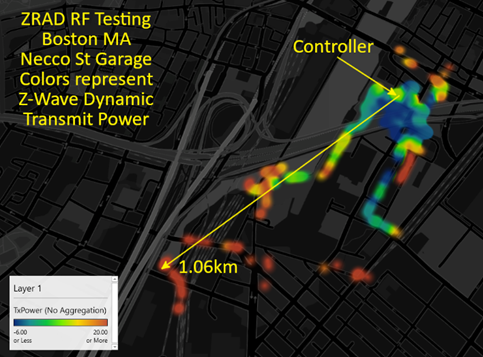



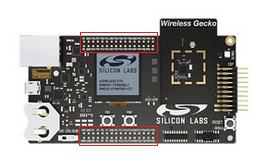



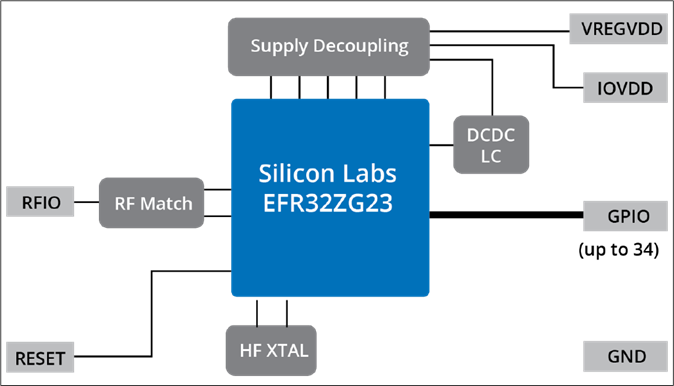


 DrZWave