Installing UART Drivers in a Z-Wave Project

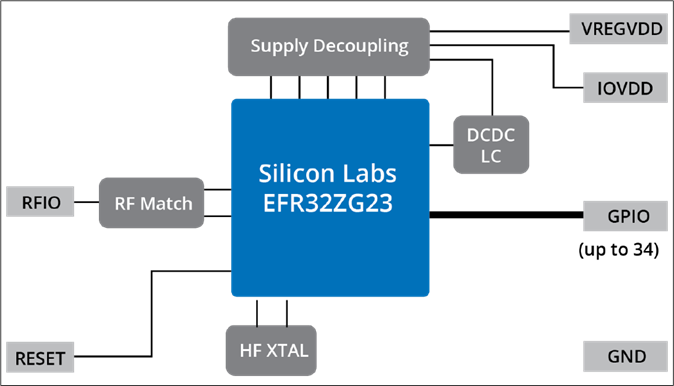
I have a simple problem – I have a sensor module with a simple uart interface that I need to connect to my Z-Wave project. Ther UART is used to configure the sensor and then it will send sensor readings at regular intervals. Simple right? Turns out the path is not so simple for Silicon Labs Simplicity Studio. Let’s go step by step through my journey to implement this interface on the Silicon Labs EFR32ZG23.

Typical UART Driver

Embedded engineers expect the UART driver to consist of the following functions:

  • UART_INIT(Baud, data_bits, stop_bits, parity, options)
    • Initialize the uart with the desired baud rate and options
  • UART_GETCHAR()
    • Return 1 character
  • UART_PUTCHAR(char)
    • Send 1 character
  • UART_PUTS(string) – nice to have
    • Put a string of characters – simply calls UART_PUTCHAR for each char in the string

Since most MCUs contain multiple UARTs, these basic functions need a pointer to which UART is being accessed. Typically a pointer to the desired UART is added to each function and then these are wrapped in macros with the UART number in the macro name such as: UART0_INIT and EUSART2_PUTCHAR. Extensions from these basic functions generally involve buffering data or being blocking or non-blocking (IE: polled or interrupt driven) and selecting GPIOs. Pretty standard stuff, easy to understand, easy to use, does what you expect with minimal code and effort.

Note that these functions are independent of the hardware. The engineer does not need to read the manual (RTFM) to be able to use them. If any of the fancy features of the UART are needed, the engineer will RTFM and then write the appropriate registers with the appropriate values to enable the desired feature. Hopefully the manual is detailed enough for the engineer to get the desired function to work without a lot of trial and error (unfortunately this is rarely the case). But less than 1% of the engineers will ever need those fancy features which is why these simple functions are the foundation of most UART drivers.

Now follow my efforts to interface this simple UART sensor with an EFR32 with the expectation there will be an API similar to the Typical UART Driver described above.

Step 1: What do I need? – 5 minutes

RTFM of the sensor to find the basic UART interface requirements. The manual states it uses a baud rate of 256000, 1 stop bit, no parity. The manual was clearly written by someone who did not have English as their first language as it also states “the sensor uses small-end format for serial communication” which I’m assuming means little-endian? Could it mean the bit ordering of each byte is LSB first? The limited information in the manual means I’ll be doing some trial-and-error debugging. The manual is thin, only 23 pages so it only took about five minutes to find this information.

Step 2: What does the EFR32 have? – 10 minutes

I’m using the Silicon Labs EFR32ZG23 which has three EUSARTs (enhanced UART) and one USART. All four have lots of features including SPI as well as normal UART functionality. The datasheet describes EUSART0 as being able to operate in lower power modes and USART0 (apparently not “Enhanced”) as having IrDA, I2S and SmartCard features. None of these extra features are needed for my application. EUSART0 and EUSART2 have limited GPIO connections thus I don’t want to use either of those as I want the maximum pinout flexibility offered by EUSART1. The EFR32ZG23 datasheet is 130 pages but searching for “UART” (then “USART” since UART has only 1 hit) got me this much information in about 10 minutes. Later I stumbled on the fact that the EUSARTs have a 16 byte hardware FIFO on both the send and receive side vs. the UART which just has two byte. This is deep in the xG23 Reference Manual and not mentioned in the datasheet. A 16 byte FIFO means the EUSART is a winner! Why bother including the USART?

Step 3: Open Simplicity Studio and Explore APIs – 60 Minutes

Open Simplicity Studio v5 (SSv5) which is the IDE for developing and debugging code for the EFR. I had already built a basic project starting with the Z-Wave SwitchOnOff sample app and was able to toggle an LED on my custom PCB. I had already created a bootloader, updated the SE, built and customized the sample app, joined a Z-Wave network and been in the debugger getting other parts of the project working. Now it was time to talk to the sensor so the first place to look is to click on the .SLCP file, then Software Components then search for “UART”. SSv5 then gives a long list of various drivers for various platforms, protocols, and applications. But all I want are the 4 functions listed above, why is this so complex already? There are no UART drivers for the Z-Wave protocol which is unfortunate as in the 500 series we did have the basic 4 functions prior to the move into SSv5. The first entry is Application->Utility->Simple Communication Interface (UART). The description talks about it being used for NCP communication but I’m not using NCP in this case so pass this one up. Next is Platform->Bootloader with four flavors of drivers but they are part of the bootloader and not the application so maybe not what I need? Next is Platform->Driver->UART which looks promising which I’ll discuss it in more detail shortly. Next is Services->Co-Processor Communication->secondary device->Driver which again has a single line description for a co-processor but no details of why I would use it so pass on this one too. Next is Third Party->Amazon FreeRTOS->Common I/O IoT UART which while I am using FreeRTOS I am not using the Amazon flavor. Looking at the link in the description there are similar functions to the 4 I want but with somewhat more OSish sounding names. Finally there are WiSun, Zigbee and Silicon Labs Matter drivers each with just 1 line descriptions and seem to be specific to the protocol. They also seem to be specific to Silicon Labs DevKit boards but I’m not using a DevKit, I have my own custom board so these don’t seem to be usable either. This is a case of information overload and simply sorting thru the options seems like a waste of time. Why are there so many flavors of this common API?

I had enabled DEBUGPRINT in the Z-Wave sample app so I was already aware of the IO Stream EUSART driver which is what the printf functions sprinkled thru the Z-Wave code use. With all of these options I spent about 1 hour reading just the section headings of the documentation looking for the simple function I need. Next step is to “install” a driver and try it out.

Step 4: UART Driver – IO Stream – 60 minutes

Since DEBUGPRINT uses the IO Stream driver, I assumed that would be the way to go for my use case as it should share most of the code already. I clicked on the + Add New Instances in SSv5, selected the desired baud rate, start/stop/parity and named the instance to differentiate it from the “vcom” instance used by the DEBUGPRINT utilities. The documentation is online and is versioned so I browsed thru that looking for my 4 functions. There is an Init routine and an IRQ handler but I was looking to avoid interrupts at least until I have have finished the trial-and-error of getting the sensor to send anything intelligible. I spent an hour trying to understand how this works without a PUTCHAR when I finally understood that only the “last stream initialized” “owns” the PRINTF functions. Since this driver uses DMA and interrupts it is way more complicated than I need and I don’t want to interfere with the DEBUGPRINT utilities. Uninstalled the IO Stream driver instance after wasting 60 minutes RTFMing and trying to follow the code.

Step 5: UART Driver – uartdrv – 6 hours

Going back to SSv5 and looking thru the options for UART Drivers I found Platform->Driver->UART->UARTDRV EUSART and installed it. SSv5 let me enter the board rate, parity, stop bits and several other options. I picked EUSART1 since it is able to drive all GPIOs and connected the proper GPIOs from my schematic. SSv5 installed a bunch of files mostly in the config folder and specifically the sl_uartdrv_eusart_mod_config.h which held the baud rate and various other UART settings. Next step is to look thru the documentation for my 4 simple functions. Unfortunately there are 27 functions and nothing obvious being the ones I need. But, I sallied forth and spent time reading the manual as well as looking thru the code and eventually was able to add enough code to my project to receive at least a few bytes. But the bytes I received don’t match the values the sensor should be sending. The other problem is that the UARTDRV_Receive function appears to wait for the buffer I gave it to fill up before returning. But I need to have each byte returned to me so I can decode which command is being sent and each one is a different size. These functions are way too complicated, the documentation is sparse and confusing and the API doesn’t have usable functions for my (or any?) application. I spent the better part of a day trying to get this “driver” to work but in the end it was taking me more time to figure out how to use it than if I just wrote my own.

Step 6: Peripheral – EUSART – 3 hours

I went back to SSv5 and searched for USART instead of UART and this time I found Platform->Peripheral->EUSART. This low level API is already installed I assume via the IO Stream for the DEBUGPINT utilities. The documentation lists 23 functions in the API but many of these are specific to the modes I’m not using like SPI or IrDA so I can simply ignore those. There is an Init function and EUSART_Rx and EUSART_Tx which are basically GetChar and PutChar. The API does not setup the clocks or the GPIOs but the examples explain how to do that. The documentation is clouded with all the many features like 9-bit data and SPI making it harder to decipher how to do basic UART operations.

Looking at the EUSART_UartInitHf function it becomes immediately obvious that this code is trying to be all things for all applications on all Silabs chips. The code both doesn’t do enough and does way too much at the same time! For example, the code writes all the registers back to their default value. Which is necessary if the UART is in an unknown state and is certainly the safe thing to do. However, this type of thing is rarely ever needed as the application will power up the chip, set the UART configuration once, and then never change it again. Maybe the baud rate will change but that function will write the necessary registers without needing everything to be set to the default. Not only is there a ton of code but there are several good size structures which are wasting both FLASH and RAM. Embedded systems are defined by the limited resources which include CPU time, FLASH and RAM. Drivers should be efficient and not waste these valuable resources. If an application needs to reset every register in the UART, then let the 0.001% of customers write their own! I gave up after spending another morning reading and trying stuff out and trying in vain to follow the code. Too complicated!

Step 7: Write My Own UART Driver – 2 hours

I spent less than two hours writing my own UART drivers. Why would I do that? Because it was easy and does exactly what I want with easy to understand code that anyone can follow. My driver is not universal and does not handle every option or error condition. But it does what 99% of applications need. The code is less than a few dozen bytes and uses only a few dozen bytes of RAM. The more lines of code, the more bugs and this code is so small you can check it by inspection.

Most of those two hours were spent reading documentation and trying to find where the interrupt vectors are “registered”. Turns out startup_efr32zg23.c in the SDK assigns all the vectors to a weak Default_Handler. All I had to do to “register” the ISR is give the function the proper name and the compiler plugs it into the vector table for me.

I did spend perhaps another couple of hours figuring out how to add an event to the ZAF_Event_Distributor, adding the event and some additional code to search for the proper sensor data in the byte stream. The key is in the ISR to use ZAF_EventHelperEventEnqueueFromISR to put an event into the FreeRTOS queue which is then processed in the zaf_event_distributor_app_event_manager function in SwitchOnOff.c.

Below is UART_DRZ.C which has the three functions needed and an interrupt service routine to grab the data out of the EUSART quickly and the let the application know there is data available.

/*
* @file UART_DRZ.c
* @brief UART Driver for Silicon Labs EFR32ZG23 and related series 2 chips
*
* Created on: Jul 10, 2023
* Author: Eric Ryherd - DrZWave.blog
*
* Minimal drivers to initialize and setup the xG23 UARTs efficiently and provide simple functions for sending/receiving data.
* Assumes using the EUSARTs and not the USART which has limited functionality and only a 2 byte buffer vs 16 in the EUSART.
* Assumes high frequency mode (not operating in low-power modes with a low-frequency clock)
* This example just implements a set of drivers for EUSART1. The code is tiny so make copies for the others as needed.
*/

#include <em_cmu.h>
#include <zaf_event_distributor_soc.h> // this is new under GSDK 4.4.1
#include "UART_DRZ.h"
#include "events.h"

// Rx Buffer and pointers for EUSART1. Make copies for other EUSARTs.
static uint8_t RxFIFO1[RX_FIFO_DEPTH];
static int RxFifoReadIndx1;
static int RxFifoWriteIndx1;
//static uint32_t EUSART1_Status;

/* UART_Init - basic initialization for the most common cases - works for all EUSARTs
* Write to the appropriate UART registers to enable special modes after calling this function to enable fancy features.
*/
void UART_Init( EUSART_TypeDef *uart, // EUSART1 - Pointer to one of the EUSARTs
uint32_t baudrate, // 0=enable Autobaud, 1-1,000,000 bits/sec
EUSART_Databits_TypeDef databits, // eusartDataBits8=8 bits - must use the typedef!
EUSART_Stopbits_TypeDef stopbits, // eusartStopbits1=1 bit - follow the typdef for other settings
EUSART_Parity_TypeDef parity, // eusartNoParity
GPIO_Port_TypeDef TxPort, // gpioPortA thru D - Note that EUSART0 and 2 have GPIO port limitations
unsigned int TxPin,
GPIO_Port_TypeDef RxPort,
unsigned int RxPin)
{

// Check for valid uart and assign uartnum
int uartnum = EUSART0 == uart ? 0 :
EUSART1 == uart ? 1 :
EUSART2 == uart ? 2 : -1;
EFM_ASSERT(uartnum>=0);

CMU_Clock_TypeDef clock = uartnum == 0 ? cmuClock_EUSART0 :
uartnum == 1 ? cmuClock_EUSART1 : cmuClock_EUSART2;

if (uartnum>=0) {
// Configure the clocks
if (0==uartnum){
CMU_ClockSelectSet(clock, cmuSelect_EM01GRPCCLK); // EUSART0 requires special clock configuration
} // EUSART 1 and 2 use EM01GRPCCLK and changing it will cause VCOM to use the wrong baud rate.
CMU_ClockEnable(clock, true);

// Configure Frame Format
uart->FRAMECFG = ((uart->FRAMECFG & ~(_EUSART_FRAMECFG_DATABITS_MASK | _EUSART_FRAMECFG_STOPBITS_MASK | _EUSART_FRAMECFG_PARITY_MASK))
| (uint32_t) (databits) // note that EUSART_xxxxxx_TypeDef puts these settings in the proper bit locations
| (uint32_t) (parity)
| (uint32_t) (stopbits));

EUSART_Enable(uart, eusartEnable);

if (baudrate == 0) {
uart->CFG0 |= EUSART_CFG0_AUTOBAUDEN; // autobaud is enabled with baudrate=0 - note that 0x55 has to be received for autobaud to work
} else {
EUSART_BaudrateSet(uart, 0, baudrate); // checks various limits to ensure no overflow and handles oversampling
}

CMU_ClockEnable(cmuClock_GPIO, true); // Typically already enabled but just to be sure enable the GPIO clock anyway

// Configure TX and RX GPIOs
GPIO_PinModeSet(TxPort, TxPin, gpioModePushPull, 1);
GPIO_PinModeSet(RxPort, RxPin, gpioModeInputPull, 1);
GPIO->EUSARTROUTE[uartnum].ROUTEEN = GPIO_EUSART_ROUTEEN_TXPEN;
GPIO->EUSARTROUTE[uartnum].TXROUTE = (TxPort << _GPIO_EUSART_TXROUTE_PORT_SHIFT)
| (TxPin << _GPIO_EUSART_TXROUTE_PIN_SHIFT);
GPIO->EUSARTROUTE[uartnum].RXROUTE = (RxPort << _GPIO_EUSART_RXROUTE_PORT_SHIFT)
| (RxPin << _GPIO_EUSART_RXROUTE_PIN_SHIFT);
}

RxFifoReadIndx1 = 0; // TODO - expand to other EUSARTs as needed
RxFifoWriteIndx1 = 0;

// Enable Rx Interrupts
EUSART1->IEN_SET = EUSART_IEN_RXFL;
NVIC_EnableIRQ(EUSART1_RX_IRQn);
}

/* EUSART1_RX_IRQHandler is the receive side interrupt handler for EUSART1.
* startup_efr32zg23.c defines each of the IRQs as a WEAK function to Default_Handler which is then placed in the interrupt vector table.
* By defining a function of the same name it overrides the WEAK function and places this one in the vector table.
* Change this function name to match the EUSART you are using.
*
* This ISR pulls each byte out of the EUSART FIFO and places it into the software RxFIFO.
*/
void EUSART1_RX_IRQHandler(void){
uint8_t dat;
uint32_t flags = EUSART1->IF;
EUSART1->IF_CLR = flags; // clear all interrupt flags
NVIC_ClearPendingIRQ(EUSART1_RX_IRQn); // clear the NVIC Interrupt

for (int i=0; (EUSART_STATUS_RXFL & EUSART1->STATUS) && (i<16); i++) { // Pull all bytes out of EUSART
dat = EUSART1->RXDATA; // read 1 byte out of the hardware FIFO in the EUSART
if (EUSART1_RxDepth()<RX_FIFO_DEPTH) { // is there room in the RxFifo?
RxFIFO1[RxFifoWriteIndx1++] = dat;
if (RxFifoWriteIndx1 >= RX_FIFO_DEPTH) {
RxFifoWriteIndx1 = 0;
}
} else { // No room in the RxFIFO, drop the data
// TODO - report underflow
break;
}
// TODO - add testing for error conditions here - like the FIFO is full... Set a bit and call an event
}
// TODO - check for error conditions
zaf_event_distributor_enqueue_app_event(EVENT_EUSART1_CHARACTER_RECEIVED); // Tell the application there is data in RxFIFO
}

// Return a byte from the RxFIFO - be sure there is one available by calling RxDepth first
uint8_t EUSART1_GetChar(void) {
uint8_t rtn;
rtn = RxFIFO1[RxFifoReadIndx1++];
if (RxFifoReadIndx1>=RX_FIFO_DEPTH) {
RxFifoReadIndx1 = 0;
}
return(rtn);
}

// Put 1 character into the EUSART1 hardware Tx FIFO - returns True if FIFO is not full and False if FIFO is full and the byte was not added - nonblocking
bool EUSART1_PutChar(uint8_t dat) {
bool rtn = false;
if (EUSART1->STATUS & EUSART_STATUS_TXFL) {
EUSART1->TXDATA = dat;
rtn = true;
}
return(rtn);
}

// number of valid bytes in the RxFIFO - use this to avoid blocking GetChar
int EUSART1_RxDepth(void) {
int rtn;
rtn = RxFifoReadIndx1 - RxFifoWriteIndx1;
if (rtn<0) {
rtn +=RX_FIFO_DEPTH;
}
return(rtn);
}

The corresponding UART_DRZ.h file:

/*
* UART_DRZ.h
*
* Created on: Jul 10, 2023
* Author: eric
*/

#ifndef UART_DRZ_H_
#define UART_DRZ_H_

#include <em_eusart.h>
#include <em_gpio.h>

void UART_Init( EUSART_TypeDef *uart, // Pointer to one of the EUSARTs
uint32_t baudrate, // 0=enable Autobaud, 1-1,000,000 bits/sec
EUSART_Databits_TypeDef databits,
EUSART_Stopbits_TypeDef stopbits,
EUSART_Parity_TypeDef parity,
GPIO_Port_TypeDef TxPort,
unsigned int TxPin,
GPIO_Port_TypeDef RxPort,
unsigned int RxPin);

int EUSART1_RxDepth(void);
uint8_t EUSART1_GetChar(void);

// Rx FIFO depth in bytes - make it long enough to hold the longest expected message
#define RX_FIFO_DEPTH 32

#endif /* UART_DRZ_H_ */

The code above was updated 3/28/2024 to match the GSDK 4.4.1 release. I plan to release this code under github soon so it can be easily incorporated into any project and kept more up-to-date.

Conclusions

For all the talk of “Modular Code”, “Code ReUse”, “APIs” and of course AI generated code, embedded systems are unique due to their limited resources. Limited resources means you cannot throw generic “modular” code at a problem if it bloats the resulting application. Embedded Engineers are also a limited resource and in short supply. Reusing tested, well written, well documented code is a huge time saver. However, if the problem is simple, it may be more efficient to write it yourself. Certainly that was the case in this scenario.

I’ve mentioned before that embedded engineers are usually at least 2 weeks (if not 2 months!) late in a project from the very first day. By the time marketing, finance and management decide on the product features, fund it, and allocate engineering resources, the project is already behind schedule. Chip vendors need to make the engineers job easier by providing APIs that serve 90% of the needs without obfuscating the calls under a ton of features few people will ever use. The API needs to be intuitive and not require hours of reading manuals or randomly trying stuff until they work. Hide the complexity and provide easy to use functions with concise but detailed documentation with a few examples (I love to cut and paste!).

On the hardware side, I have a rule of thumb that if a customer isn’t willing to pay an extra nickel per chip for a feature, then do not include it! The time it takes to spec, design, code, document, validate in simulation, validate the silicon, document again (due to invariable changes), write silicon test programs, run extra test vectors on every chip, and finally develop training, (WHEW!) far outweigh the brain-fart feature someone thought might be cool. When instancing multiple copies of a peripheral, they should all be the same. Then you can reuse all of the above whereas if they are different you have to make special versions of everything, especially the documentation. Users will first assume they are all the same. They will strongly dislike the fact that one EUSART can route to all GPIOs whereas the others have limitations. Why is there a USART in the xG23 family? Why are the EUSARTs each just a little different? Why are there so many options in the EUSART? Does anyone use all these features? Will EVERYONE pay an extra nickel for the chip for features they don’t need? Obviously there are some features that are required, some that are expected, but there are a bunch that could be dropped.

To RTOS or Not To RTOS?

To use an RTOS for your embedded project, or Not! That is the question poor Yorick! I digress from my usual focus on Z-Wave to discuss the general topic of using a Real-Time Operation System (RTOS) for simple embedded IoT devices. The question is moot for Z-Wave since the protocol has FreeRTOS built-in starting with the release of the 700 series. For the moment at least, the choice is To RTOS!

What is an RTOS?

My focus in this post is on small IoT devices like sensors, dimmers, window shades, to more complex devices like thermostats and door locks. Using an RTOS for simple devices like these brings different requirements than say a full Operating System like Windows or Linux. The purpose of an Operating System (OS) is to provide common resources to an application – things like memory management and insulating the application from hardware . The term “Real-Time” comes from basic concept of dividing up the resources of an embedded system so that tasks are completed within a certain timeframe. A hard-real-time system is often used in demanding applications like Engine Control. The precise management of firing the spark plugs at exactly the proper microsecond is critical to the efficient operation of an internal combustion engine. But simple IoT devices have much lower demands on the RTOS and instead are attracted to the coding efficiency and standardization of an RTOS – this is often called a soft-RTOS. All this comes at a cost in CPU and memory resources so the question remains – is an RTOS worth it for simple IoT devices?

  • FreeRTOS Features:
    • Trusted Reliable Kernel
    • MultiTasking/MultiThreaded
    • Mailboxes, Mutexes, Queues
    • Modular Libraries
    • Broad Eco-System support – 40+ MCU architectures
    • Small Scalable kernel size with power saving modes
    • Complete online documentation
    • Long Term Stable Support – Active support Community
    • Completely Free Open Source project

Z-Wave History with FreeRTOS

In the beginning Z-Wave ran on an 8-bit MCU with limited FLASH and RAM which meant life without an RTOS due to CPU performance and memory limitations. The Z-Wave protocol was built on “Bare Metal” and thus interrupt driven with a tick-timer and drivers to provide basic services. The 700 series opened the world of a 32-bit RISC MCU and significantly more memory which enabled the use of an RTOS as the foundation of the Z-Wave protocol.

I was a Field Applications Engineer for Silicon Labs for several years and in that time I would guess easily half the bugs I came across were caused by the complexity of the RTOS. I don’t have any hard statistics but it certainly seemed that way to me! The Z-Wave protocol code was ported from a Bare-Metal implementation on an 8-bit CPU to a 32-bit ARM running FreeRTOS – a challenging port to say the least! The developers treated FreeRTOS like a black-box (which is the whole point of an RTOS) and often made small mistakes that turned into really difficult to debug problems. Things like: not checking when a queue is full, not using the *FromISR() version of various calls inside interrupt service routines, hidden stack overflows by not enabling overflow checking, incomplete configuration of the many, many, many options just to name a few. An RTOS adds a LOT of complexity but you get a lot of features. The developers have to be fully trained and understand the best practices for using the complexity of the RTOS to achieve a robust system.

My primary complaint with the current implementation is that it continues to be pre-compiled into the Z-Wave library. More and more of the configuration files and various parts of FreeRTOS have been moved out of the library and into source code with each SDK release. Moving the entire RTOS into source form is not exposing any proprietary code – after all, it’s open source! It would allow developers to more quickly move to newer releases of the RTOS and related libraries. Perhaps this will come as part of the Open Source Work Group (OSWG) in the Z-Wave Alliance. We’ll have to wait and see…

The Case FOR an RTOS – Pros

I want to again note that I am talking about using an RTOS for small IoT devices. There are many other applications and environments for an RTOS which have different Pros/Cons. A few of the main features of an RTOS for IoT are:

  • MultiTasking, MultiThreading, Mutexes, Mailboxes, Queues
  • Priority Based Resource Scheduling
  • Standardized Resource Drivers
  • Modularity & Code Reuse
  • Security Features

The Case AGAINST an RTOS – Cons

Measuring the complexity and bug rate introduced by an RTOS unfortunately can’t be quantitatively measured. I contend that in the case of Z-Wave the complexity has outweighed the benefits. The “features” of an RTOS lead to its complexity. For one task to communicate with another, you need to setup queues in both directions. That’s a lot of code and RAM where a simple handshake would most likely do the job as was done in the Bare Metal days.

  • Complexity
  • Resource Usage – CPU, FLASH, RAM
  • Development Tools
  • Training of developers

Final Thoughts

Simple devices like light switches, sensors, window shades, and the like barely need an RTOS. These simple devices rarely need multiple tasks or the other features compared to the complexity added. More complex devices like thermostats and door locks often have a high performance application CPU where even more resources are available for things like OLED screen drivers and fingerprint readers. In this case, the Z-Wave chip is relegated to a minor role of just providing wireless connectivity which again does not need an RTOS. All that being said, the current Z-Wave protocol is fundamentally based on FreeRTOS so the To RTOS or Not To RTOS question has already been settled – To RTOS we go!

One final point on code reuse – I find Code Reuse to be a double edge sword. One the one hand, the name sounds very attractive – code once, use many times. The reality is that most code is not reusable and in the effort to make it modular, more bugs are introduced than are saved. In many cases I can write a function in a fraction of the lines of code compared to the “driver” that does it all for every flavor of chip. There’s many research papers that discuss that bugs/line of code is fairly constant. So the fewer lines of code, the fewer bugs. The fewer lines of code the easier to read and to test. Not to say that all reusable code is bad and certainly code that has been extensively tested in many ways is super valuable, but every engineer needs to make that judgement for their specific application. That’s why you get paid the big bucks!

How Far Does Z-Wave Long Range Reach?

Z-Wave Long Range (ZWLR) claims to reach over 1 mile, but does it actually reach that far in the real world? The answer is YES. However, in the real world we are operating inside a building and surrounded by trees and other buildings. The more important answer is how does ZWLR do in a building and in an neighborhood? I recently captured some data in my home town just outside of Boston which shows ZWLR easily reaches the entire yard and then some.

The first thing to understand about the RF range of Z-Wave are the different power levels used by regular Z-Wave (ZW) and ZWLR. I’m comparing the values used in the US but the rules are different in each region. In the EU the max transmit power is +13dBm with regular Z-Wave which is why the range in the EU is so much further than in the US. But let’s focus just on the US for now.

RF Transmit Power

There are 3 levels of Z-Wave RF transmit power in the US:

  • -1dBm – Regular Z-Wave GFSK modulation – 12mA
  • +14dBm – ZWLR DSSS-OQPSK modulation – 41mA
  • +20dBm – ZWLR DSSS-OQPSK modulation – 92mA

The huge increase in transmit power is why ZWLR has over double the range of ZW. The reason ZWLR can transmit at such high power levels is that the spread spectrum modulation spreads that energy across a 1MHz carrier compared to the narrow band FSK of ZW. The FCC allows the transmit power to be as high as +30dBm but that would be a challenge for a battery powered device as it would likely need half an amp of current!

Why are there two power levels for ZWLR? The RF transmit power is matched to the power supply of the typical use case. The ZGM230 module is limited to +14dBm since it is most often used in battery powered devices where even the 41mA current is a bit challenging for low-cost batteries. The +20dBm ZG23 is best suited to mains-powered devices to get the maximum range. ZWLR utilizes dynamic RF power so for nodes that are close enough, the battery life is extended by using only enough RF power to reliably reach the controller. the dynamic power algorithm is built into the Z-Wave protocol so you don’t have to manage it at all.

RF Range at Home

    The Yellow circle is the regular Z-Wave mesh range with a controller in a room on the 2nd floor. My home is surrounded by large pine trees which limit the range. Using 700/800 series Z-Wave chips there are no dead spots anywhere in my home. I still have a few 100 series devices, several 300 series and a lot of 500 series devices many of which need the mesh to hop to reach my controller. This demonstrates the increasing range of each generation of Z-Wave. If I were to upgrade all of my devices there would be little if any routing using regular ZW.

    The Red circle shows over double the range of regular Z-Wave at +14dBm. The combination of higher transmit power and increased sensitivity due to the spread spectrum modulation yields a strong signal over my entire neighborhood. Note the bump on the right side caused by the open field and the swampy area with a lot fewer trees. Each wall or tree or building reduces the range but ZWLR easily reaches well beyond the end of the yard. I couldn’t test 20dBm because there just isn’t enough open space for me to measure it! So I moved to a building in the center of town.

    RF Range in Town

    The photo above shows the relative range of all three transmit powers. In this case the controller is in the upper right corner of a commercial building as shown in the inset in the lower left. Regular Z-Wave is not quite able to reach the two rooms at the far end of this 35m building. But ZWLR easily reaches the entire building and well beyond. Each step, +14 and then +20 roughly doubles the range in this typical application where there are still a number of trees and buildings reducing the signal. Recall from middle school geometry that the circumference of a circle is 2*pi*radius or roughly 6*radius. On the day I performed this test, I doubled my daily step goal and walked over 20,000 steps!

    In both of these measurements the line is roughly where full 2-way, fully secure, supervision encapsulated Basic Set commands were being sent to a battery powered SwitchOnOff sample application using SDK 7.18.3. I used a Raspberry Pi running Unify and a small python program to send Basic Set On/Off commands every half second to the Dev Kit and then noted where the LED stopped blinking. Once I stepped a few paces back toward the controller, the two devices would resync and the blinking would restart. Z-Wave is very adept at re-connecting to devices that are at the margin of the RF range.

    During the Z-Wave summit earlier this month we did a live demonstration of the range versus the transmit power. While regular Z-Wave reached well beyond the conference center, it couldn’t quite get to the adjacent hotel. ZWLR however reliably reached the hallways in the hotel thru the concrete and glass of each building.

    How to Set Tx Power

    For regular Z-Wave the transmit power is normally set pretty close to the maximum of -1dBm. There are two configuration parameters to set based on the results of FCC testing. See INS14664 in Simplicity Studio for details. For ZWLR, setting the transmit power easier. Simply set APP_MAX_TX_POWER_LR in zw_config_rf.h to either 140 for +14dBm or 200 for +20dBm but that only works if the EFR you are using supports +20. The 700 series EFR32ZG14 supports +20 but the balun has to be wired to +3.3V to have enough power to reach +20. The ZGM130/230 are both limited to just +14. The EFR32ZG23 part number chooses either +14 or +20 – EFR32ZG23B0X0F512 – If the X is 1 it’s +14, if 2 then +20.

    One last configuration setting is to make sure ZWLR is enabled. This is in zw_region_config.h and all you need to do is set it to REGION_US_LR. The protocol code completely handles everything relative to ZW or ZWLR for you so just a 3 character change enables ZWLR.

    Conclusion

    All new Z-Wave devices for the US market should support Z-Wave Long Range. The low-latency (no routing), high reliability and long range make it a must for any new product. The question is +14 or +20? All controllers should be using the SoC (EFR32ZG23A/B020) to get the most range. The SoC requires calibration of the crystal for each unit as described in UG517. The module (ZGM130/ZGM230) are limited to +14 only and come pre-calibrated from Silicon Labs and thus are ideal for end devices that are battery powered. The SoC should be used for any mains-powered end device since the current draw is not an issue but be careful to specify the right part number with the 020 in it.

    Z-Wave Long Range Zniffer

    Packet sniffing is critical for debugging any wireless IoT product and Z-Wave Long Range (ZWLR) is no exception. The challenge with ZWLR at the moment is that you must use a WSTK Pro Developers Kit and connect it via Ethernet AND USB. See my Unboxing the 800 Series video for a demonstration and more details on how to set up a WSTK so it is both a SerialAPI controller and a Zniffer at the same time. The challenge with this setup is that since the WSTK requires an Ethernet interface, you need a router and perhaps a switch and specifically a DHCP server to connect the Zniffer via Ethernet. This is easily done when at the office or even working from home, but I’ve been doing some Long Range testing at a remote site with no power or Ethernet let alone the Internet and a router/switch. But in this post I’ll show you how to wire up Ethernet point-to-point without a router. I expect needing both Ethernet and USB for the Zniffer will be solved in a future SDK release but to get things done today I offer this solution.

    I have a Windows 10 laptop so that’s the help I can provide but Mac or Linux users I assume can find similar solutions. I don’t normally use the Ethernet jack on my PC so I can alter the Windows settings and leave them this way as I use either WiFi or a USB-C port expander when I am in my office. If you use the Ethernet jack on your PC, you may want to buy a USB to Ethernet adaptor for this specific purpose to avoid having to constantly change the settings.

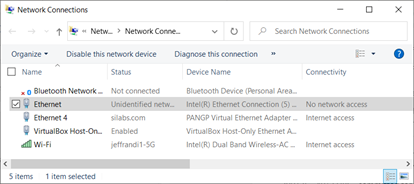
    On the Windows10 PC – go to Control Panel\Network and Internet\Network Connections and Select the desired LAN interface. In my case it’s the Ethernet interface on the motherboard. If you connect the WSTK to the interface you’ll see it show up as “no Internet” but connected.

    Double click the desired “interface”, then select Properties and scroll down to TCP/IPv4 and click on it and enter the IP address 192.168.1.1 as shown here:

    click OK in both windows. This changes the PC Ethernet interface to a fixed IP address and apparently also provide IP addresses to connected devices.

    Open Simplicity Studio (SSv5) and then Commander (Tools->Simplicity Commander)

    Plug the devkit and the PC together using both USB and Ethernet.

    In Commander select the USB kit number in the Select Kit drop down. Then edit the Network Information and enter as shown here:

    The devkit should then get assigned an IP address of 192.168.1.2 in several seconds and then show up in SSv5 as connected via both USB and Ethernet.

    Open the Zniffer application and click on Capture -> Detect Zniffer Modules if the IP device doesn’t already come up in the drop down menu. Select the IP address then click on Start and trigger some Z-Wave traffic to make sure the Zniffer is working.

    When you later return to the office and want to connect the WSTK to a real network with a DHCP server, use Commander and the USB interface to go into the Network Information and select Use DHCP. The WSTK should then properly negotiate for an IP address on the network and automatically show up in the Zniffer.

    Hopefully this solution is only needed for another quarter or two as we’ve had many requests to make a much easier to use ZWLR Zniffer solution. Someday I hope we would eventually switch to a Wireshark based solution but for now we have the Zniffer as-is.

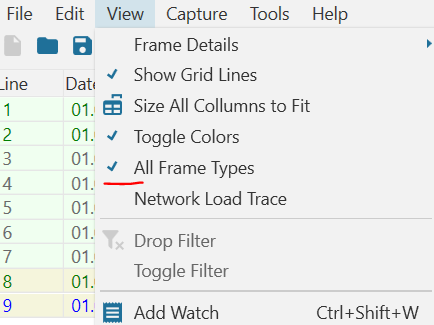
    One last Zniffer recommendation is to also click on View then enable All Frames to be sure you can see the wakeup beams and CRC errors.

    Make Your Own Z-Wave Device

    Have you always wanted your very own Z-Wave widget-thing-a-ma-bob-doohickey? Silicon Labs recently released the Thunderboard Z-Wave (TBZ) which is an ideal platform for building your own Z-Wave device. Officially known as the ZGM230-DK2603A, the TBZ has sensors galore, expansion headers to connect even more stuff, comes with a built-in debugger via USB-C and can be powered with a single coin cell. Totally cool! I am working on a github repo for the TBZ but right now there are three simple sample apps in Simplicity Studio to get started.

    ThunderBoard Z-Wave

    Thunderboard Z-Wave

    Features

    1. ZGM230 Z-Wave Long Range Module – +14dBm radio – 1mi LOS RF range
      1. ARM Cortex-M33, 512/64K FLASH/RAM, UARTs, I2C, SPI, Timers, DAC/ADC and more
    2. Built-in Segger J-Link debugger
    3. USB-C connectivity for SerialAPI and/or debugging
    4. RGB LED, 2 yellow LEDs, 2 pushbuttons
    5. Temperature/Humidity sensor
    6. Hall Effect sensor
    7. Ambient Light sensor
    8. 6-Axis Inertial sensor
    9. Metal sensor
    10. 1Mbyte SPI FLASH
    11. Qwiic I2C connector
    12. Break-out holes
    13. SMA connector for antenna
    14. Coin cell, USB or external power
    15. Firmware development support via Simplicity Studio

    Sample Applications

    There are three sample applications in Simplicity Studio at the time of this writing (Aug 2022 – SDK 7.18.1);

    1. SerialAPI,
    2. SwitchOnOff
    3. SensorMultilevel

    The TBZ ships with the SerialAPI pre-programmed into it so you can use it as a Z-Wave controller right out of the box. Connect the TBZ to a Raspberry Pi or other computer to build a Z-Wave network. Use the Unify SDK to get a host controller up and running quickly or use the PC-Controller tool within Simplicity Studio for development and testing. The SwitchOnOff sample app as the name implies simply turns an LED on/off on the board via Z-Wave. This is the best application to get started as the ZGM230 chip is always awake and is easy to debug and try out. The SensorMultilevel sounds like a great app as it returns a temperature and humidity but at the moment it does not use the sensor on the TBZ and simply always returns a fixed value. SensorMultilevel shows how to develop a coin-cell powered device. Additional sample apps are expected to be available in future SDK releases but I am working on a github repo with a lot of sensor support.

    Naturally a single Z-Wave Node doesn’t do much without a network. You’ll need some sort of a hub to connect to. Most of the common hubs (SmartThings, Hubitat, Home Assistant, etc) will at least let you join your widget to the network and do some basic control or status reporting. You need either a pair of TBZs or perhaps purchase the even cheaper UZB7 for the controller side and then the TBZ for the end-device. Then you have a network and can build your doohickey and talk to it over the Z-Wave radio.

    Getting Started

    Plug in the TBZ to your computer and open Simplicity Studio which will give you a list of applicable documents including the TBZ User Guide. Writing code for the TBZ definitely requires strong C programming skills. This is not a kit for an average Z-Wave user without strong programming skills. There is a steep learning curve to learn how to use the Z-Wave Application Firmware (ZAF) so only experienced programmers should take this on. I would recommend watching the Unboxing the 800 series video on the silabs web site to get started using Simplicity Studio. I hope to make a new video on the TBZ and publish the github repo so stay tuned.

    Have you created a Thing-a-ma-bob using the TBZ? Let me know in the comments below!

    Z-Wave 800 GPIO Decoder Ring

    The two Z-Wave 800 series chips from Silicon Labs have flexible GPIOs but figuring out which one is the best for which function can be challenging. There are a number of restrictions based on the function and the energy (sleep) mode you need the GPIO to operate in. Similar to my posting on the 700 series, this post will guide you to make wise decisions on which pin to use for which function.

    The tables below are a compilation of several reference documents but all of the data here was manually copied out of the documents and I could have made a mistake or two. Please post a comment if you see something wrong and I’ll fix it right away.

    Reference Documents

    • EFR32xG23 Z-Wave 800 SoC Family Datasheet
    • ZGM230 Z-Wave 800 Module Datasheet
    • EFR32xG23 Reference Manual
    • WSTK2 Schematic (available via Simplicity Studio)
    • BRD4210 EFR32ZG23 Radio Board +20dBm Schematic
    • Thunderboard Z-Wave UG532 and Schematic

    Pin Definitions

    The table below lists the pins from the most flexible to the most fixed function. There are more alternate functions than the ones listed in this table. The most commonly used alternate functions are listed here to keep the table readable. Refer to the schematics and datasheets for more details.

    Port A and B are operational down to EM2, other GPIOs will retain their state but will not switch or pass inputs. Thus, use port A and B for anything special and use C and D for simple things not needed when sleeping (LEDs, enables, etc).

    WSTK GPIO Probe Points

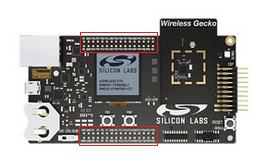
    Only the ZG23 QFN48 pin numbers are listed in the table. The QFN48 is expected to be pin compatible with future version of the ZG23 with additional Flash/RAM so I recommend using it over the QFN40. The WSTK2 is the Pro DevKit board with the LCD on it which comes as part of the PK800 kit. There are two sets of holes labeled with Pxx numbers on them which are handy to probe with an oscilloscope. The Thunderboard Z-Wave (TBZ) also has 2 rows of holes which are ideal for probing or connecting to external devices for rapid prototyping.

    NameZG23ZGM230WSTK2TBZALT
    FUNC
    Comments
    PB2229P19EXP5
    BTN1
    Use the pins at the top of this list first as they are the most flexible
    PB6NA5EXP15
    I2CSDA
    TBZ Qwiic I2C_SDA
    PB5NA6EXP16
    I2CSCL
    TBZ Qwiic I2C_SCL
    PB4NA7
    PA103523
    PC1235P1EXP4PC and PD are static in EM2/3
    PC2336P3EXP6
    PC3437P5EXP8
    PC4538P35BLUE
    PC6740P33EXP9
    PC8942P31LED0
    PC91043P37LED1
    PD34530P26IMUEN
    PB02411P15VDAC0CH0
    PA02512P2GREENIDACVREF
    PB12310P17REDEM4WU3
    VDAC0CH1
    EM4WUx pins can wake up from EM4 sleep mode on a transition of the GPIO
    PB3218P21EXP3
    BTN0
    EM4WU4
    PC0134P7EXP10EM4WU6
    PC5639P12EXP7EM4WU7
    PC7841P13SNSENEM4WU8
    PD24631P6EXP11EM4WU9
    PD0_LFXTAL_O4833XC32XC32BRD4210 and TBZ have 32KHz crystal mounted
    PD1_LFXTAL_I4732XC32XC32Accurate timing while sleeping – Time CC
    PA73220P10TraceD3Trace pins for debug & code coverage
    PA63119P8TraceD2Trace is configurable for 4, 2 or 1 data pin
    PA53017P4IMUINTEM4WU0
    TraceD1
    PA4_TDI2916P41EXP13JTAG_TDI
    TraceCLK
    JTAG data in
    Trace Clock out
    Pins below here should be used primarily for debug
    PD4_PTIDATA4429P25Packet Trace Interface (PTI) data
    PD5_PTISYNC4328P24EM4WU10PTI Sync
    PA9_URX3422P11EXP14VCOM UART
    PA8_UTX3321P9EXP12VCOM UART
    PA3_SWO2815P16JTAG_TDO
    TraceD0
    RTT UART printf and Trace D0
    PA2_SWDIO2714P18JTAG_TMSThese two SWD pins should ONLY be used for debug and programming
    PA1_SWCLK2613P20JTAG_TCKSWD debug clock
    Pins below here are fixed function only
    SUBG_O118NANot used by Z-Wave
    SUBG_I116NANot used by Z-Wave
    SUBG_O0193RFIO on ZGM230
    SUBG_I017NAMatching network to SMA
    RESET_N131F4Push buttons on DevKit boards
    HFXTAL_O12NA39MHz crystal
    HFXTAL_I11NA39MHz crystal
    DECOUPLE36181.0uF X8L cap (unconnected on ZGM230)
    VREGSW37NAInductor to DVDD for DCDC – 3.3V
    VREGVDD38253.3V In/Out based on mode
    DVDD4024VDCDC on ZGM230
    AVDD41NAHighest voltage – typically battery voltage
    IOVDD42261.8-3.8V
    PAVDD20NA3.3V for +20, 1.8V for +14dBm
    RFVDD14NA1.8V or 3.3V but less than PAVDD
    VREGVSS3927, 44GND
    RFVSS152, 4GND

    Power Supply Pins

    Obviously the power supply pins are fixed function pins. The only really configurable parts to this set of pins is the voltage to apply to the IOVDD, AVDD and whether to use the on-chip DC to DC converter or not. If your device is battery powered, AVDD should be the battery voltage assuming the battery is nominally 3V (coin cells or CR123A). AVDD can be measured by the IADC in a divide by 4 mode to give an accurate voltage reading of the battery. This avoids using GPIOs and resistor dividers to measure the battery level thereby freeing up GPIOs and reducing battery drain. IOVDD should be set to whatever voltage needed by other chips on the board. Typically either 1.8 or 3.3V. The DCDC should be used in most battery powered applications unless a larger DCDC is present on the board already to power other chips.

    The other configurable voltage is the RFVDD and PAVDD and the choice there depends on the radio Transmit Power you wish to use. For +14dBm PA an RF VDD are typically 1.8V. For +20dBm PAVDD must be 3.3V.

    Every product has unique requirements and sources of power so I can’t enumerate all possible combinations here but follow the recommendations in the datasheets carefully. Copy the radio board or Thunderboard example schematics for most typical applications.

    Debug, PTI and Trace Pins

    The two Serial Wire Debug (SWD) pins (SWCLK and SWDIO) are necessary to program the chip FLASH and are the minimum required to be able to debug firmware. While it is possible to use these pins for other simple purposes like LEDs, it is best if they are used exclusively for programming/debug. These should be connected to a MiniSimplicity or other debug header.

    The SWO debug pin is the next most valuable pin which can be used for debug printfs in the firmware and output to a debugging terminal. Alternatively, the UART TX and RX pins can also be used for debugging with both simple printfs and able to control the firmware using the receive side of the UART to send commands.

    The two Packet Trace Interface (PTI) pins provide a “sniffer” feature for the radio. These pins are read by Simplicity Studios Network Analyzer to give a detailed view of all traffic both out of and into the radio. The main advantage of these pins is that they are exactly the received data by the radio. The Z-Wave Zniffer can also be used as a standalone sniffer thereby freeing these pins for any use. The standalone Zniffer however does not show you exactly the same traffic that the PTI pins do especially in noisy or marginal RF conditions. Thus, the PTI pins on the device provide a more accurate view of the traffic to the device under test.

    The Trace pins provide additional levels of debug using the Segger J-Trace tool. These pins output compressed data that the debugger can interpret to track the exact program flow of a running program in real time. This level of debug is invaluable for debugging exceptions, interrupts, multi-tasking RTOS threads as well as tracking code coverage to ensure all firmware has been tested. Often these pins are used for other purposes that would not be necessary during firmware debug and testing. Typically LEDs or push buttons can be bypassed during trace debug. There are options to use either 4, 2 or even 1 trace data pin but each reduction in pins cuts the bandwidth and make debugging less reliable.

    LFXO and EM4WU Pins

    The Low Frequency Crystal Oscillator (LFXO) pins are typically connected to a 32KHz crystal to enable accurate time keeping within several seconds per day. If supporting the Time Command Class, I strongly suggest adding the 32KHz crystal. While you can rely on the LFRCO for time keeping, it can drift by as much as a minute per hour. While you can constantly get updated accurate time from the Hub every now and then, that wastes Z-Wave bandwidth and battery power. Both the Thunderboard and BRD4210 include a 32KHz crystal so you can easily compare the accuracy of each method.

    Reserve the EM4WU pins for functions that need to wake the EFR32 from EM4 sleep mode. These are the ONLY pins that can wake from EM4! Note that ports PC and PD are NOT able to switch or input from peripherals while in EM2. See the datasheet and reference manual for more details.

    Remaining GPIOs

    Many of the remaining GPIOs have alternate functions too numerous for me to mention here. Refer to the datasheet for more details. Most GPIOs can have any of the digital functions routed to them via the PRS. Thus, I2C, SPI, UARTs, Timers and Counters can generally be connected to almost any GPIO but there are some limitations. Analog functions have some flexibility via the ABUS but certain pins are reserved for special functions. Hopefully these tables help you make wise choices about which pin to use for which function on your next Z-Wave product.

    Tiny Headers for Reliable Debug

    Here we go again… Once again I’ve been given yet another board with randomly placed test points instead of a nice neat, reliable header to connect via my MiniSimplicity cable. So I’m spending an hour on my microscope soldering thin little wires to the tiny little test points to be able to flash and then debug the firmware on a new ZG23 based product. Once I’m done soldering, I’m left with a very fragile board which is unreliable at best and at worst will result in even less hair on my thinning head. My post from 2019 described using a zero cost header for a reliable connection, but it seems not everyone is reading my blog!

    On the flip side, a different customer sent me their board with a Tag-Connect Edge-Connect that I had not seen before but is absolutely brilliant. The Edge-Connect uses the EDGE of your PCB for the test points. Barely 1mm wide and about 20mm long it is possible to include this debug connector on virtually any PCB. There is a locking pin to hold the cable secure while the spring loaded tabs press into the castellated notches to ensure solid contact.

    Close up of the locking pin and castellated notches

    There are several sizes of the Edge-Connect but the recommended one is the 10-pin EC10-IDC-050 which matches the MiniSimplicity header on the WSTK DevKit board. Note that the the 6pin cable in the photo above is NOT the one I would recommend but it was the only one in stock at the time and it worked fine for debugging but doesn’t have the UART or PTI pins.

    Tag-Connect has many other types of debug headers/cables of various configurations to hold the cable to the PCB securely. The original Tag-Connect cables have plastic clips that snap into fairly large thru-holes in your PCB. While this is a reliable connection, the thru-holes eat up a lot of PCB real estate. The next evolution was to use a small retaining clip under the PCB that grips onto the metal alignment pins. The photo below shows the PCB pads are not much bigger than an 0805 footprint and only requires three small thru-holes.

    Note the smallest header is about the same as an 0805 in lower left corner

    The lowest cost approach is to simply add a 10-pin header footprint on your PCB that matches the pinout of the MiniSimplicity header. See section 5.1.1 of Application Node AN958 for the pinout of the 10-pin MiniSimplicity header. You don’t need to solder the header onto the PCB except when debugging. Thus the header can be under a battery or some relatively inaccessible location as when you are debugging in the lab the PCB is usually not installed in the product enclosure.

    Please use ANY of these standard connectors on your next project. Without a solid connection between your computer and the chip you will find yourself chasing ghosts and losing hair.

    Z-Wave Super Long Range Reaches to the Moon

    Silicon Labs and the Z-Wave Alliance proudly announce the latest Z-Wave technology advance that extends wireless RF range all the way to moon – Z-Wave Super Long Range (ZWSLR). With a yet to be proven range of 420,042 kilometers, the new ZWSLR can reach all the way to the moon eliminating the need for repeaters in any IoT network.

    Supreme Leader of the Z-Wave Alliance, Mitch Klein said “customers have been asking for a really long range solution, and Z-Wave Super Long Range delivers! I mean come on people, we’re talking to the MOON and back!”. Not like ZWSLR is the Ultimate Answer to Life, The Universe, and Everything but hey, at least to vogons haven’t destroyed the moon yet!

    Interoperability and certification are assured as Z-Wave’s commitment to product longevity continues with this latest advance in radio technology. Z-Wave Super Long Range remains backwards compatible and fully interoperable with all Z-Wave devices which have been manufactured over the last two decades. The Z-Wave Certification Test Tool has been enhanced and fully supports the new standard. New developers kits include lead lined smocks for increased protection from the high transmit power of ZWSLR.

    ZWSLR is not intended for wearables as side effects of may include, but are not limited to symptoms of skin redness, swelling, blistering and flaying. These side effects prevent use of ZWSLR within 4.2 centimeters of human skin due to the high radio transmit power of 1.21 jigawatts. A side benefit of ZWSLR is that any insects within a radius of 42 meters are instantly incinerated anytime the IoT device transmits. ZWSLR is perfect for you pool house or patio and keeps those pesky mosquitoes at bay. Simply install a few nodes around the perimeter and sweep up the ashes every few days.

    Nuclear Battery Required

    Nuclear Battery

    The high current needed for ZWSLR requires advanced battery technology but we got you covered there. To meet the high current demands we are working with an undisclosed battery supplier (yeah – you know who we’re talking about – starts with a T…) who claim to have an advanced Nuclear Battery perfect for ZWSLR. The battery relies on a recently isolated radioactive element called Elononium T242 which has a half-life of a few decades. The new battery chemistry easily provides the multiple amps of 42 volts needed to power the new ZWSLR ICs from Silicon Labs. A single cell will provide over 10 years of power to reach the moon and back. Disposal of the battery requires a nuclear decommissioning certificate from regional governments but that’s a few decades away so no problems.

    Available Now

    Z-Wave Super Long Range is available NOW via Simplicity Studio 5. Existing developers kits for the Z-Wave 800 series are fully backwards compatible with the new ZWSLR. Get started developing today with ZWSLR and see who you can talk to on the moon!

    Disclaimer: Please note the DATE this was posted – nothing described here is true. Let me be very clear – “I always tell a lie“. Z-Wave’s original frequencies all have fractions of .42 in them (the original US frequency is 908.42MHz). The original developers were huge fans of Douglas Adams “Hitch Hikers Guide to the Galaxy” and the number 42 is sprinkled all thru the standard and the code.

    Z-Wave 800 Series – Soc or Module?

    The new Z-Wave 800 Series silicon is now shipping in volume and fully supported by the Silicon Labs tools so it’s time to get to work designing new products! In this post I’ll describe the main advantages and the difference between the chip version (SoC) and the module. But first I want to invite everyone to watch the Tech Talk on using the new 800 series developers kit: ZWAVE-PK800A.

    I am presenting the new Z-Wave Developers Kit – ZWAVE-PK800A in a webinar on 22 March 2022. The webinar is recorded so if you missed it, you can still view it anytime, just click the image.

    Unlike the 700 series, either the SiP module or the SoC can be used for either controllers or end devices. In the 700 series the EFR32ZG14 SoC is only usable on gateways and only runs the SerialAPI. The ZGM130 module is used for all end devices and can be used on gateways. Thus, the 800 series gives you more choices for which chip/module to use that best matches your product needs.

    What’s the difference between 800 series Module vs. SoC?

    • Here’s the short list of differences:
      • ZGM230S SiP Module – easier to use
        • Integrated crystal, RF match, decoupling
        • Factory calibrated CTUNE
        • 34 GPIO – 44 pin SiP 6.5×6.5mm
        • +14dBm Max RF Transmit power (lower battery current targeting End Devices)
        • More expensive unit cost but just add antenna and a few passives
      • EFR32ZG23 SoC – lower cost, longer RF range
        • External crystal, RF match/filter, decoupling
        • CTUNE Calibration required per unit (see UG522)
        • 23/31 GPIO – 40/48 QFN 5×5/6x6mm (48 pin compatible with a future larger flash/ram device)
        • +14dBm or +20dBm Z-Wave Long Range RF Tx power
          • Line powered devices should use +20 for additional RF Range
        • Lower unit cost but more companion parts, antenna and crystal calibration required
      • Both require an external antenna and require regulatory (FCC/CE) testing

    ZGM230S Module

    The ZGM230S System-in-Package (SiP) Module is a superset of the EFR32ZG23 System-on-Chip (SoC). The module adds a handful of inductors and capacitors for the DC-to-DC regulator and RF matching and the 39MHz crystal which is pre-calibrated at the Silicon Labs factory. The module is easier to manufacture (fewer components and no calibration) but is limited to +14dBm transmit power in Z-Wave Long Range. Modules are more expensive due to the integration but the cost crossover is at pretty high volumes.

    ZGM230S SiP Module contains the ZG23 SoC chip, a calibrated crystal and a few passive components

    ZG23 SoC

    The ZG23 SoC is the chip inside the module. The main advantage of using the SoC is that at high volumes, it is cheaper. The SoC supports +20dBm Z-Wave Long Range transmit power which can nearly double the radio range over the module. But +20dBm demands a lot of battery power so it typically cannot be powered with coin cells but must use a CR123A or AA batteries. Getting FCC to pass at +20dBm can also be a challenge and careful matching of the antenna is required. On the factory test floor, every unit manufactured must have the 39MHz crystal calibrated. Details of the calibration process are described in User Guide 522. The crystal calibration is necessary to ensure reliable radio communication and is a process that requires a spectrum analyzer and several seconds of testing. Your manufacturing partner has to be equipped and knowledgeable to properly calibrate each unit efficiently.

    500 vs. 700 vs. 800 Series Comparison

    Are you still working with the Z-Wave 500 series and need more details on which series to upgrade to? Fortunately we’ve put together this comparison table to answer those questions. I have to say that once you’ve written and debugged code for a modern ARM processor, you will NEVER want to use the 500 series 8051 8-bit CPU ever again!

    Which Z-Wave Series to use?

    In these times of long lead times and limited silicon availability, the main question of which Z-Wave chip/module to use may come down to which ones you can get! Silicon Labs keeps some inventory of all of our chips available thru our distributors Digikey, Mouser and Arrow. Each day a few hundred chips of all types are placed into inventory so anyone can buy enough to build prototypes. If there are zero available today, try again tomorrow or the next day. At this time (end of Q1 2022), we are able to supply the 500 series pretty well but the supply outlook for 2023 is uncertain. The 700 series has limited availability so if you already have orders placed and have been given allocation, you are OK. The 800 series is our most advanced process which Silicon Labs and our fabrication partners are investing in upgrading capacity so availability will improve late in 2022 and into 2023. Any new product development or upgrading of 500 series products should use the 800 series. This outlook changes literally daily so contact your Silicon Labs sales person for the latest recommendation.

    Conclusion

    The choice of 800 series is easy – do it! The improvements and availability over the 500 and 700 series makes using the 800 series a no-brainer. So the next question is Module or SoC? That decision has to be done on a case-by-case basis as there are a lot of factors to be weighed. The first hurdle is the total unit volume you expect to purchase. If you’re not in the 100,000+ per year stage, then the recommendation is to use the module as it is simply easier to manufacture. The crystal calibration requirement for the SoC is non-trivial and demands expertise and equipment to do it properly. If your target market is not the US, then the module is also the way to go as the additional RF power isn’t available except in the US region as Z-Wave Long Range is only available in North America. I recommend you contact your local FAE to discuss your needs and we’ll help guide to the appropriate solution that balances cost vs. complexity.

    Z-Wave Mesh Priority Routes Explained

    Z-Wave is a wireless mesh protocol with over two decades of real-world learning built into the latest version. While the other new wireless protocols are still writing the specification for their mesh network, Z-Wave has learned a thing or two over the past twenty years. Z-Wave is a Source Routing protocol where the Primary Controller of the network keeps track of the best paths thru the network to/from any point to any other point.

    Z-Wave limits the number of hops thru the mesh to four hops to bound the routing calculations to something an inexpensive microprocessor can handle. These four hops quickly explode into a huge number of routing combinations as the size of the network grows to more than a few dozen nodes. The trick is to pick the optimal set of routes to get from one node to the next. This is where the two decades of learning have proven to be the key to Z-Waves robust delivery.

    Source Routing Introduction

    The 500 series Appl. Prg. Guide section 3.4 describes the “routing principles” used in Z-Wave. While this is a 500 series document the 700 series uses the same algorithm with a few minor enhancements. The key to source routing is that the Primary Controller (PC) calculates the route from Node A to Node B. Each node along the way does not need to know anything about the routing, it just follows the route in the packet header determined by the PC. When an end node needs to talk to the PC or any other node, the PC will send the end node four routes to get from Node A to Node B. As a final backup route, Node A can send out an Explorer Frame asking all nodes within radio range if they can help get the message to Node B. If a node is able to help and the message is delivered, this route becomes what is known as the Last Working Route (LWR). Node A will then use the LWR route whenever it needs to talk to Node B.

    There are a total of five routes stored in any node to get to any other node. Note that routes are calculated and stored only if a node is Associated with another node. Since most nodes usually only talk to the PC (Associated via the Lifeline – Association Group 1), that is the only set of routes it stores. The primary controller has the full network topology but still follows the same basic algorithm when sending a message to a node. The five routes are held in a list for each destination. If a message is delivered successfully, that route is moved to the top of list and is called the Last Working Route (LWR). The LWR will be used from now on until it fails for some reason. RF communication is fraught with failures and they will happen occasionally so the LWR often changes over time. When the LWR route fails, the list is pushed down and once a working route is found, it is placed at the top of the list as the new LWR.

    Application Priority Routes

    Application Priority Routes (APR) are special routes the Application can assign to a node to get messages from Node A to Node B. They are called “Application” Priority Routes because the protocol never assigns APRs, only the APPLICATION can assign APRs. Typically the application is the software that is talking directly to the PC – a Hub application like SmartThings or Hubitat or one of the many other Hub applications. The protocol assumes that someone smarter than it (meaning an expensive powerful CPU with tons of memory) can figure out a better route from A to B than it can. The protocol places the APR at the top of the 5 routes in the list and always keeps it there. Even ahead of the LWR. While this gives the application a great deal of power, it also means the application can make a mess of routing and inadvertently cause a lot of latency. Large Z-Wave networks tend to have dynamic routing which is why the LWR has been the key to the routing algorithm – Once you find a working route, keep using it!

    PCC Icon for APR

    I generally don’t recommend using APRs since the routing tends to be dynamic and it is often best to let the protocol find the best route. However, adding Direct Route APRs where the node will talk back to the Hub directly rather than routing thru other nodes can reduce latency. This sometimes solves the problem where the LWR gets stuck with a multi-hop route when the Hub could reach it directly. A direct route is the fastest way to deliver messages and multi-hop messages often can have noticeable delay to them. When a motion sensor detects motion in a dark room, speed and low-latency are central to maintaining a high WAF factor and quickly turn on a light.

    Using the PC Controller to Assign APRs

    The PC Controller has a section called “Setup Route” which has a number of ways of setting up various routes.

    There are 5 different types of Routes that the PCC can setup:

    # RouteDescriptionSerialAPI Command
    1Return RouteAssigns 4 controller computed routes between 2 nodesZW_AssignReturnRoute() (0x46)
    2Priority Return RouteAssigns an Application Priority Route between 2 nodesZW_AssignPriorityRoute() (0x4F)
    3Set Priority RouteAssigns an Application Priority Route from the controller to a nodeZW_SetPriorityRoute() (0x93)
    4SUC Return RouteAssigns 4 controller computed routes from the end node to the controllerZW_AssignSUCReturnRoute() (0x51)
    5Priority SUC Return RouteAssigns an Application Priority Route from the controller to an end nodeZW_AssignPrioritySUCReturnRoute() (0x58)

    1. Return Route

    Return Route assigns four routes to the source node (left) to reach the destination node (right). Anytime an Association is made from one node to another, a Return Route MUST be assigned so the source knows how to reach the destination. The most common application is a motion sensor turning on a light without going thru the hub. For example; a motion sensor (Node 10) is associated with the light (Node 20) and then a call to ZW_AssignReturnRoute(10,20,SessionID) will send four messages to node 10 with four different routes to get to node 20. In this case the Application does NOT specify the route to be used but lets the Primary Controller calculate the best 4 routes. The source node can still use Explorer Frames to find a route if all four fail. During inclusion a controller should always assign return routes to the end node back to the PC so the end node has routes for any unsolicited messages (or use the SUC Return Route below). If the network topology changes significantly (nodes added or removed), then all the return routes of every node in the network should be reassigned to ensure the optimal route is used.

    2. Priority Return Route

    Priority Return Route is used to assign an Application Priority Route between two nodes. The only time I recommend using this command is to assign a priority route back to the controller to use no routing assuming the node is within direct range of the controller. It is too easy to mess up the routing with this command so in general I do not recommend using it.

    3. Get/Set Priority Route

    Get or Set the Application Priority Route (APR) the primary controller uses to reach a node. Since the node will use the same route to return the ACK this will become the LWR for the end node so both sides will use this route first. Note that this route is not set at the end node, only the controller will use this route. If the end node needs to send a message to the controller it will use this route if it is the LWR otherwise it will use one of its own assigned routes. Note that you can set the speed in this command. Be careful not to blindly set the speed to 100kbps. If the nodes in the path are older or the destination is a FLiRS device then they may only support 40kbps. Old 100 series nodes can only do 9.6kbps but they can still be part of the mesh. Note that you can GET the priority route (0x92) with this command if one has been assigned. If a Priority Route has not been assigned then the current LWR is returned.

    The only application of Set Priority Route I recommend is to force nodes close to the controller to always try direct communication first. In this case, you would Set Priority Route with all zeroes in the route. This tends to make scenes that turn on a lot of lights run quickly so there is less popcorn effect. If a scene with a lot of lighting nodes fails to deliver to one of the nodes, the PC then searches thru routes to find a new route, the routed route becomes the LWR and the controller will continue to use the LWR until that route fails for some reason. By assigning a Priority direct route the controller will always try the direct route first. Since 700 series devices usually have excellent RF, if the controller is in the same room or at least on the same floor as the lights it is controlling, then the direct routes will minimize the popcorn delay. However, if the lights are not in direct range, it will just delay everything making the popcorn worse! So be careful in assigning APRs! Don’t make things worse.

    Set the Application Priority Route to Node 2 to direct (no hops) at 100kbps

    The example above shows how to assign an APR direct route to Node 2. The function call for this would be: ZW_SetPriorityRoute(2, 0, 0, 0, 0, 3); Every time the PC sends a message to node 2 it will always try this direct route first, if that fails to ACK, then it will use the LWR then the other return routes it has calculated.

    APR to Node 6 thru 5->4->3->2 at 100kbps

    The example above shows an extreme example where we force routing to be the maximum number of hops of four. This is a handy way to test your product with a lot of routing! A zniffer trace of a message looks like:

    Node 1 sending Basic Set to Node 6 via 1->5->4->3->2->6

    The function call for this would be: ZW_SetPriorityRoute(6, 5, 4, 3, 2, 3); The PC will always use the route to send a message to node 6, if it fails, it will try the LWR and then the other return routes and finally an Explorer Frame.

    4. SUC Return Route

    The SUC Return Route is a shorter version of the Assign Return Route (1. above) which simply sets the Destination NodeID to be the SUC which in most cases is the Primary Controller.

    5. Priority SUC Return Route

    The Priority SUC Return route is again a short version of the Assign Priority Return Route (2. above) which automatically sets the Destination NodeID to be the SUC. It is generally easier to simply use the normal Return Route commands (1. aan 2. above) and fill in the Destination NodeID as the PC (which is usually the SUC) than to use these two commands.

    Conclusion

    The techniques explained here are not intended for general Z-Wave users but instead for the Hub developers and end-device developers. Since these are low-level commands and not something a user typically has access to, you’ll have to pressure your Hub developer to follow these recommendations.

    Hub developers MUST assign return routes ANY time an Association is made between two nodes especially back to the Hub immediately after inclusion and assignment of the Lifeline. If the network topology changes such as when a node is added or removed, it may be necessary to reassign ALL of the routes to all nodes to take advantage of the new routes or eliminate nodes that no longer exist. Be careful assigning Priority routes especially if a node in a Priority Route is removed from the network. If a now non-existent NodeID is in an APR, the node will try really hard using the APR with the missing node before finally giving up using the LWR. This will result in annoying delays in delivering commands or status updates. Z-Wave will still deliver the message, but only after you’ve banged your shin into the coffee table in the dark because the motion sensor is still trying to send thru the missing NodeID in the Application Priority Route.