Unplugfest 2025 Know Before You GO!

Z-Wave UnplugFest 2025 will be held at the Lake Elsinore Skydive center in California October 28, 2025. Here are a few things you need to know before heading out to test your Z-Wave device and your BRAVERY!

Travel Plan for Z-Wave Unplugfest 2025 in Lake Elsinore California

Before You Head to Unplugfest

  1. IF YOU HAVE A Battery Powered End Device (FLiRS or Sleeping EM4):
    1. Your End Device MUST have the Listening Bit Set and thus be an Always-On device
      1. Temporarily alter your firmware to be Always-On. In SSv5 open the <project>.SLCP file, Click on Software Components, Scroll down to Z-Wave, Click on Role Types, Install Z-Wave Role Type Always On, You can switch it back later or make a copy of your project specifically for Unplugfest
      We will be using ZRADmini boards with a GPS receiver to track the exact location during Z-Wave Long Range testing. Your device does NOT have to support Geographic Location V2. Your device will be one of up to 2 other devices that will be tracked using a GPS enabled ZRADmini during RF Range Testing. However, for the maximum accuracy of RF Range testing you can add GeoLocV2 with a GPS module to your end device
    1. If your End Device can be powered via USB-C, we will have that covered, otherwise bring sufficient batteries for several hours of continuous operation
  2. Your End Device must have a visible QR code and PIN on it – all devices will be joined with S2 Authenticated or Access keys
  3. Bring your own source of POWER – Especially for Controllers
    1. We hope to have limited amount of 120VAC power from the Skydive center BUT maybe not!
    1. Better to bring your own battery inverter like a Jackery
  4. Are you brave enough to go skydiving?
    1. Signup here – Recommend you book online ahead of time!
  5. Arrive by Monday – the bus LEAVES at 9:00am SHARP Tuesday morning on a 75 minute drive
  6. Bring extra units, WSTK to reprogram units, firmware project, extra cables, batteries, tape, etc.
    1. Plan on things failing so bring extras! Unplugfest always seems to follow Murphys Law

Timeline for the 2025 Z-Wave UnplugFest

  • 8:00am – Gather at hotel Cassara lobby and board the bus at 8:45
  • 9am SHARP – bus leaves for Elsinore airport – 1+hr
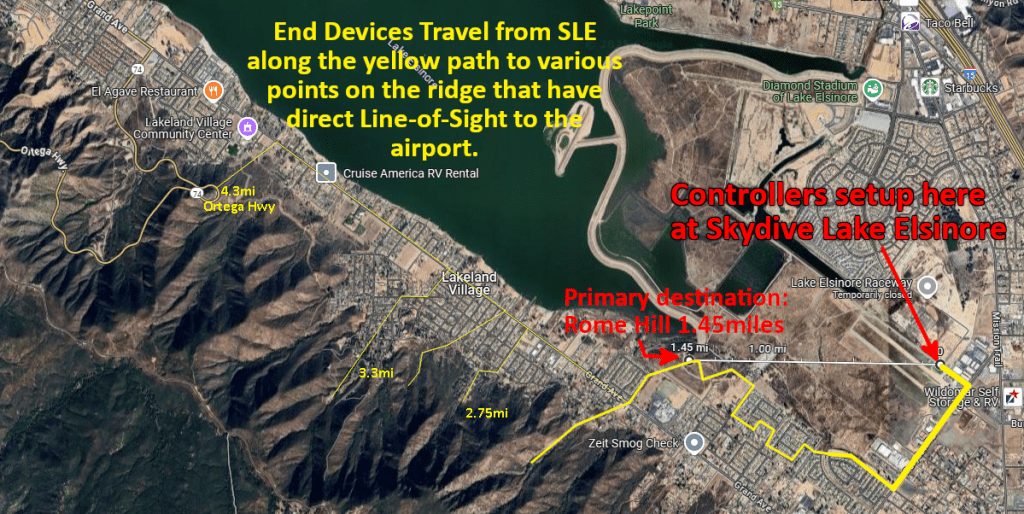
  • 10:30 – setup at end of Cereal St or at Skydive Elsinore
  • 11am-3pm – RF Range Testing
    • If weather permits, JonLuke West will skydive while tracking altitude via GPS
      • If you’re brave enough, join him on a tandem jump via Skydive Elsinore!
        • Must be booked in advance which YOU must call and arrange yourself!
      • Or soar in a 17m sailplane however the plane is metal which may block RF
    • Eric will have one ZRAD as a Controller and another as an End Device with Geographic Location V2 and a GPS receiver to track the exact locations of up to 3 additional devices at a time
      • DUTs can run standard firmware (without needing GeoLocV2) and will confirm their range using fully secure Get/Report while obtaining the GPS coordinates from ZRAD
      • All devices must be joined with S2 Authenticated Security enabled and US Long Range
  • Noon Box Lunch for all who registered for Unplugfest
  • 3:00pm Testing Ends – Board Bus
  • 3:15pm SHARP – Bus departs
  • Wrap Up discussion – 3:30pm-4:30pm on the bus
    • Discussion with all attendees on findings and general discussion of Unplugfest, Z-Wave, development tools, the market, the latest football scores, and the best beer in Carlsbad
  • The Z-Wave Summit kicks off in the hotel at 5:30pm

Check out the video from the 2024 Unplugfest in Austin TX: ZWA2024AustinUnPlugFest.mp4 and DrZWave’s blog post: https://drzwave.blog/2024/05/08/z-wave-summit-2024-austin-tx/ and JonLukes 2.7mi Z-Wave Skydive: https://youtu.be/lcuyDC128cQ?si=09wVd3cDV89326wW

DEBUGPRINT Is Now ZPAL_LOG

The 2025.6 Silicon Labs SSDK Z-Wave release changes the familiar DEBUGPRINT utility to ZPAL_LOG. A brief mention of the change is in the Important Changes for the Z-Wave 7.24.0 release however I’ll give a more detailed description of what has changed and how to use this new utility. If you’re trying to upgrade a project from an earlier SDK, this “breaking change” will make that effort more difficult as you have to switch any DPRINT statements to the new ZPAL_LOG format.

DEBUGPRINT

First a little history. The DEBUGPRINT utility came from the original early 2000s Zensys code running on the 8051 8-bit CPU. From the initial 100 series thru the 500 series, DEBUGPRINT was the ONLY debug utility we had! Even though this was the 2000s thru most of the 2010s, debugging using PRINTF was obsolete by the late 1980s – but not for Z-Wave. PRINTF would print out a short message and maybe a hex value or two and we would try to divine what was going on from these tiny details. There were no breakpoints, no ability to single step the CPU or watch RAM or registers change as the code was executing. Because sending characters out the UART would block the CPU until the UART was empty, you could only send a few characters and maybe a hex value. Sending more characters out the UART would alter the flow of the program and either mask the bug or break something else or often cause a watchdog reset! UGH. While primitive, it was all we had and we made do. DEBUGPRINT was easy to enable or disable – just #define DEBUGPRINT in the file you needed the print statements and recompile. Typically, only a few print statements were enabled at a time or the UART would spew out too much detail or messages would get mixed together making gibberish of the output.

Debugging Today

Debug is much easier with the modern ARM CM33 processor on todays Z-Wave chips. We have Single-Wire-Debug (SWD) and can set breakpoints, watchpoints, single step, view memory and peripherals. There’s even Trace where every instruction executed is logged enabling the precise flow of a program to be viewed after the trigger condition of a bug. We still have DEBUGPRINT which is handy for printing out high level messages like “eReset Reason=3′ each time the chip reboots. These messages are handy during debug and were easy to remove prior to building the final production code simply by commenting out the #define.

ZPAL_LOG

The Z-Wave Log component in a Simplicity Studio project .slcp file is installed by default in all the sample applications starting with the 7.24 release. This is good thing and a bad thing. It’s good since it’s already installed and printing messages before you’ve started modifying the code for your project. It’s bad because when you should remove this code for the final production build, we’ll get into that shortly.

General

When you Configure the Z-Wave Log component you get a lot of radio buttons to switch various features on or off. The first block “General” includes:

  • Size of the buffer (default is 96 bytes) – Leave this as-is
  • Display log level – prints 3 characters identifying Info, Debug, Warnings or Error messages
  • Display log source component – prints a number which identifes which module the print statement is from
  • Display log timestamp – prints a decimal number of ticks since reset

Enabling any of these messages slightly increases the total FLASH usage. The bigger problem is that it increases the number of characters sent out the UART potentially causing the CPU to block and thus changing the program flow. I recommend leaving these at their defaults.

The Display Log Source component would be useful IF SSv5 decoded the numeric value for you and displayed the name in the console window. Unfortunately it just prints a number which you then must manually decode by looking up the value in the enumerated type zpal_log_component in the zpal_log.h file. The trick would be to send just the numeric number out the UART (thus not taking up significant amounts of time or FLASH) and then SSv5 expanding it to the component name. I have suggested this to the SSv5 team in the past but hasn’t yet come to fruition. The source component is useful if there are several similar or even identical PRINT statements in different blocks of code to help identify where it is coming from. Also if you enable a lot of PRINT statements, it can help narrow down which block a specific message is coming from.

If you enable all 3 of these switches you get: “000000023 [I] (1) ApplicationInit eResetReason = 7”. Where the 00000023 is the timestamp; [i] is the Log Level (Info in this case) and (1) is the component which you have to then decode yourself as mentioned above (ZPAL_LOG_APP in this case) .

Output Channels

The next block is the Output Channels which can enable the four levels of messages: Debug, Info, Warning and Error messages. The default has just Info enabled with the word “vcom” entered into the Info box. I recommend enabling all four of these by entering “vcom” into all four of them. This will increase FLASH usage as the strings for all these messages are now stored on-chip.

Component Filtering

The final configuration block in the Z-Wave Log component is the Component Filtering section. This section has a bunch of radio buttons you can enable which will turn on various messages from the respective module. If you enable ALL of these, it’ll add about 10K bytes of FLASH so maybe only enable ones you think you need.

UART Blocking

The EUSART is only running at 115200 baud which makes each character take over 10 microseconds to send out the UART. This might seem fast, but when you’re transmitting long strings of characters this can seriously impact the program flow in real time. If the UART buffer fills, the code will stall and wait for more buffer space to fill (see the “while” loop in eusart_tx in sl_iostream_eusart.c). If you’re spitting out a lot of messages, the UART will fill causing the program flow to change potentially masking the bug or sending you down the wrong rathole. The baud rate is easily increased to 1mbps which will speed up the printing by 10X which helps, but you need to be aware of the amount of messages pouring out the limited speed of the UART.

Disabling ZPAL_LOG

Once debugging is complete, the next step is to compile all of these messages out of the production code. Fortunately this is easy – just remove “vcom” from all four of the Output Channels section of the Z-Wave Log component. While this removes most of the code for debug messages, the Command Line Interface (CLI) is still there and the EUSART is still used by the sample applications. When developing your own application you will typically want to remove ZPAL_LOG and the CLI as it’s not something your application needs – it is only for the Silicon Labs demos.

Conclusion

Why did silabs make this “breaking change”? I don’t have specific insights from Silicon Labs but the new format provides easily configured “levels” of logging. Is that worth a “breaking change”? I wish they’d spend more time testing the code to reduce the bugs than making a lot of file changes tweaking features that don’t really improve the developers experience. If you’re going to change an important feature, it’s also important to document it which is sorely lacking. But I hope this post helps you utilize this new feature and not be quite so frustrated when updating your project to the latest SDK.

Geographic Location Command Class – GPS Coordinates to the Centimeter

Z-Wavre Long Range Heat Map

First Pass is Rarely Perfect

Geographic Location Command Class was introduced around 2014 but it appears no one ever implemented it. How do I know no one implemented it you ask? Because version 1 is not particularly useful. I asked the Z-Wave Certification manager to search the certified database and no product has ever claimed support for it. The problem with V1 is that the 16-bit coordinates limit the resolution to about two kilometers. Two kilometers is sufficient to determine the time for sunrise or sunset, but not to locate a device within a home or yard. With the arrival of Z-Wave Long Range where devices could be placed in an area as large as twelve square miles, we need a way for the device to store and report its location within a few meters or less. Thus, while the first pass (version 1) has some usefulness, with new technology (ZWLR) we have new needs and thus there is a need for a new version of Geographic Location CC. Updating a command class demonstrates the living document nature of the Z-Wave specification and how you and I can add new features to the standard!

Resolution of a Location on the Earth

The circumference of the earth is about 40,075,000 meters. There are 360 degrees of longitude so each degree is 111,319 meters. The earth isn’t a perfect spheroid but for our purposes, a sphere is close enough. In embedded systems with limited resources, we need to represent the latitude/longitude with enough bits for sufficient accuracy to meet our needs. I propose a resolution of approximately one centimeter which is certainly more than enough and currently beyond the resolution of todays (but not tomorrows) low-cost GPS receivers.

The current Z-Wave Geographic Location Command Class V1 uses 1 bit for the sign, 8 bits for the Degrees and 7 bits for the Minutes. Since the 7 bits are in minutes instead of a fraction of a degree, the 7-bit value only ranges from 0-60 which means there are actually less than 6 bits of resolution. Thus, the resolution of the current V1 is 111319m/60=1.855km. Two kilometers of resolution isn’t enough to locate a device within a single Z-Wave network.

How many bits are needed for 1 centimeter resolution?

Degree Fraction BitsResolutionComments
0111,319m1 degree=111km
155,6560m
227,830m
3 … 16Each bit doubles the resolution
170.85m
180.42m
190.21m
200.11m
210.05m
220.03m
230.01mCentimeter resolution
GPS Coordinate Degree Fraction Bits of Resolution

The proposal is to update Geographic Location CC to V2 and make the values 32-bits to achieve roughly 1 centimeter resolution. Using only fractional degrees gives more resolution with fewer bits and is easier to compute. We need 8 bits to represent Longitude from 0 to 180 plus the sign bit for a total of 9 bits. Then another 23 bits for the fraction. Version 1 has the sign bit in the Minutes field which doesn’t make for an easy number to manipulate. We have to bit-swizzle the sign and then divide minutes by 60 to get the fraction. The proposal for V2 is a simple fixed-point fraction as shown below:

Geographic Location SET

76543210
Command Class = COMMAND_CLASS_GEOGRAPHIC_LOCATION (0x8C)
Command = GEOGRAPHIC_LOCATION_SET (0x01)
Lo SignLongitude Degree Integer[7:1]
Lo[0]Long Fraction[22:16]
Longitude Fraction[15:8]
Longitude Fraction[7:0]
La SignLatitude Degree Integer[7:1]
La[0]Lat Fraction[22:16]
Latitude Fraction[15:8]
Latitude Fraction[7:0]
Altitude[23:16] MSB
Altitude[15:8]
Altitude[7:0] LSB
Geographic Location CC V2 proposal

Longitude/Latitude

Longitude and Latitude formats are the same with a sign bit, 8 bits of integer Degree and 23 bits of fraction. The values are signed Degrees which for longitude varies from -180 to +180 and for latitude varies from -90 to +90. The rest of the bits are a fraction of a degree which yields roughly centimeter resolution.

Altitude

Altitude is a twos-complement signed 24 bit integer which yields a maximum of 83km in centimeters (more than enough!) to as much as -6,000km which is the radius of the earth. Note that altitude can be negative as the altitude is relative to sea level. Most GPS receivers will provide altitude so why not include it here in the Z-Wave standard? We need altitude because ZWLR devices could be spaced out vertically as well as horizontally.

Geographic Location GET

Geographic Location GET is the same as the existing V1.

76543210
Command Class = COMMAND_CLASS_GEOGRAPHIC_LOCATION (0x8C)
Command = GEOGRAPHIC_LOCATION_Get (0x02)

Geographic Location REPORT

76543210
Command Class = COMMAND_CLASS_GEOGRAPHIC_LOCATION (0x8C)
Command = GEOGRAPHIC_LOCATION_REPORT (0x03)
Lon SignLongitude Integer[7:1]
Lon Int[0]Long Fraction[22:16]
Longitude Fraction[15:8]
Longitude Fraction[7:0]
Lat SignLatitude Integer[7:1]
Lat Int[0]Lat Fraction[22:16]
Latitude Fraction[15:8]
Latitude Fraction[7:0]
Altitude[23:16] MSB
Altitude[15:8]
Altitude[7:0] LSB
QualROAl ValidLa ValidLo Valid
REPORT is the same as SET with the additional STATUS byte

Status Byte

The additional Status byte provides additional information about the long/lat/alt values:

Qual: From the NMEA GPS Quality Indicator: GPS receivers need a minimum of four satellites to compute the location. Thus, QUAL is the number of satellites used for the most recent computation. If more than 15 satellites are used, then the value is clamped to 15. The values 0-3 are reserved for debugging.

RO: Read Only – Long/Lat/Alt are Read-Only when set to 1. Devices with GPS receivers set this bit to indicate that the values are from an on-board sensor. SET commands are ignored. Devices without a GPS receiver clear this bit to zero and will have their location set at commissioning time typically using a phone to set the GPS coordinates.

Al Valid: The Altitude value is valid when set to 1. When cleared to 0, the Altitude value is unknown and MUST be ignored.

La & Lo Valid: Each bit signifies when the Latitude and Longitude values are valid. When cleared to zero, the Latitude or Longitude MUST be ignored.

If a SET command was sent, the Longitude, Latitude and Altitude is then considered valid and is retained thru a power cycle but will be cleared if excluded or factory reset.

GPS Receiver to Geographic Location Conversion

All GPS receivers use the NMEA 0183 standard for reporting the coordinates. The string of ASCII characters for longitude and latitude is defined to be [D]DDMM.MMM[M] where D is decimal degrees and M are the miutes. The MM.MMMM value must be divided by 60 to convert minutes into fractions of a degree.

A typical NMEA sentence looks like:

$GPGGA,134658.00,5106.9792,N,11402.3003,W,2,09,1.0,1048.47,M,-16.27,M,08,AAAA*60

Text color matches the field: Latitude, Longitude, altitude – see the details via the NMEA link above.

Converting the values in Geographic Location CC to decimal is accomplished using code similar to: const longitude=payload.readInt32BE(0) / (1 << 23);

GitHub Repo

An implementation of the Geographic Location CC V2 is at: https://github.com/drzwave/GeographicLocationCC

The repository implements Geographic Location CC in an end-device such as the Z-Wave Alliance ZRAD project or on a Silicon Labs Devkit using a QWIIC I2C based GPS receiver like the M8Q from Sparkfun.

See the repo for more examples and details. The official Z-Wave Alliance specification update with GeoLocV2 is currently being reviewed and expected to be published in one of the 2025 releases.

Heat Map Examples

One of the drivers to create GeoLocV2 is to generate heat maps of the RF Range for testing Z-Wave Long Range. In previous Unplugfests we use a very subjective measurement of having an LED stop blinking when out of range. Often the LED would pause, but then start blinking again, then stop so it was difficult to determine the exact edge of RF range. With GeoLocV2 we can map the exact locations where the device is when it is able to make 100% error free, encrypted connection.

The Silicon Labs Works With 2024 conference produced a fantastic video (featuring DrZWave! – well, I have a supporting role) demonstrating GeoLocV2 in action on a motorcycle! Skip to minute 43:40 (about 3/4 of the way thru the video) to see the video.

Z-Wave Long Range demonstration video from Silicon Labs Works With 2024 using Geographic Location Version 2

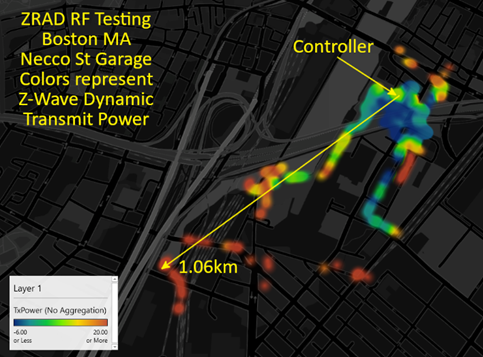
Below is a heat map from a skydiving test that we will be producing a video in the near future. Z-Wave Long Range demonstrated 2.7 mile range – straight UP! A ZRAD was used as the controller running Z-Wave JS and a small Javascript program to extract the GeoLoc data from a commercial Z-Wave device using a PCB antenna stuffed inside a fanny pack of the jumper. This example demonstrates the need for the Altitude in the specification.

Below is a heat map with the color showing the transmit power needed to make an error free connection which ranges from -6dBm to +20dBm. The test took place in a residential neighborhood outside Boston Massachusetts where the ZRAD controller is in a wood frame building on the second floor and a ZRAD End Device was driven around the neighborhood reaching a general 500m and a maximum of over 1.4km. This demonstrates the dynamic power of Z-Wave Long Range where it saves battery power anywhere within 100 meters but can extend the range thru many obstacles to over a kilometer.

Be sure to attend the upcoming Z-Wave Unplugfest and Summit in Barcelona Spain in February 2025 or the one in Carlsbad CA in April to see GeoLocV2 in action.

Z-Wave Summit 2024 – Austin TX

The Z-Wave Summit & UnPlugFest took place last week in Austin TX. If you missed it, here is a quick Recap. I organized the UnPlugFest on Tuesday which included an RF Range test down the Colorado River right in downtown Austin. The Z-Wave Alliance Reference Application Design (ZRAD) won the maximum range with a distance of 1.1miles (1.7km) which wasn’t quite line-of-sight (LOS). I produced a video of the event which you have to be a member of the Alliance to gain access. Virtually all of the other Z-Wave Long Range Devices tied in a close second place at 0.7mi (1.1km) however we had limited LOS points to test at bridges across the river. We proved that PCB antennas and shipping Z-Wave devices in a noisy RF environment can easily achieve over a kilometer of range. Note that we measured the range where we are getting 100% corruption free, fully encrypted packets at 100kbps. Obviously we could go much farther if we are just trying to get a NOP to ACK but that’s not useful even though other protocols use that as their yardstick.

The Open Source Work Group met in-person in the afternoon to work on finalizing User Code Command Class. Additional Range testing was measured inside the hotel (with concrete floors) where most devices were able to pass thru several floors. Late in the afternoon was the Fireside Chat where we aired our hope, desires and disappointments for Z-Wave. Watch for a survey coming out soon!

Tuesday evening is the network event which was hosted by Silicon Labs where all the Z-Wave personalities meet and renew friendships and business relationships.

My presentation on the Z-Wave Alliance (ZWA) Reference Application Design (ZRAD) is a preview of the soon to be released github project. There were lots of presentations on all sorts of IoT related topics. You can find the presentation on the ZWA members web site.

FUN! Electric Shuffle

After the UnPlugFest and a full day of presentations it was time to relax and join the competition at Electric Shuffle.

Summit Takeaways

This is my personal set of takeaways. Please add yours in the comments below!

  • Z-Wave is very much alive!
    • Lots of new products have been certified and more are in the pipeline
    • Most are Z-Wave Long Range
  • Z-Wave spec and Open Source Code continues to improve
  • Z-Wave Long Range is indeed Long Range!
    • Over 1mi LOS in downtown Austin – over 2mi proven in NH
  • Certification for an SDK Update is Review ONLY!
    • No need to redo the entire certification process to update the Z-Wave SDK
    • Previously a full re-cert was required ($$$!)
    • Now you can get the latest bug fixes/security patches and just file paperwork for cheap
  • Can add Z-Wave Long Range (ZWLR) to a device and keep the same FCCID
    • Can OTA devices already in the field to add ZWLR!
    • Requires working with the “right” FCC test house and FCC must be redone with the new frequencies
    • Talk to Trident for more details
  • Why is the RF range so short in the EU for many devices?
    • 500 series devices can only transmit at -1dBm (hardware limitation)
    • 700/800 can transmit at +14! More than twice the range!
    • Update those EU devices!
  • USB Zniffer firmware can capture BOTH ZWLR frequencies
    • Select US_LR_END_DEVICE for the region to get ONLY the 2 ZWLR channels (no mesh channels)
    • Select US_LR_BACKUP to get the ZWLR B channel and mesh channels
    • Select US_LR to get ZWLR A channel and mesh channels
  • Z/IP Gateway has a maintenance release expected in June but there will probably only be 1 more maintenance release before it EOLs
    • Switch to Unify or Z-Wave JS soon!

How to Build the Z-Wave Bootloaders

You’ve finished designing a new PCB for your Z-Wave product and are now ready to start testing with your own custom firmware. Well, the first thing you need are bootloaders. The bootloader is a standalone application that handles upgrading the application firmware among other things. Downloading a bootloader into a Silicon Labs devkit is easy, just click on “run”. But for custom PCBs you must build it from the source code. There are two types of bootloaders needed: One for End Devices which will receive the updated firmware image over the radio, the other is for Controllers which will receive the image via the UART wires. These are similar but there are a few important differences. This post is specifically for the Z-Wave 800 series and GSDK 4.4.1. Hopefully the process will be a little easier in a future release.

End Device Bootloader – OTA

Fortunately the End Device bootloader is easy with the release of GSDK 4.4.1 (Z-Wave 7.21.1). Plug your board into a ProKit (WSTK) via the Tag-Connect connector. The WSTK should show up in Simplicity Studio v5 (SSv5) Launcher Perspective with “custom board” and the EFR32ZG23 part number on your board. Click on Detect Target if not. Ensure the Debug Mode is set to Mini (or OUT for WSTK1). Select the debug adaptor then start the New Project Wizard via File->New. Make sure the latest SDK is selected and GCC12 (not GCC10). Click on Z-Wave to filter the list and uncheck Solution Examples. Scroll down to “Bootloader – SoC Internal Storage (For Z-Wave Applications)” and select that. Click Next then rename the project to something more meaningful with the chip (ZG23A) and GSDK version (_411 for 4.1.1) for example. Build the project which should complete without error. The bootloader has a lot of security options but I recommend using the defaults. If you have a complex device and need additional code space, you can relocate the OTA buffer to an off-chip serial flash chip which will free up nearly 200K of FLASH space but no additional RAM.

Controller Bootloader – OTW

This example uses a custom PCB and the EFR32ZG23A (mid-security) chip. I start with this combination as that is what most customers will start with. Using one of the devkits causes SSv5 to automagically “know” all sorts of things about the board and what GPIOs are wired to what and what other features are available. When you pick this chip, there are zero pre-built “demos” as all of the current devkits have B (high-security) parts on them.

Start the New Project Wizard via File->New. Ensure the IDE/Toolchain is GCC12 and not GCC10. scroll down and click on the “Bootloader – NCP UART XMODEM (for Z-Wave Applications)” then click on Next. This will create a project called bootloader-storage-internal-single-zwave then append the GSDK version to that which in this case is 4.4.1 so add “ZG23A_441” to the project name to keep track of which chip and which GSDK this is for. Click on Finish then build the project. This will fail because SL_SERIAL_UART_PERIPHERAL_NO is not defined as well as several other things related to the UART.

Clearly the UART needs to be configured but a guide is needed to figure out what that might be. Plug in a Devkit and build the same project but with a different name. This project builds just fine so search for SL_SERIAL_UART_PERIPHERAL_NO. btl_uart_driver_cfg.h has a define for this for USART0. The same file in the custom project says “bootloader UART peripheral not configured”. Obviously somehow it needs to be configured. The .slcp file has Platform->Bootloader->Drivers->Bootloader UART Driver configured.

We don’t need RTS/CTS as they are not used. Configure the custom project with USART0, RX=PA09 and TX=PA08 then the project compiles. This should be the default since you MUST use a UART for XMODEM. Maybe a future release will fix this! There are other configuration items under the Bootloader Core component but generally these can remain at the defaults.

Conclusion

Bootloaders are critical to being able to field-upgrade the firmware of any Z-Wave product which is mandatory for certification. See the Bootloader Users Guide (UG489) for more details on the many options available. The process to create the Z-Wave bootloaders is a bit more complicated than it should be but I hope this guide will bring your Z-Wave product to market a little quicker. Let me know what you think by commenting below.

Team Z-Wave Development Using Git

Silicon Labs Simplicity Studio v5 (SSv5) has a steep learning curve but once you’re up the curve it can accelerate an IoT firmware development. However, sharing the project among several engineers isn’t as straightforward as it should be. Fortunately it is actually quite easy once you know the trick which I explain below.

Step 1 – Create the Repo

Create the repository using Github or your own private server. Typically this is done via a browser which also sets various options up such as the language and the license. Once this has been created, copy the name of the repository to use in the next step.

Step 2 – Clone the Repo locally

Clone the repo onto your computer using the typical “git clone HTTPS://github.com/<gitusername>/<projectName.git>“. Choose a folder on your computer that is convenient. I recommend the folder be under the SSv5 workspace folder which will make finding it later a little easier.

Step 3 – add a .gitignore file

Create a file at the top level of the repo to ignore the files you do not need to put under source code control. Use the lines below and include any other files or folders as needed. You may want to include the .hex, .gbl, .map, and .axf files which are under the GNU* folder or copy them to another folder so you have the binary files in case building the project proves to be difficult. Note that I am NOT checking in the SDK which is huge and Silabs keeps even quite old versions on github and via their website. Thus you don’t need to keep a copy of the SDK on your local servers – but you can if your are that kind of person.

################ Silabs files to ignore #####################
# Ignore the Build Directory entirely
GNU*
# Other SSv5 files to ignore
.trash
.uceditor
.projectlinkstore
*.bak

Step 4 – Create the SSv5 Project

Create the SSv5 project within this folder. Typically this is done using the Project Wizard or selecting one of the sample applications. Be sure to locate the project within the repo folder.

Step 5 – Commit the Files

Commit the files to the repo using:

git add *
git commit -am "Initial checking"
git push

At this point you can either clone the repo into a different folder to see if it works or have a team member clone it onto their computer. Try building the project to see if there are any missing files.

Step 6 – Import the Newly Cloned Repo into SSv5

This is the tricky bit! We’re going to Import the project into SSv5 but the TRICK is to import it into the cloned repo folder. By default, SSv5 will make a COPY of the project when importing. The problem with that is that you then lose the connection to the git repo which is the whole point!

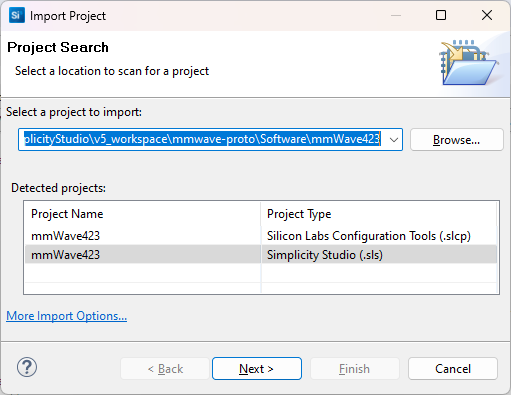
Use “File – Import” then browse to the cloned git repo folder. The project name should show up with a Simplicity Studio .sls file. Select this file by clicking on it then click Next.

Then the next screen pops up. Ensure the proper compiler is selected for the project! GCC10 or GCC12! These settings should come from the .sls so you shouldn’t need to change them.

Click on Next

THIS IS THE MOST IMPORTANT STEP! In the next screen, UNCHECK the “Use Default Location” button! Click on Browse and select the repo folder.

Click on Finish. Then check that the project builds properly.

Team members can now work collaboratively on the project and manage the check in/out and merging using standard git commands.

When the project is complete, be sure everything is checked in and the repo is clean, then in SSv5 right click on the project and select delete. But do not check the “delete project contents on disk” checkbox unless you want to also delete the local repo. This removes the project from the workspace in SSv5 but leaves the files where they are. You can clean up the files later.

The key to using git with SSv5 is to UNCHECK the Default Location button during the import. If you leave that checked, or browse to the wrong folder, SSv5 will make a COPY of all the files and you lose the connection to the git repo.

Installing UART Drivers in a Z-Wave Project

I have a simple problem – I have a sensor module with a simple uart interface that I need to connect to my Z-Wave project. Ther UART is used to configure the sensor and then it will send sensor readings at regular intervals. Simple right? Turns out the path is not so simple for Silicon Labs Simplicity Studio. Let’s go step by step through my journey to implement this interface on the Silicon Labs EFR32ZG23.

Typical UART Driver

Embedded engineers expect the UART driver to consist of the following functions:

  • UART_INIT(Baud, data_bits, stop_bits, parity, options)
    • Initialize the uart with the desired baud rate and options
  • UART_GETCHAR()
    • Return 1 character
  • UART_PUTCHAR(char)
    • Send 1 character
  • UART_PUTS(string) – nice to have
    • Put a string of characters – simply calls UART_PUTCHAR for each char in the string

Since most MCUs contain multiple UARTs, these basic functions need a pointer to which UART is being accessed. Typically a pointer to the desired UART is added to each function and then these are wrapped in macros with the UART number in the macro name such as: UART0_INIT and EUSART2_PUTCHAR. Extensions from these basic functions generally involve buffering data or being blocking or non-blocking (IE: polled or interrupt driven) and selecting GPIOs. Pretty standard stuff, easy to understand, easy to use, does what you expect with minimal code and effort.

Note that these functions are independent of the hardware. The engineer does not need to read the manual (RTFM) to be able to use them. If any of the fancy features of the UART are needed, the engineer will RTFM and then write the appropriate registers with the appropriate values to enable the desired feature. Hopefully the manual is detailed enough for the engineer to get the desired function to work without a lot of trial and error (unfortunately this is rarely the case). But less than 1% of the engineers will ever need those fancy features which is why these simple functions are the foundation of most UART drivers.

Now follow my efforts to interface this simple UART sensor with an EFR32 with the expectation there will be an API similar to the Typical UART Driver described above.

Step 1: What do I need? – 5 minutes

RTFM of the sensor to find the basic UART interface requirements. The manual states it uses a baud rate of 256000, 1 stop bit, no parity. The manual was clearly written by someone who did not have English as their first language as it also states “the sensor uses small-end format for serial communication” which I’m assuming means little-endian? Could it mean the bit ordering of each byte is LSB first? The limited information in the manual means I’ll be doing some trial-and-error debugging. The manual is thin, only 23 pages so it only took about five minutes to find this information.

Step 2: What does the EFR32 have? – 10 minutes

I’m using the Silicon Labs EFR32ZG23 which has three EUSARTs (enhanced UART) and one USART. All four have lots of features including SPI as well as normal UART functionality. The datasheet describes EUSART0 as being able to operate in lower power modes and USART0 (apparently not “Enhanced”) as having IrDA, I2S and SmartCard features. None of these extra features are needed for my application. EUSART0 and EUSART2 have limited GPIO connections thus I don’t want to use either of those as I want the maximum pinout flexibility offered by EUSART1. The EFR32ZG23 datasheet is 130 pages but searching for “UART” (then “USART” since UART has only 1 hit) got me this much information in about 10 minutes. Later I stumbled on the fact that the EUSARTs have a 16 byte hardware FIFO on both the send and receive side vs. the UART which just has two byte. This is deep in the xG23 Reference Manual and not mentioned in the datasheet. A 16 byte FIFO means the EUSART is a winner! Why bother including the USART?

Step 3: Open Simplicity Studio and Explore APIs – 60 Minutes

Open Simplicity Studio v5 (SSv5) which is the IDE for developing and debugging code for the EFR. I had already built a basic project starting with the Z-Wave SwitchOnOff sample app and was able to toggle an LED on my custom PCB. I had already created a bootloader, updated the SE, built and customized the sample app, joined a Z-Wave network and been in the debugger getting other parts of the project working. Now it was time to talk to the sensor so the first place to look is to click on the .SLCP file, then Software Components then search for “UART”. SSv5 then gives a long list of various drivers for various platforms, protocols, and applications. But all I want are the 4 functions listed above, why is this so complex already? There are no UART drivers for the Z-Wave protocol which is unfortunate as in the 500 series we did have the basic 4 functions prior to the move into SSv5. The first entry is Application->Utility->Simple Communication Interface (UART). The description talks about it being used for NCP communication but I’m not using NCP in this case so pass this one up. Next is Platform->Bootloader with four flavors of drivers but they are part of the bootloader and not the application so maybe not what I need? Next is Platform->Driver->UART which looks promising which I’ll discuss it in more detail shortly. Next is Services->Co-Processor Communication->secondary device->Driver which again has a single line description for a co-processor but no details of why I would use it so pass on this one too. Next is Third Party->Amazon FreeRTOS->Common I/O IoT UART which while I am using FreeRTOS I am not using the Amazon flavor. Looking at the link in the description there are similar functions to the 4 I want but with somewhat more OSish sounding names. Finally there are WiSun, Zigbee and Silicon Labs Matter drivers each with just 1 line descriptions and seem to be specific to the protocol. They also seem to be specific to Silicon Labs DevKit boards but I’m not using a DevKit, I have my own custom board so these don’t seem to be usable either. This is a case of information overload and simply sorting thru the options seems like a waste of time. Why are there so many flavors of this common API?

I had enabled DEBUGPRINT in the Z-Wave sample app so I was already aware of the IO Stream EUSART driver which is what the printf functions sprinkled thru the Z-Wave code use. With all of these options I spent about 1 hour reading just the section headings of the documentation looking for the simple function I need. Next step is to “install” a driver and try it out.

Step 4: UART Driver – IO Stream – 60 minutes

Since DEBUGPRINT uses the IO Stream driver, I assumed that would be the way to go for my use case as it should share most of the code already. I clicked on the + Add New Instances in SSv5, selected the desired baud rate, start/stop/parity and named the instance to differentiate it from the “vcom” instance used by the DEBUGPRINT utilities. The documentation is online and is versioned so I browsed thru that looking for my 4 functions. There is an Init routine and an IRQ handler but I was looking to avoid interrupts at least until I have have finished the trial-and-error of getting the sensor to send anything intelligible. I spent an hour trying to understand how this works without a PUTCHAR when I finally understood that only the “last stream initialized” “owns” the PRINTF functions. Since this driver uses DMA and interrupts it is way more complicated than I need and I don’t want to interfere with the DEBUGPRINT utilities. Uninstalled the IO Stream driver instance after wasting 60 minutes RTFMing and trying to follow the code.

Step 5: UART Driver – uartdrv – 6 hours

Going back to SSv5 and looking thru the options for UART Drivers I found Platform->Driver->UART->UARTDRV EUSART and installed it. SSv5 let me enter the board rate, parity, stop bits and several other options. I picked EUSART1 since it is able to drive all GPIOs and connected the proper GPIOs from my schematic. SSv5 installed a bunch of files mostly in the config folder and specifically the sl_uartdrv_eusart_mod_config.h which held the baud rate and various other UART settings. Next step is to look thru the documentation for my 4 simple functions. Unfortunately there are 27 functions and nothing obvious being the ones I need. But, I sallied forth and spent time reading the manual as well as looking thru the code and eventually was able to add enough code to my project to receive at least a few bytes. But the bytes I received don’t match the values the sensor should be sending. The other problem is that the UARTDRV_Receive function appears to wait for the buffer I gave it to fill up before returning. But I need to have each byte returned to me so I can decode which command is being sent and each one is a different size. These functions are way too complicated, the documentation is sparse and confusing and the API doesn’t have usable functions for my (or any?) application. I spent the better part of a day trying to get this “driver” to work but in the end it was taking me more time to figure out how to use it than if I just wrote my own.

Step 6: Peripheral – EUSART – 3 hours

I went back to SSv5 and searched for USART instead of UART and this time I found Platform->Peripheral->EUSART. This low level API is already installed I assume via the IO Stream for the DEBUGPINT utilities. The documentation lists 23 functions in the API but many of these are specific to the modes I’m not using like SPI or IrDA so I can simply ignore those. There is an Init function and EUSART_Rx and EUSART_Tx which are basically GetChar and PutChar. The API does not setup the clocks or the GPIOs but the examples explain how to do that. The documentation is clouded with all the many features like 9-bit data and SPI making it harder to decipher how to do basic UART operations.

Looking at the EUSART_UartInitHf function it becomes immediately obvious that this code is trying to be all things for all applications on all Silabs chips. The code both doesn’t do enough and does way too much at the same time! For example, the code writes all the registers back to their default value. Which is necessary if the UART is in an unknown state and is certainly the safe thing to do. However, this type of thing is rarely ever needed as the application will power up the chip, set the UART configuration once, and then never change it again. Maybe the baud rate will change but that function will write the necessary registers without needing everything to be set to the default. Not only is there a ton of code but there are several good size structures which are wasting both FLASH and RAM. Embedded systems are defined by the limited resources which include CPU time, FLASH and RAM. Drivers should be efficient and not waste these valuable resources. If an application needs to reset every register in the UART, then let the 0.001% of customers write their own! I gave up after spending another morning reading and trying stuff out and trying in vain to follow the code. Too complicated!

Step 7: Write My Own UART Driver – 2 hours

I spent less than two hours writing my own UART drivers. Why would I do that? Because it was easy and does exactly what I want with easy to understand code that anyone can follow. My driver is not universal and does not handle every option or error condition. But it does what 99% of applications need. The code is less than a few dozen bytes and uses only a few dozen bytes of RAM. The more lines of code, the more bugs and this code is so small you can check it by inspection.

Most of those two hours were spent reading documentation and trying to find where the interrupt vectors are “registered”. Turns out startup_efr32zg23.c in the SDK assigns all the vectors to a weak Default_Handler. All I had to do to “register” the ISR is give the function the proper name and the compiler plugs it into the vector table for me.

I did spend perhaps another couple of hours figuring out how to add an event to the ZAF_Event_Distributor, adding the event and some additional code to search for the proper sensor data in the byte stream. The key is in the ISR to use ZAF_EventHelperEventEnqueueFromISR to put an event into the FreeRTOS queue which is then processed in the zaf_event_distributor_app_event_manager function in SwitchOnOff.c.

Below is UART_DRZ.C which has the three functions needed and an interrupt service routine to grab the data out of the EUSART quickly and the let the application know there is data available.

/*
* @file UART_DRZ.c
* @brief UART Driver for Silicon Labs EFR32ZG23 and related series 2 chips
*
* Created on: Jul 10, 2023
* Author: Eric Ryherd - DrZWave.blog
*
* Minimal drivers to initialize and setup the xG23 UARTs efficiently and provide simple functions for sending/receiving data.
* Assumes using the EUSARTs and not the USART which has limited functionality and only a 2 byte buffer vs 16 in the EUSART.
* Assumes high frequency mode (not operating in low-power modes with a low-frequency clock)
* This example just implements a set of drivers for EUSART1. The code is tiny so make copies for the others as needed.
*/

#include <em_cmu.h>
#include <zaf_event_distributor_soc.h> // this is new under GSDK 4.4.1
#include "UART_DRZ.h"
#include "events.h"

// Rx Buffer and pointers for EUSART1. Make copies for other EUSARTs.
static uint8_t RxFIFO1[RX_FIFO_DEPTH];
static int RxFifoReadIndx1;
static int RxFifoWriteIndx1;
//static uint32_t EUSART1_Status;

/* UART_Init - basic initialization for the most common cases - works for all EUSARTs
* Write to the appropriate UART registers to enable special modes after calling this function to enable fancy features.
*/
void UART_Init( EUSART_TypeDef *uart, // EUSART1 - Pointer to one of the EUSARTs
uint32_t baudrate, // 0=enable Autobaud, 1-1,000,000 bits/sec
EUSART_Databits_TypeDef databits, // eusartDataBits8=8 bits - must use the typedef!
EUSART_Stopbits_TypeDef stopbits, // eusartStopbits1=1 bit - follow the typdef for other settings
EUSART_Parity_TypeDef parity, // eusartNoParity
GPIO_Port_TypeDef TxPort, // gpioPortA thru D - Note that EUSART0 and 2 have GPIO port limitations
unsigned int TxPin,
GPIO_Port_TypeDef RxPort,
unsigned int RxPin)
{

// Check for valid uart and assign uartnum
int uartnum = EUSART0 == uart ? 0 :
EUSART1 == uart ? 1 :
EUSART2 == uart ? 2 : -1;
EFM_ASSERT(uartnum>=0);

CMU_Clock_TypeDef clock = uartnum == 0 ? cmuClock_EUSART0 :
uartnum == 1 ? cmuClock_EUSART1 : cmuClock_EUSART2;

if (uartnum>=0) {
// Configure the clocks
if (0==uartnum){
CMU_ClockSelectSet(clock, cmuSelect_EM01GRPCCLK); // EUSART0 requires special clock configuration
} // EUSART 1 and 2 use EM01GRPCCLK and changing it will cause VCOM to use the wrong baud rate.
CMU_ClockEnable(clock, true);

// Configure Frame Format
uart->FRAMECFG = ((uart->FRAMECFG & ~(_EUSART_FRAMECFG_DATABITS_MASK | _EUSART_FRAMECFG_STOPBITS_MASK | _EUSART_FRAMECFG_PARITY_MASK))
| (uint32_t) (databits) // note that EUSART_xxxxxx_TypeDef puts these settings in the proper bit locations
| (uint32_t) (parity)
| (uint32_t) (stopbits));

EUSART_Enable(uart, eusartEnable);

if (baudrate == 0) {
uart->CFG0 |= EUSART_CFG0_AUTOBAUDEN; // autobaud is enabled with baudrate=0 - note that 0x55 has to be received for autobaud to work
} else {
EUSART_BaudrateSet(uart, 0, baudrate); // checks various limits to ensure no overflow and handles oversampling
}

CMU_ClockEnable(cmuClock_GPIO, true); // Typically already enabled but just to be sure enable the GPIO clock anyway

// Configure TX and RX GPIOs
GPIO_PinModeSet(TxPort, TxPin, gpioModePushPull, 1);
GPIO_PinModeSet(RxPort, RxPin, gpioModeInputPull, 1);
GPIO->EUSARTROUTE[uartnum].ROUTEEN = GPIO_EUSART_ROUTEEN_TXPEN;
GPIO->EUSARTROUTE[uartnum].TXROUTE = (TxPort << _GPIO_EUSART_TXROUTE_PORT_SHIFT)
| (TxPin << _GPIO_EUSART_TXROUTE_PIN_SHIFT);
GPIO->EUSARTROUTE[uartnum].RXROUTE = (RxPort << _GPIO_EUSART_RXROUTE_PORT_SHIFT)
| (RxPin << _GPIO_EUSART_RXROUTE_PIN_SHIFT);
}

RxFifoReadIndx1 = 0; // TODO - expand to other EUSARTs as needed
RxFifoWriteIndx1 = 0;

// Enable Rx Interrupts
EUSART1->IEN_SET = EUSART_IEN_RXFL;
NVIC_EnableIRQ(EUSART1_RX_IRQn);
}

/* EUSART1_RX_IRQHandler is the receive side interrupt handler for EUSART1.
* startup_efr32zg23.c defines each of the IRQs as a WEAK function to Default_Handler which is then placed in the interrupt vector table.
* By defining a function of the same name it overrides the WEAK function and places this one in the vector table.
* Change this function name to match the EUSART you are using.
*
* This ISR pulls each byte out of the EUSART FIFO and places it into the software RxFIFO.
*/
void EUSART1_RX_IRQHandler(void){
uint8_t dat;
uint32_t flags = EUSART1->IF;
EUSART1->IF_CLR = flags; // clear all interrupt flags
NVIC_ClearPendingIRQ(EUSART1_RX_IRQn); // clear the NVIC Interrupt

for (int i=0; (EUSART_STATUS_RXFL & EUSART1->STATUS) && (i<16); i++) { // Pull all bytes out of EUSART
dat = EUSART1->RXDATA; // read 1 byte out of the hardware FIFO in the EUSART
if (EUSART1_RxDepth()<RX_FIFO_DEPTH) { // is there room in the RxFifo?
RxFIFO1[RxFifoWriteIndx1++] = dat;
if (RxFifoWriteIndx1 >= RX_FIFO_DEPTH) {
RxFifoWriteIndx1 = 0;
}
} else { // No room in the RxFIFO, drop the data
// TODO - report underflow
break;
}
// TODO - add testing for error conditions here - like the FIFO is full... Set a bit and call an event
}
// TODO - check for error conditions
zaf_event_distributor_enqueue_app_event(EVENT_EUSART1_CHARACTER_RECEIVED); // Tell the application there is data in RxFIFO
}

// Return a byte from the RxFIFO - be sure there is one available by calling RxDepth first
uint8_t EUSART1_GetChar(void) {
uint8_t rtn;
rtn = RxFIFO1[RxFifoReadIndx1++];
if (RxFifoReadIndx1>=RX_FIFO_DEPTH) {
RxFifoReadIndx1 = 0;
}
return(rtn);
}

// Put 1 character into the EUSART1 hardware Tx FIFO - returns True if FIFO is not full and False if FIFO is full and the byte was not added - nonblocking
bool EUSART1_PutChar(uint8_t dat) {
bool rtn = false;
if (EUSART1->STATUS & EUSART_STATUS_TXFL) {
EUSART1->TXDATA = dat;
rtn = true;
}
return(rtn);
}

// number of valid bytes in the RxFIFO - use this to avoid blocking GetChar
int EUSART1_RxDepth(void) {
int rtn;
rtn = RxFifoReadIndx1 - RxFifoWriteIndx1;
if (rtn<0) {
rtn +=RX_FIFO_DEPTH;
}
return(rtn);
}

The corresponding UART_DRZ.h file:

/*
* UART_DRZ.h
*
* Created on: Jul 10, 2023
* Author: eric
*/

#ifndef UART_DRZ_H_
#define UART_DRZ_H_

#include <em_eusart.h>
#include <em_gpio.h>

void UART_Init( EUSART_TypeDef *uart, // Pointer to one of the EUSARTs
uint32_t baudrate, // 0=enable Autobaud, 1-1,000,000 bits/sec
EUSART_Databits_TypeDef databits,
EUSART_Stopbits_TypeDef stopbits,
EUSART_Parity_TypeDef parity,
GPIO_Port_TypeDef TxPort,
unsigned int TxPin,
GPIO_Port_TypeDef RxPort,
unsigned int RxPin);

int EUSART1_RxDepth(void);
uint8_t EUSART1_GetChar(void);

// Rx FIFO depth in bytes - make it long enough to hold the longest expected message
#define RX_FIFO_DEPTH 32

#endif /* UART_DRZ_H_ */

The code above was updated 3/28/2024 to match the GSDK 4.4.1 release. I plan to release this code under github soon so it can be easily incorporated into any project and kept more up-to-date.

Conclusions

For all the talk of “Modular Code”, “Code ReUse”, “APIs” and of course AI generated code, embedded systems are unique due to their limited resources. Limited resources means you cannot throw generic “modular” code at a problem if it bloats the resulting application. Embedded Engineers are also a limited resource and in short supply. Reusing tested, well written, well documented code is a huge time saver. However, if the problem is simple, it may be more efficient to write it yourself. Certainly that was the case in this scenario.

I’ve mentioned before that embedded engineers are usually at least 2 weeks (if not 2 months!) late in a project from the very first day. By the time marketing, finance and management decide on the product features, fund it, and allocate engineering resources, the project is already behind schedule. Chip vendors need to make the engineers job easier by providing APIs that serve 90% of the needs without obfuscating the calls under a ton of features few people will ever use. The API needs to be intuitive and not require hours of reading manuals or randomly trying stuff until they work. Hide the complexity and provide easy to use functions with concise but detailed documentation with a few examples (I love to cut and paste!).

On the hardware side, I have a rule of thumb that if a customer isn’t willing to pay an extra nickel per chip for a feature, then do not include it! The time it takes to spec, design, code, document, validate in simulation, validate the silicon, document again (due to invariable changes), write silicon test programs, run extra test vectors on every chip, and finally develop training, (WHEW!) far outweigh the brain-fart feature someone thought might be cool. When instancing multiple copies of a peripheral, they should all be the same. Then you can reuse all of the above whereas if they are different you have to make special versions of everything, especially the documentation. Users will first assume they are all the same. They will strongly dislike the fact that one EUSART can route to all GPIOs whereas the others have limitations. Why is there a USART in the xG23 family? Why are the EUSARTs each just a little different? Why are there so many options in the EUSART? Does anyone use all these features? Will EVERYONE pay an extra nickel for the chip for features they don’t need? Obviously there are some features that are required, some that are expected, but there are a bunch that could be dropped.

Z-Wave Long Range Zniffer

Packet sniffing is critical for debugging any wireless IoT product and Z-Wave Long Range (ZWLR) is no exception. The challenge with ZWLR at the moment is that you must use a WSTK Pro Developers Kit and connect it via Ethernet AND USB. See my Unboxing the 800 Series video for a demonstration and more details on how to set up a WSTK so it is both a SerialAPI controller and a Zniffer at the same time. The challenge with this setup is that since the WSTK requires an Ethernet interface, you need a router and perhaps a switch and specifically a DHCP server to connect the Zniffer via Ethernet. This is easily done when at the office or even working from home, but I’ve been doing some Long Range testing at a remote site with no power or Ethernet let alone the Internet and a router/switch. But in this post I’ll show you how to wire up Ethernet point-to-point without a router. I expect needing both Ethernet and USB for the Zniffer will be solved in a future SDK release but to get things done today I offer this solution.

I have a Windows 10 laptop so that’s the help I can provide but Mac or Linux users I assume can find similar solutions. I don’t normally use the Ethernet jack on my PC so I can alter the Windows settings and leave them this way as I use either WiFi or a USB-C port expander when I am in my office. If you use the Ethernet jack on your PC, you may want to buy a USB to Ethernet adaptor for this specific purpose to avoid having to constantly change the settings.

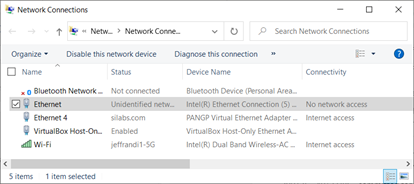
On the Windows10 PC – go to Control Panel\Network and Internet\Network Connections and Select the desired LAN interface. In my case it’s the Ethernet interface on the motherboard. If you connect the WSTK to the interface you’ll see it show up as “no Internet” but connected.

Double click the desired “interface”, then select Properties and scroll down to TCP/IPv4 and click on it and enter the IP address 192.168.1.1 as shown here:

click OK in both windows. This changes the PC Ethernet interface to a fixed IP address and apparently also provide IP addresses to connected devices.

Open Simplicity Studio (SSv5) and then Commander (Tools->Simplicity Commander)

Plug the devkit and the PC together using both USB and Ethernet.

In Commander select the USB kit number in the Select Kit drop down. Then edit the Network Information and enter as shown here:

The devkit should then get assigned an IP address of 192.168.1.2 in several seconds and then show up in SSv5 as connected via both USB and Ethernet.

Open the Zniffer application and click on Capture -> Detect Zniffer Modules if the IP device doesn’t already come up in the drop down menu. Select the IP address then click on Start and trigger some Z-Wave traffic to make sure the Zniffer is working.

When you later return to the office and want to connect the WSTK to a real network with a DHCP server, use Commander and the USB interface to go into the Network Information and select Use DHCP. The WSTK should then properly negotiate for an IP address on the network and automatically show up in the Zniffer.

Hopefully this solution is only needed for another quarter or two as we’ve had many requests to make a much easier to use ZWLR Zniffer solution. Someday I hope we would eventually switch to a Wireshark based solution but for now we have the Zniffer as-is.

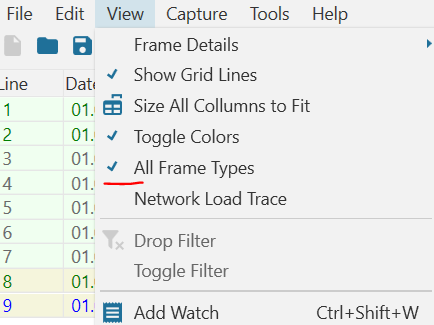
One last Zniffer recommendation is to also click on View then enable All Frames to be sure you can see the wakeup beams and CRC errors.

Make Your Own Z-Wave Device

Have you always wanted your very own Z-Wave widget-thing-a-ma-bob-doohickey? Silicon Labs recently released the Thunderboard Z-Wave (TBZ) which is an ideal platform for building your own Z-Wave device. Officially known as the ZGM230-DK2603A, the TBZ has sensors galore, expansion headers to connect even more stuff, comes with a built-in debugger via USB-C and can be powered with a single coin cell. Totally cool! I am working on a github repo for the TBZ but right now there are three simple sample apps in Simplicity Studio to get started.

ThunderBoard Z-Wave

Thunderboard Z-Wave

Features

  1. ZGM230 Z-Wave Long Range Module – +14dBm radio – 1mi LOS RF range
    1. ARM Cortex-M33, 512/64K FLASH/RAM, UARTs, I2C, SPI, Timers, DAC/ADC and more
  2. Built-in Segger J-Link debugger
  3. USB-C connectivity for SerialAPI and/or debugging
  4. RGB LED, 2 yellow LEDs, 2 pushbuttons
  5. Temperature/Humidity sensor
  6. Hall Effect sensor
  7. Ambient Light sensor
  8. 6-Axis Inertial sensor
  9. Metal sensor
  10. 1Mbyte SPI FLASH
  11. Qwiic I2C connector
  12. Break-out holes
  13. SMA connector for antenna
  14. Coin cell, USB or external power
  15. Firmware development support via Simplicity Studio

Sample Applications

There are three sample applications in Simplicity Studio at the time of this writing (Aug 2022 – SDK 7.18.1);

  1. SerialAPI,
  2. SwitchOnOff
  3. SensorMultilevel

The TBZ ships with the SerialAPI pre-programmed into it so you can use it as a Z-Wave controller right out of the box. Connect the TBZ to a Raspberry Pi or other computer to build a Z-Wave network. Use the Unify SDK to get a host controller up and running quickly or use the PC-Controller tool within Simplicity Studio for development and testing. The SwitchOnOff sample app as the name implies simply turns an LED on/off on the board via Z-Wave. This is the best application to get started as the ZGM230 chip is always awake and is easy to debug and try out. The SensorMultilevel sounds like a great app as it returns a temperature and humidity but at the moment it does not use the sensor on the TBZ and simply always returns a fixed value. SensorMultilevel shows how to develop a coin-cell powered device. Additional sample apps are expected to be available in future SDK releases but I am working on a github repo with a lot of sensor support.

Naturally a single Z-Wave Node doesn’t do much without a network. You’ll need some sort of a hub to connect to. Most of the common hubs (SmartThings, Hubitat, Home Assistant, etc) will at least let you join your widget to the network and do some basic control or status reporting. You need either a pair of TBZs or perhaps purchase the even cheaper UZB7 for the controller side and then the TBZ for the end-device. Then you have a network and can build your doohickey and talk to it over the Z-Wave radio.

Getting Started

Plug in the TBZ to your computer and open Simplicity Studio which will give you a list of applicable documents including the TBZ User Guide. Writing code for the TBZ definitely requires strong C programming skills. This is not a kit for an average Z-Wave user without strong programming skills. There is a steep learning curve to learn how to use the Z-Wave Application Firmware (ZAF) so only experienced programmers should take this on. I would recommend watching the Unboxing the 800 series video on the silabs web site to get started using Simplicity Studio. I hope to make a new video on the TBZ and publish the github repo so stay tuned.

Have you created a Thing-a-ma-bob using the TBZ? Let me know in the comments below!

Z-Wave 800 GPIO Decoder Ring

The two Z-Wave 800 series chips from Silicon Labs have flexible GPIOs but figuring out which one is the best for which function can be challenging. There are a number of restrictions based on the function and the energy (sleep) mode you need the GPIO to operate in. Similar to my posting on the 700 series, this post will guide you to make wise decisions on which pin to use for which function.

The tables below are a compilation of several reference documents but all of the data here was manually copied out of the documents and I could have made a mistake or two. Please post a comment if you see something wrong and I’ll fix it right away.

Reference Documents

  • EFR32xG23 Z-Wave 800 SoC Family Datasheet
  • ZGM230 Z-Wave 800 Module Datasheet
  • EFR32xG23 Reference Manual
  • WSTK2 Schematic (available via Simplicity Studio)
  • BRD4210 EFR32ZG23 Radio Board +20dBm Schematic
  • Thunderboard Z-Wave UG532 and Schematic

Pin Definitions

The table below lists the pins from the most flexible to the most fixed function. There are more alternate functions than the ones listed in this table. The most commonly used alternate functions are listed here to keep the table readable. Refer to the schematics and datasheets for more details.

Port A and B are operational down to EM2, other GPIOs will retain their state but will not switch or pass inputs. Thus, use port A and B for anything special and use C and D for simple things not needed when sleeping (LEDs, enables, etc).

WSTK GPIO Probe Points

Only the ZG23 QFN48 pin numbers are listed in the table. The QFN48 is expected to be pin compatible with future version of the ZG23 with additional Flash/RAM so I recommend using it over the QFN40. The WSTK2 is the Pro DevKit board with the LCD on it which comes as part of the PK800 kit. There are two sets of holes labeled with Pxx numbers on them which are handy to probe with an oscilloscope. The Thunderboard Z-Wave (TBZ) also has 2 rows of holes which are ideal for probing or connecting to external devices for rapid prototyping.

NameZG23ZGM230WSTK2TBZALT
FUNC
Comments
PB2229P19EXP5
BTN1
Use the pins at the top of this list first as they are the most flexible
PB6NA5EXP15
I2CSDA
TBZ Qwiic I2C_SDA
PB5NA6EXP16
I2CSCL
TBZ Qwiic I2C_SCL
PB4NA7
PA103523
PC1235P1EXP4PC and PD are static in EM2/3
PC2336P3EXP6
PC3437P5EXP8
PC4538P35BLUE
PC6740P33EXP9
PC8942P31LED0
PC91043P37LED1
PD34530P26IMUEN
PB02411P15VDAC0CH0
PA02512P2GREENIDACVREF
PB12310P17REDEM4WU3
VDAC0CH1
EM4WUx pins can wake up from EM4 sleep mode on a transition of the GPIO
PB3218P21EXP3
BTN0
EM4WU4
PC0134P7EXP10EM4WU6
PC5639P12EXP7EM4WU7
PC7841P13SNSENEM4WU8
PD24631P6EXP11EM4WU9
PD0_LFXTAL_O4833XC32XC32BRD4210 and TBZ have 32KHz crystal mounted
PD1_LFXTAL_I4732XC32XC32Accurate timing while sleeping – Time CC
PA73220P10TraceD3Trace pins for debug & code coverage
PA63119P8TraceD2Trace is configurable for 4, 2 or 1 data pin
PA53017P4IMUINTEM4WU0
TraceD1
PA4_TDI2916P41EXP13JTAG_TDI
TraceCLK
JTAG data in
Trace Clock out
Pins below here should be used primarily for debug
PD4_PTIDATA4429P25Packet Trace Interface (PTI) data
PD5_PTISYNC4328P24EM4WU10PTI Sync
PA9_URX3422P11EXP14VCOM UART
PA8_UTX3321P9EXP12VCOM UART
PA3_SWO2815P16JTAG_TDO
TraceD0
RTT UART printf and Trace D0
PA2_SWDIO2714P18JTAG_TMSThese two SWD pins should ONLY be used for debug and programming
PA1_SWCLK2613P20JTAG_TCKSWD debug clock
Pins below here are fixed function only
SUBG_O118NANot used by Z-Wave
SUBG_I116NANot used by Z-Wave
SUBG_O0193RFIO on ZGM230
SUBG_I017NAMatching network to SMA
RESET_N131F4Push buttons on DevKit boards
HFXTAL_O12NA39MHz crystal
HFXTAL_I11NA39MHz crystal
DECOUPLE36181.0uF X8L cap (unconnected on ZGM230)
VREGSW37NAInductor to DVDD for DCDC – 3.3V
VREGVDD38253.3V In/Out based on mode
DVDD4024VDCDC on ZGM230
AVDD41NAHighest voltage – typically battery voltage
IOVDD42261.8-3.8V
PAVDD20NA3.3V for +20, 1.8V for +14dBm
RFVDD14NA1.8V or 3.3V but less than PAVDD
VREGVSS3927, 44GND
RFVSS152, 4GND

Power Supply Pins

Obviously the power supply pins are fixed function pins. The only really configurable parts to this set of pins is the voltage to apply to the IOVDD, AVDD and whether to use the on-chip DC to DC converter or not. If your device is battery powered, AVDD should be the battery voltage assuming the battery is nominally 3V (coin cells or CR123A). AVDD can be measured by the IADC in a divide by 4 mode to give an accurate voltage reading of the battery. This avoids using GPIOs and resistor dividers to measure the battery level thereby freeing up GPIOs and reducing battery drain. IOVDD should be set to whatever voltage needed by other chips on the board. Typically either 1.8 or 3.3V. The DCDC should be used in most battery powered applications unless a larger DCDC is present on the board already to power other chips.

The other configurable voltage is the RFVDD and PAVDD and the choice there depends on the radio Transmit Power you wish to use. For +14dBm PA an RF VDD are typically 1.8V. For +20dBm PAVDD must be 3.3V.

Every product has unique requirements and sources of power so I can’t enumerate all possible combinations here but follow the recommendations in the datasheets carefully. Copy the radio board or Thunderboard example schematics for most typical applications.

Debug, PTI and Trace Pins

The two Serial Wire Debug (SWD) pins (SWCLK and SWDIO) are necessary to program the chip FLASH and are the minimum required to be able to debug firmware. While it is possible to use these pins for other simple purposes like LEDs, it is best if they are used exclusively for programming/debug. These should be connected to a MiniSimplicity or other debug header.

The SWO debug pin is the next most valuable pin which can be used for debug printfs in the firmware and output to a debugging terminal. Alternatively, the UART TX and RX pins can also be used for debugging with both simple printfs and able to control the firmware using the receive side of the UART to send commands.

The two Packet Trace Interface (PTI) pins provide a “sniffer” feature for the radio. These pins are read by Simplicity Studios Network Analyzer to give a detailed view of all traffic both out of and into the radio. The main advantage of these pins is that they are exactly the received data by the radio. The Z-Wave Zniffer can also be used as a standalone sniffer thereby freeing these pins for any use. The standalone Zniffer however does not show you exactly the same traffic that the PTI pins do especially in noisy or marginal RF conditions. Thus, the PTI pins on the device provide a more accurate view of the traffic to the device under test.

The Trace pins provide additional levels of debug using the Segger J-Trace tool. These pins output compressed data that the debugger can interpret to track the exact program flow of a running program in real time. This level of debug is invaluable for debugging exceptions, interrupts, multi-tasking RTOS threads as well as tracking code coverage to ensure all firmware has been tested. Often these pins are used for other purposes that would not be necessary during firmware debug and testing. Typically LEDs or push buttons can be bypassed during trace debug. There are options to use either 4, 2 or even 1 trace data pin but each reduction in pins cuts the bandwidth and make debugging less reliable.

LFXO and EM4WU Pins

The Low Frequency Crystal Oscillator (LFXO) pins are typically connected to a 32KHz crystal to enable accurate time keeping within several seconds per day. If supporting the Time Command Class, I strongly suggest adding the 32KHz crystal. While you can rely on the LFRCO for time keeping, it can drift by as much as a minute per hour. While you can constantly get updated accurate time from the Hub every now and then, that wastes Z-Wave bandwidth and battery power. Both the Thunderboard and BRD4210 include a 32KHz crystal so you can easily compare the accuracy of each method.

Reserve the EM4WU pins for functions that need to wake the EFR32 from EM4 sleep mode. These are the ONLY pins that can wake from EM4! Note that ports PC and PD are NOT able to switch or input from peripherals while in EM2. See the datasheet and reference manual for more details.

Remaining GPIOs

Many of the remaining GPIOs have alternate functions too numerous for me to mention here. Refer to the datasheet for more details. Most GPIOs can have any of the digital functions routed to them via the PRS. Thus, I2C, SPI, UARTs, Timers and Counters can generally be connected to almost any GPIO but there are some limitations. Analog functions have some flexibility via the ABUS but certain pins are reserved for special functions. Hopefully these tables help you make wise choices about which pin to use for which function on your next Z-Wave product.